

Recording
Every setting on a camera's Recording tab — the four modes, schedule bands and their triggers, which streams are recorded, retention, the camera's own card, and the clips list.
The Recording tab holds what this camera records, when, on which streams
and for how long. Reach it with Devices → camera → Recording
(?tab=recording). For the concepts — what the modes are for, how the
pre-buffer and post-buffer shape a clip — read Recording
first; for where footage physically goes, Storage.
The tab has, top to bottom: Retention (what is kept about the camera), Settings (the recording intent), the Recording status and timeline, and two further sections on cameras that support them — the camera's own card, and the clips list.
Retention
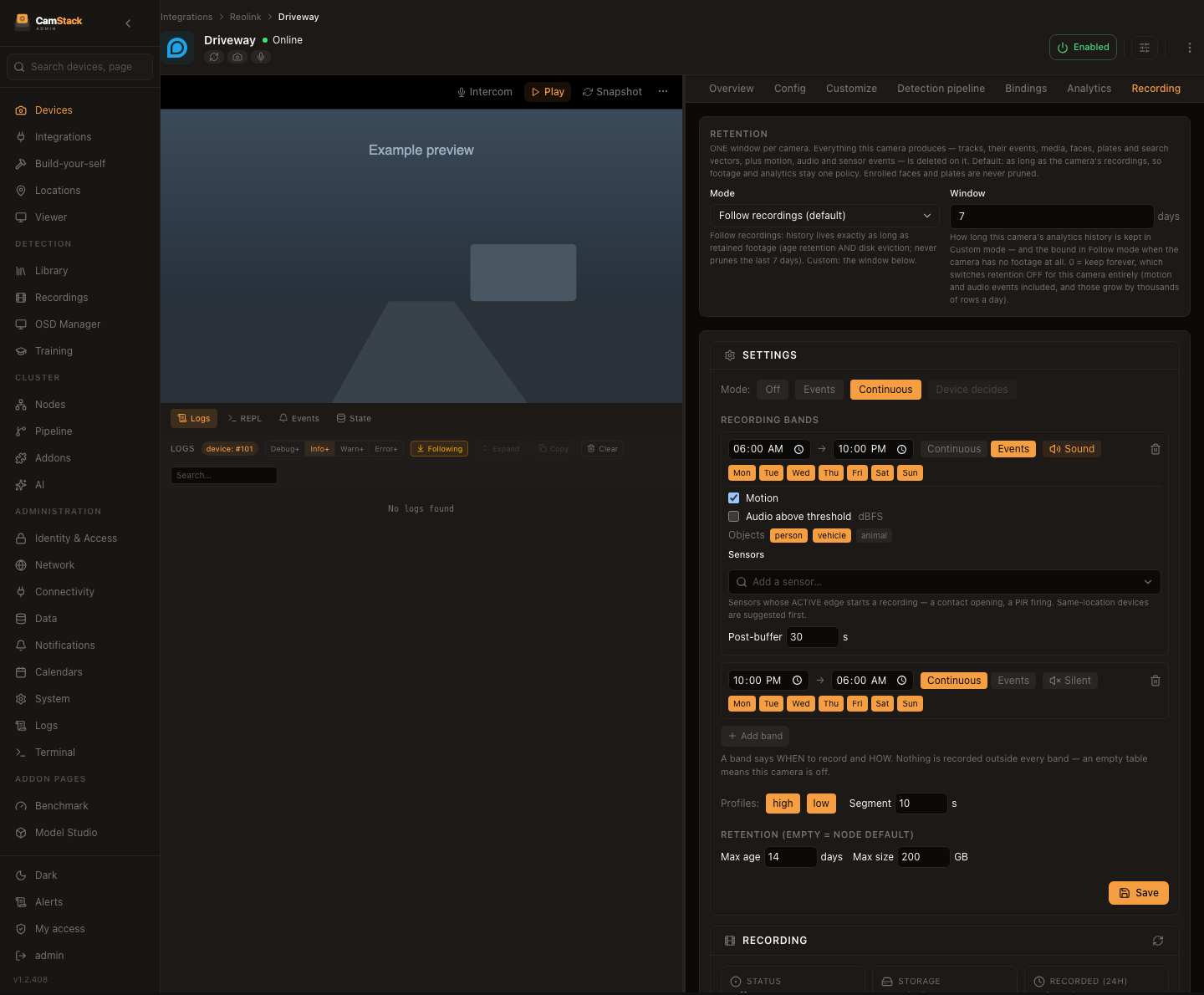
One window per camera for everything this camera produces — tracks and their events, media, faces, plates and search vectors, plus motion, audio and sensor events. Footage and analytics are one policy by default.
| Setting | Default | Range | Meaning |
|---|---|---|---|
| Mode | Follow recordings | Follow recordings · Custom window | Follow recordings: history lives exactly as long as the retained footage (age retention and disk eviction), and never prunes the last 7 days. Custom: the window below. |
| Window | 7 days | 0–365 | The history kept in Custom mode — and the bound in Follow mode for a camera that has no footage at all. 0 keeps forever and switches retention off for this camera entirely, motion and audio events included, which grow by thousands of rows a day. |
Enrolled faces and plates are never pruned. The other windows that bound the notification outbox, rendered timelapses and the artefact shelf are cluster settings, shown per camera in Analytics.
Settings
Mode
Four buttons. The mode is derived from the bands underneath — it is not stored separately.
| Mode | What it does |
|---|---|
| Off | Removes every band. Nothing is recorded; live view and detection still work. |
| Events | One band, every day, all day, in events mode. You must then choose at least one trigger — see below. |
| Continuous | One band, every day, all day, recording everything. |
| Device decides | The camera records for as long as it reports being in function (a robot while it cleans), one job is one clip, and there is nothing to schedule. Offered only on devices that report this; while that is being checked the button is disabled with a note. It cannot be combined with bands. |
Pressing Events or Continuous replaces your bands with a single all-day band; if you have a custom schedule, edit the bands instead.
Recording bands
A band says when to record and how. Nothing is recorded outside every band — an empty table means the camera is off. Add band creates a 09:00–18:00, every-day, continuous band to edit.
| Control | Meaning |
|---|---|
| Start → end | Times of day. A band that ends before it starts wraps past midnight, so 22:00 → 06:00 is one band. |
| Mon … Sun | Days the band applies. A band with no day selected applies every day. |
| Continuous / Events | The band's mode. |
| Sound / Silent | Sound records the camera's audio; Silent records the video-only stream. Available on both modes. A band with nothing chosen records sound. |
| Remove (bin icon) | Deletes the band. |
You can mix modes in one schedule — for example Events from 06:00 to 22:00 and Continuous from 22:00 to 06:00, as in the screenshot. Keep bands from overlapping; each moment of the day should belong to one band.
Events bands add the triggers that open a recording window:
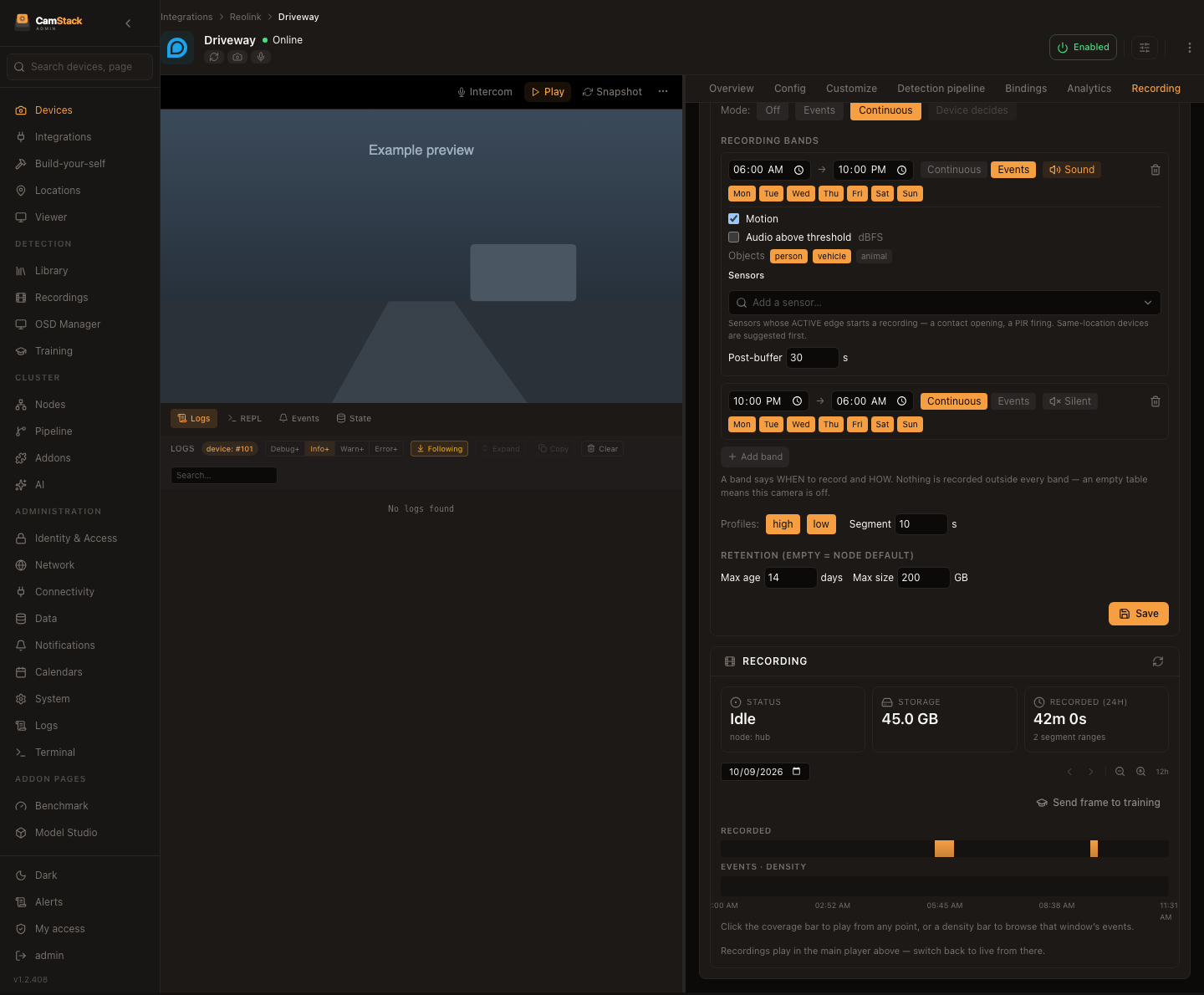
| Trigger | Meaning |
|---|---|
| Motion | The camera's motion, from the camera or from the analyzer, whichever the camera uses. |
| Audio above threshold | A level in dBFS. Ticking it offers −30. Quieter than the threshold does not trigger. Useful for glass, alarms and dogs; also the easiest way to get false triggers, so start conservative. dBFS is negative: 0 is digital full scale. |
| Objects | person, vehicle, animal — a detection of a ticked class opens a window. Only detections that went through Dominevo's own pipeline count (class enabled, confidence and size gates). The camera's onboard AI does not open windows. |
| Sensors | Linked sensors whose active edge starts a recording — a contact opening, a PIR firing. Up to 16 per band; sensors in the same location are suggested first. A contact found already open when the recorder starts does not record. |
| Post-buffer | Seconds recording continues after the last trigger. Default 30 s. Each new trigger restarts it. |
An events band with no trigger ticked can never open a window, so the camera records nothing — and nothing in the form says so (the recorder only writes a warning to its log). After choosing Events, tick at least one trigger. The same happens with a post-buffer of 0: it must exceed one segment plus the camera's connection time, which is why the default is 30 s.
There is no pre-buffer setting on a band. How much footage exists before a trigger is decided by the stream's Pre-buffer (default 5 s, up to 15 s) in Config → Stream Broker; recording and detection both draw on it.
Profiles, segment and retention
| Setting | Default | Meaning |
|---|---|---|
| Profiles | high and low (the streams the camera has assigned) | Which stream slots are recorded. Each selected profile is recorded; the buttons show only slots with an assigned stream. Recording high and low together is deliberate: the low copy is cheap and can go to a different storage location with longer retention. Deselecting all falls back to the default. |
| Segment | blank = default (10 s) | Length of one recorded file, in whole seconds. Leave blank unless a vendor quirk needs otherwise. |
| Max age | blank = node default (shown as 14) | Delete this camera's footage older than N days. 0 and up. |
| Max size | blank = node default (no limit) | Delete the oldest footage once this camera exceeds N GB. 0 and up. |
Both limits are per camera. The "disk nearly full" guard is not per camera: it belongs to the storage location, because every camera on that volume shares it (Storage).
Retention is enforced. Footage past either limit is deleted, and switching a camera's recording off does not stop deletion: the history shrinks and is not replaced.
Save at the bottom writes the whole recording intent at once.
The Recording panel
Below the settings: Status (Recording (continuous) or Idle, with the node that records), Storage (bytes this camera holds), Recorded (24h) (duration and number of segment ranges), the timeline — a coverage bar and an event-density bar over a day, with a date picker, zoom, and Send frame to training — and a rescan button that re-reads the disk. Click the coverage bar to play from that point in the main player above; click a density bar to browse that window's events.
Idle with events mode is normal between triggers. If Recorded (24h) reads "nobody could look", the recorder could not be asked — that is not the same as zero.
The camera's own card
On cameras with an SD card the tab adds two sections that write the camera, not Dominevo's recorder:
| Section | Setting | Meaning |
|---|---|---|
| Camera storage | Cards, Recording tracks | Read-only: each card's status, capacity and free space, and the camera's recording tracks. |
| Camera recording | Record to card | The camera-side master switch. |
| Overwrite when full | Keep recording by discarding the oldest footage. | |
| Pre-record / Post-record | Seconds kept before the trigger and after it clears, from the values the camera offers. Off is 0. | |
| File length | Minutes a recorded file runs before the camera starts another. | |
| Weekly schedule | Rows of Record on (Continuous, Motion, Person, Vehicle, Animal, Line crossing, Intrusion, Loitering, Alarm input — those the camera supports), Day, From and To. |
A field the camera cannot change is disabled with the reason beside it, and a trigger the camera does not support is refused by name rather than ignored.
Clip catalog refresh (Reolink)
On Reolink cameras the tab adds Clip catalog refresh: how often Dominevo re-reads what the camera holds on its own storage, so the clips list stays current.
| Setting | Default | Range | Meaning |
|---|---|---|---|
| Refresh interval (min) | blank = the addon default (30) | 0–1440 (step 5) | Leave blank to use the default from the Reolink addon's settings; 0 turns the timer off for this camera. On a camera Dominevo can reach for free (a hub child, or a mains camera) the read costs almost nothing. On a standalone battery camera the timer cannot read anything — logging in wakes such a camera — so it only marks the catalog as ageing, and the real re-read happens the next time the camera wakes for its own reasons. |
| Wake this camera to refresh | off | Shown on a standalone battery camera only. Lets the timer wake the camera: every read is a login and every login a wake, so a 15-minute timer is 96 wakes a day against the one to twenty clips such a camera records. Leave it off unless you mean it. |
Clips
The last section is a list of this camera's clips from every source it has — Dominevo's recorder and, where the integration offers them, the camera's own storage. A clip held in two places appears twice, each saying where. Each source is listed with whether it can answer and how old its catalog is; an empty list says why. Pick the period on the timeline above.
Then
Detection pipeline
Every setting of the Detection pipeline tab — the steps that run on a camera, and the motion, detection, tracking, parked-object, zone, audio and placement settings, with defaults and ranges.
Analytics
What Dominevo keeps about a camera — event snapshots and media, package delivery, audio events and markers, face matching — with defaults and ranges.