

The camera page
Where every setting of one camera lives — the header, the tabs of the device page, what each one holds, and which ones you can safely leave alone.
This section documents every setting you can reach from one camera's page in the Admin: what it means, its default, the range it accepts, and when it is worth changing. Start here to find the right page.
Open a camera
Sidebar Devices (/devices), then click the camera. The page has three
parts:
- The header — the camera's name and state, the Enabled switch, the Camera functions menu and a ⋮ menu (snapshot, reboot, restart the integration, delete).
- The left column — live preview (with Play, Snapshot and, on cameras with two-way audio, Intercom), and under it the panels you use while watching: Logs, REPL, Events and State.
- The tabs on the right — everything else. This is what the rest of this section describes.
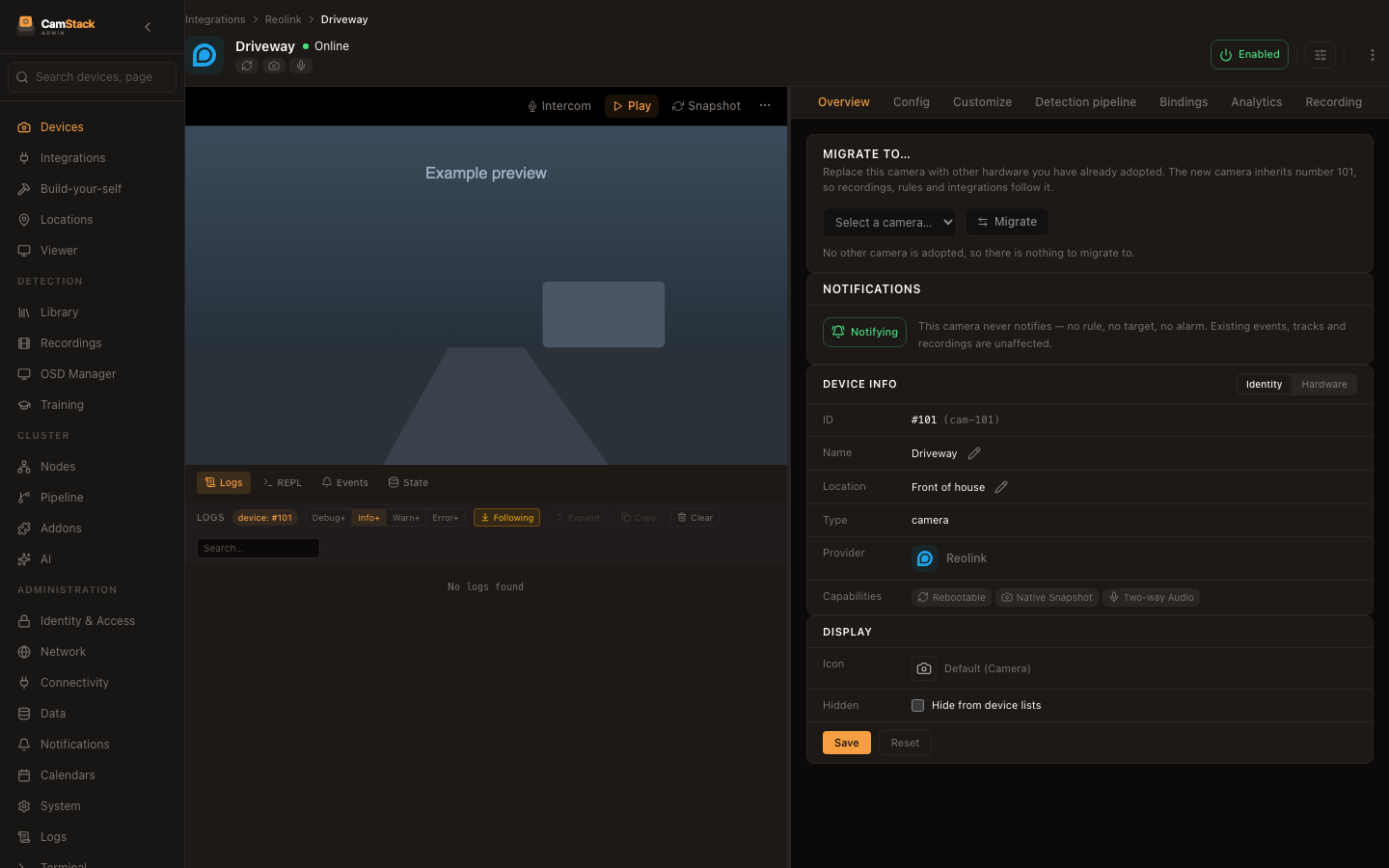
Every tab has its own address. Add ?tab= to the camera's address to link
straight to one (/devices/101?tab=recording), and &sub= for the sub-tab
inside it. A link to a tab the camera does not have opens Overview.
The tabs
| Tab | What is in it | Page |
|---|---|---|
| Overview | Identity, replace-with-other-hardware, the notification mute, live stats, stream health, name / location / icon | Overview and the header |
| Config | What the camera's own integration offers, plus the broker and snapshot settings: Image, Motion, Snapshot, Streaming, General and more | Config |
| Customize | Combine this camera with other devices — motion sensors, a doorbell button, a battery, linked devices | Customize |
| Detection pipeline | Steps (what runs on each frame) and Settings (motion, detection, tracking, parked objects, zones, audio, placement) | Detection pipeline |
| Bindings | Which addon provides each capability for this camera | Bindings |
| Analytics | What is kept about this camera: event snapshots, retention, package delivery, audio events, faces | Analytics |
| Recording | Mode, schedule bands, which streams, retention, and the footage timeline | Recording |
Depending on what the camera and its integration can do, more tabs appear: PTZ (move, presets, home position, auto-tracking), Live Stats (live occupancy, audio level, and history charts for motion, occupancy and detection), and Export (publish the camera to HomeKit, Alexa or Home Assistant — see Exporters). Customize is shown to administrators only.
The tabs are built from what the camera actually has. A control that is missing is almost always a feature this camera or its integration does not offer, not a hidden setting. Vendor notes lists what each integration exposes.
How changes are saved
- Most forms have a Save button and a Reset that discards unsaved edits. Edits made in several sub-tabs of the same form are saved together.
- Switches and one-click actions apply at once.
- Settings that are pushed to the camera itself (image, encoder, motion sensitivity) take effect on the camera. Settings that live in Dominevo (detection, tracking, recording) apply to the camera's next detection session.
- A field you never changed shows its default. Defaults on this page are what a fresh camera uses.
Where the settings live — a quick finder
| You want to… | Go to |
|---|---|
| Switch a whole function off (detection, recording, notifications, the microphone…) | Header → Camera functions, Overview and the header |
| Stop being notified about this camera | Overview → Notifications |
| Choose what motion looks at, and how long it stays "on" | Detection pipeline → Settings → Motion |
| Make detection cheaper or more sensitive | Detection pipeline → Settings → Object detection |
| Stop one subject becoming several events | Detection pipeline → Settings → Tracking |
| Stop a parked car re-triggering | Detection pipeline → Settings → Stationary |
| Draw zones | Detection pipeline → Settings → Zones — see Zones |
| Record on a schedule, keep footage longer | Recording |
| Keep a battery camera asleep | Reolink, and Config → Stream Broker wake signals |
| Change resolution, bitrate or frame rate on the camera | Config → Streaming |
| Choose which stream detection or recording uses | Config → Stream Broker — see Streams |
| Mute or blank the camera's microphone | Header → Camera functions |
Then
- Overview and the header
- Detection pipeline — the largest group of settings, and the ones that matter most.
- Recording