

Overview and the header
The camera's header controls, the nine function switches, the Overview tab, and the panels beside the live preview.
This page covers what sits above and beside the tabs of a camera's page, and the Overview tab itself. Reach it from Devices → a camera.
The header
| Control | What it does |
|---|---|
| Enabled / Disabled | Soft-disables the whole camera. A disabled camera stops processing streams and events; nothing dials it again until you enable it. Asks for confirmation when you disable. This is the same switch as the Camera function below. |
| Camera functions | A menu of nine switches, one per function. See below. |
| Admin page | Shown only when the camera's own integration has a configuration page of its own. Opens it. |
| ⋮ menu | Take snapshot (fetches a fresh frame and downloads it), Reboot device (only on cameras that can be rebooted; the camera is offline for about 30 seconds), Restart addon (restarts the integration serving this camera — every device it serves reconnects, not just this one), Delete device (removes the device and its settings; cannot be undone). |
Camera functions
The Camera functions button in the header opens nine switches. Each one turns a whole function off for this camera, and each one writes the setting that already owns that function — the camera's disable flag, the detection binding, the recording configuration, the notification mute. So a switch can never disagree with the page where you would normally find the setting.
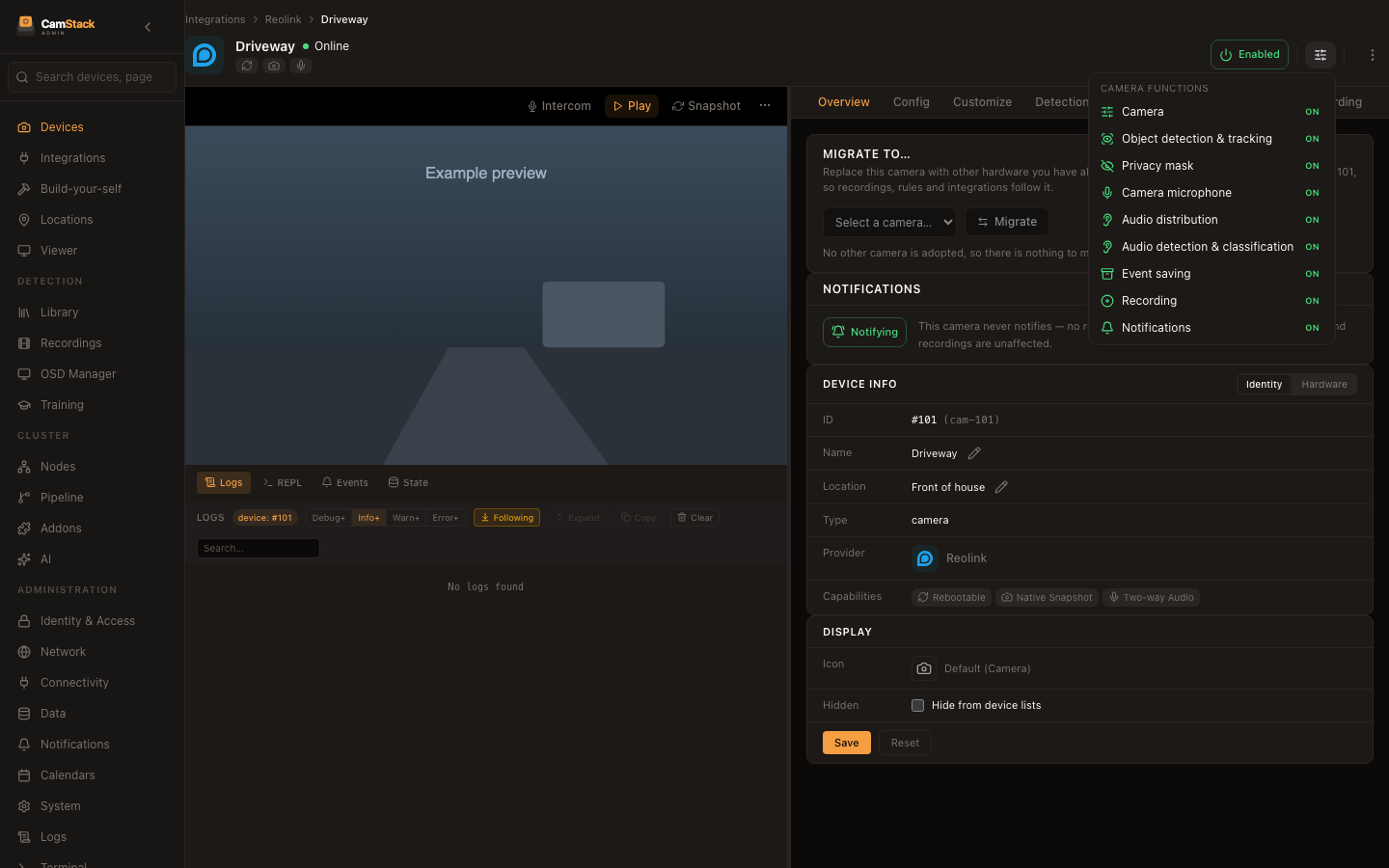
A function you switch off is reported as off — the header button shows how many are off, and status views say disabled by an operator rather than broken. A row whose state could not be read shows as unknown and cannot be clicked, rather than guessing.
| Switch | When it is off |
|---|---|
| Camera | The whole camera stops. No live view, recording, detection or notifications; its streams are released. |
| Object detection & tracking | Nothing is detected or tracked, so no events, no object notifications and no event-triggered recording. Live view and continuous recording continue. |
| Privacy mask | On means the zones you drew are blacked out by the camera itself: live view, playback, exports and detection all see black boxes, and nothing behind them was ever recorded. Off means the whole frame is captured; your zones are kept. Unlike the others, "on" is the protective state. |
| Camera microphone | The camera captures no sound at all. Live view and recordings become silent video, and audio detection has nothing to analyse. It applies at the camera, takes a few seconds (the camera restarts its encoder), and turning it back on does not recover what was not captured. Two-way talk still works. |
| Audio distribution | Dominevo stops distributing this camera's sound: live view is silent, and anything recorded while it is off is silent permanently. The camera keeps capturing. It is instant and does not interrupt the picture. |
| Audio detection & classification | No audio is decoded or classified; no audio labels and no audio-triggered rule. Audio recorded with the video is unaffected. |
| Event saving | Nothing is written to the camera's history — no tracks, events, event snapshots or clips. Detection still runs and live boxes still appear, so the camera looks busy while its timeline stays empty. Continuous recording is unaffected; history already written is kept. |
| Recording | Nothing new is written to disk. Footage already recorded stays, but retention keeps deleting it, so the history shrinks and is not replaced. Your schedule is kept and resumes when you switch it back on. |
| Notifications | This camera never notifies anyone, on any rule, with no expiry. Detection, events and recording carry on. |
Camera microphone and Audio distribution are different controls. The first is hardware privacy: it survives Dominevo entirely. The second is a Dominevo-side mute: instant and reversible, but a camera that ignores the first is still silenced by the second.
A camera that does not offer a function (no privacy mask hardware, no microphone control) shows a reason instead of a dead switch.
The left column
- Live preview with Play (switches from the still image to live video), Snapshot (refreshes the still) and Intercom where the camera supports two-way audio. Recordings you open from the Recording tab play here too.
- Logs — the log lines of this device, with level filters (Debug+, Info+, Warn+, Error+), a search box, Following (stay at the newest line), Expand, Copy and Clear.
- REPL — a console bound to this device, for administrators who script against it.
- Events — the device's events as they occur. State — the changes to the device's runtime state as they happen (values the camera or its integration reports).
The Overview tab
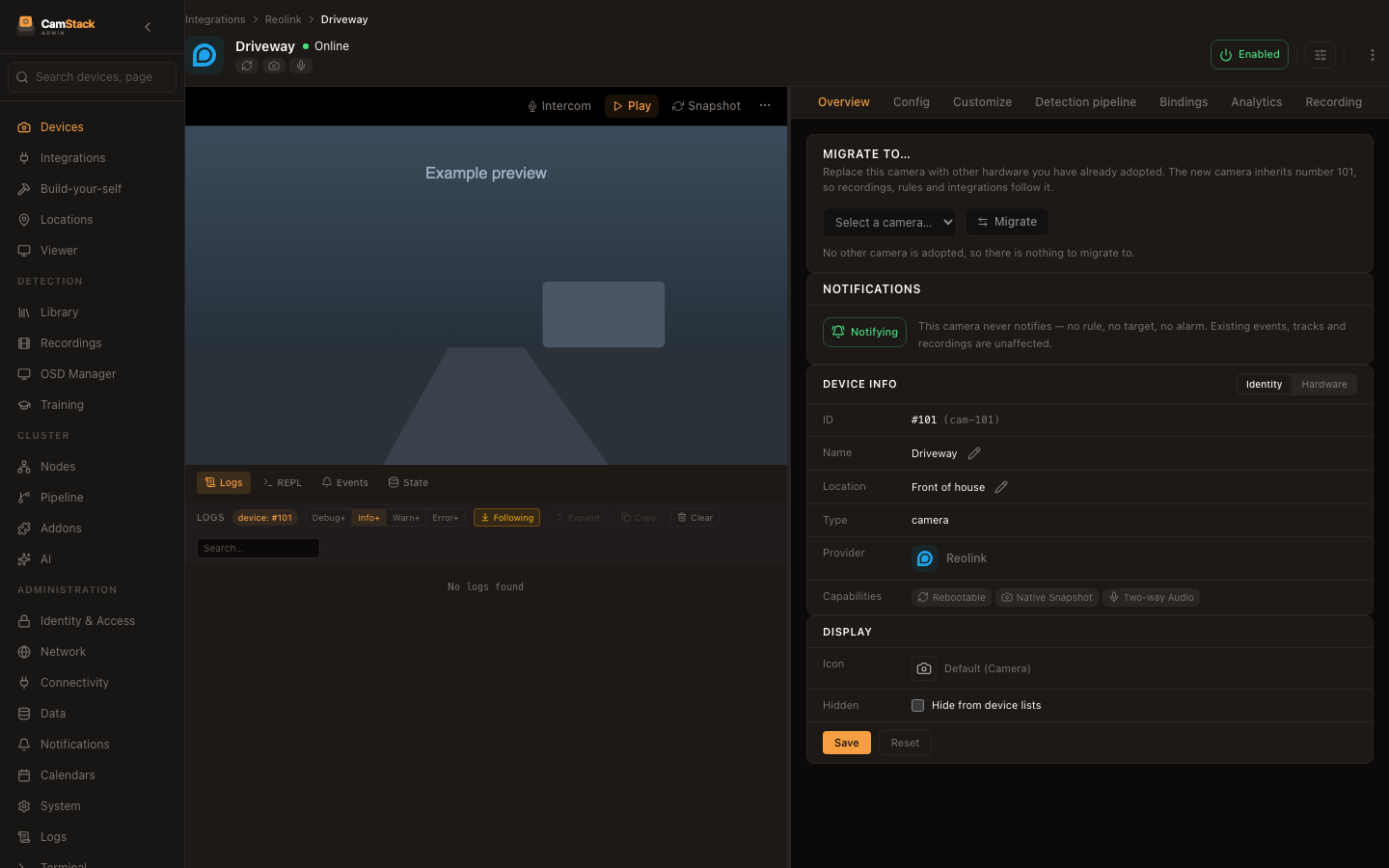
From top to bottom:
Migrate to…
Replace this camera with different hardware you have already adopted. The new camera inherits this camera's number, so recordings, rules and integrations follow it. If no other camera is adopted, the card says there is nothing to migrate to. Camera-only.
Notifications
One switch: Notifying / Muted. Muted, the camera never notifies — no rule, no target, no alarm. Existing events, tracks and recordings are unaffected. This is the same setting as the Notifications function switch, and it has no expiry; for a temporary pause use a snooze on the rule (Frequency).
Quick stats and Stream brokers
Two live panels, shown on cameras: Quick stats (detection phase, detection frame rate, inference and tracks) and Stream brokers (the state of each of the camera's streams). Below them, Stream network lists for each stream its nominal, observed and peak bitrate and its packet loss; more than 1 % packet loss is highlighted.
Device info
Two views, Identity and Hardware. Identity lists the device number, its name and location (both editable in place with the pencil), type, the integration that provides it, and its capabilities. Hardware shows what the integration reports — manufacturer, model, firmware.
Renaming a camera or changing its Location takes effect everywhere at once. Location is a free label; it is also what the pickers use to suggest devices of the same room (never to link them automatically).
Display
| Setting | Meaning |
|---|---|
| Icon | The icon every client draws for this device (the phone app can still override it on one phone). Default: the icon of its type. |
| Hidden | Hide from device lists. The camera keeps working. |
Then
- Customize — name, room, role and the devices combined with this camera.
- Notifications — the rules that actually decide what you are told.
The camera page
Where every setting of one camera lives — the header, the tabs of the device page, what each one holds, and which ones you can safely leave alone.
Config
The Config tab of a camera — image and day/night, motion on the camera, snapshots, encoder settings, the stream broker, and the sections each integration adds.