

Storage
Storage locations, the kinds Dominevo writes and where each lands by default, the four states a location can be in, local disks versus remote providers, the free-space guard, and why storage is planned per machine.
This page explains where each kind of file Dominevo writes ends up, how to point each kind somewhere else, and which setting stops a disk from filling.
Locations, not paths
Dominevo does not scatter paths through its settings. It has storage locations: named destinations you register once, and that features then write to by name.
A location is a kind, a provider, and that provider's configuration. There are six kinds:
| Kind | What is written there | How many | Default disk |
|---|---|---|---|
| Recordings | Recorded video, high quality | Several allowed | The media root |
| Recordings (Low) | The low-quality copy, when a camera records more than one slot | Several allowed | The Recordings disk |
| Event media | Snapshots and crops attached to events | Several allowed | The Recordings disk |
| Artifacts | Files that analysis produces and keeps | One | The media root |
| HomeKit Clips | Clips made for HomeKit; each camera keeps 14 days by default | One | The Recordings disk |
| Backups | Backup archives | Several allowed | The backups root |
Keeping Recordings and Recordings (Low) separate lets you store them differently. The high copy can go to a big spinning array with short retention, and the low copy to a small fast disk with long retention — so a month ago is still watchable, in low quality, without a month of 4K on the array.
The Recordings disk means a kind starts out on the same disk as your recordings location, in its own folder, until you add a location of its own. You can move any kind elsewhere later.
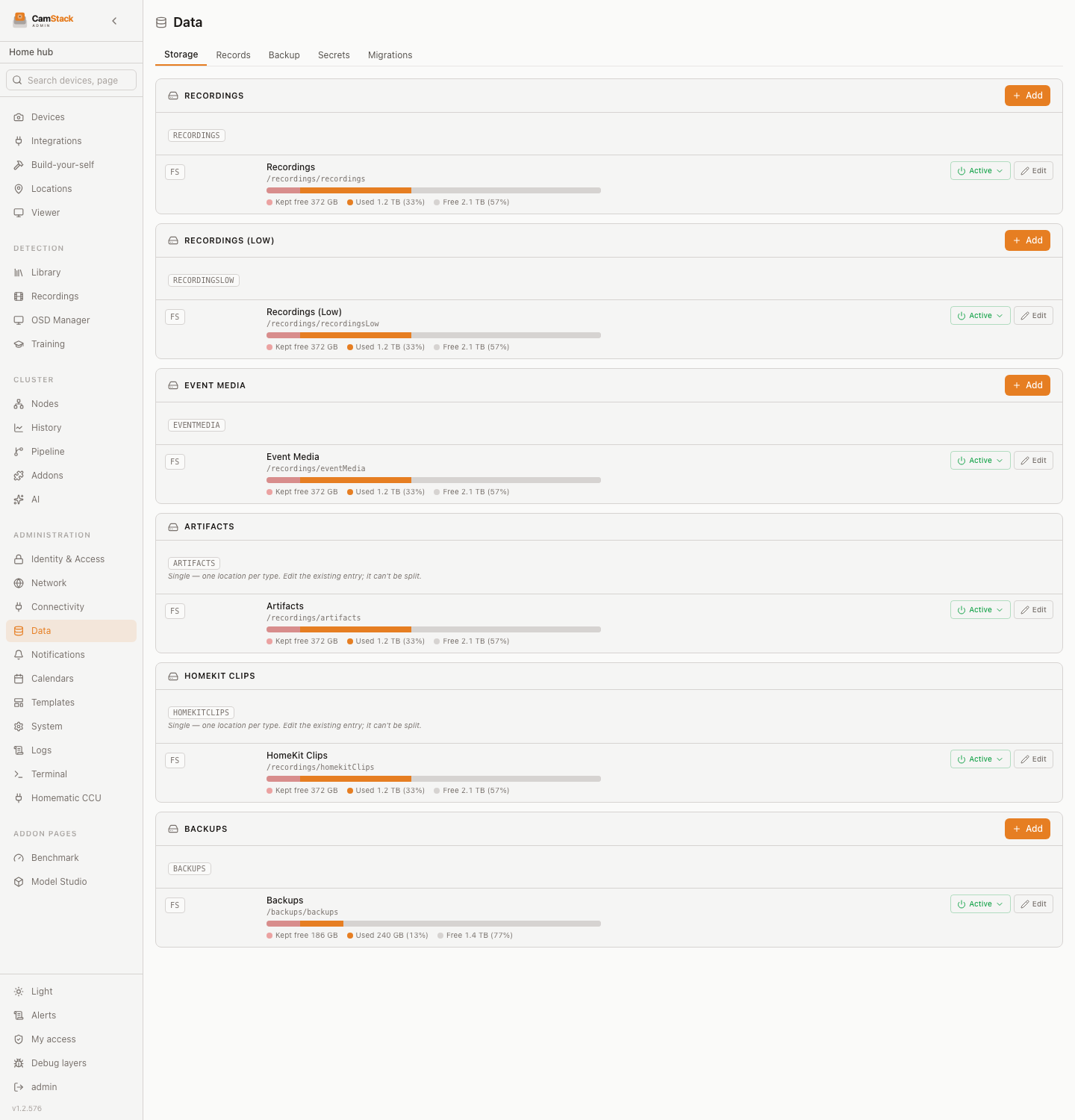
High, low and event media can also share one disk. On disk they live in
different folders under each camera (high / mid, low, events). Dominevo
treats those as separate locations, so you can drain or delete the events
location without touching the recordings next to it. The usage of each
location counts only its own class of folder: Event media counts events,
Recordings (Low) counts low, Recordings counts high and mid.
Anything else on the disk is other data, never part of a location's own
share.
The four states of a location
Every location is in one of four states. Each state answers three questions: does Dominevo write new files here, can you still watch what is here, and may Dominevo delete old files here to make room.
| State | New files | Existing footage | Old files deleted |
|---|---|---|---|
| Active | Yes | On the timeline | Yes, oldest first, when the disk fills up |
| Read-only | No | On the timeline | Never |
| Drain | No | On the timeline until it is deleted | Yes, a little at a time, until the location is empty |
| Disabled | No | Hidden from the timeline | Never |
Active is the normal state: new data is written here, and the oldest is deleted when the disk fills up. Every active location of a kind is used at once. There is no single "default disk" that silently wins.
Read-only freezes a location. Nothing new is written and nothing is ever deleted, but you can still play back everything on it. Use it for an archive you want to keep exactly as it is.
Drain empties a location slowly, so you can retire a disk without losing history all at once. Nothing new is written there. Each time the active locations of the same kind grow, Dominevo deletes the same amount of the oldest footage from the draining one. Your total history stays about the same size while the old disk empties. If your cameras stop recording, nothing is deleted. The location card shows how much is left and, once Dominevo has measured how fast your other disks grow, an estimate of when it will be empty.
Disabled takes a location out of use completely. Nothing is written and nothing is read, and nothing is deleted: the footage stored there disappears from the timeline until you turn the location back on. Dominevo asks you to confirm before it disables a location.
Changing the state
- Open Administration → Data, on the Storage tab.
- On the location's card, click the state button (it shows the current state, for example Active).
- Pick the new state. Each choice says what will happen before you click it.
You cannot move the last active location of a kind out of Active: new files would have nowhere to go. The choice is still shown, greyed out, with the reason. Add or activate another location of that kind first.
Retiring a disk
- Add the new location and make sure it is Active.
- Set the old location to Drain and let it empty. Or set it to Read-only if you want to keep its footage until you remove it by hand.
- Delete the old location once it is empty.
Deleting a location removes its record only. Files on disk are never touched. Dominevo refuses to delete a location that still holds data, or one it cannot check. If the disk is already gone, you can force the delete, but anything that was still on it can no longer be played back.
You also cannot delete the only location of a kind.
One disk per location of a kind
Two locations of the same kind cannot point at the same disk folder, and one cannot sit inside the other. Dominevo refuses the location when you save it and names the one it collides with. Locations of different kinds can share a disk, as described above.
Providers
| Provider | Lives where | Note |
|---|---|---|
| Filesystem | On one specific node's disk | The default, and the only sensible one for recordings |
| SMB | A network share | Reachable from any node that can mount it |
| S3 | Object storage | Reachable from any node |
| SFTP | A remote server | Reachable from any node |
| WebDAV | A remote server | Reachable from any node |
A filesystem location belongs to a node — the path exists on one machine's disk and Dominevo tracks which. The remote providers do not; any node can reach them.
Do not put live recordings on a remote provider. Recording is a continuous write at camera bitrate, and playback is latency-sensitive seeking. S3, SFTP and WebDAV are for backups and for archiving — that is what they are good at. Recordings belong on a local disk.
The free-space guard
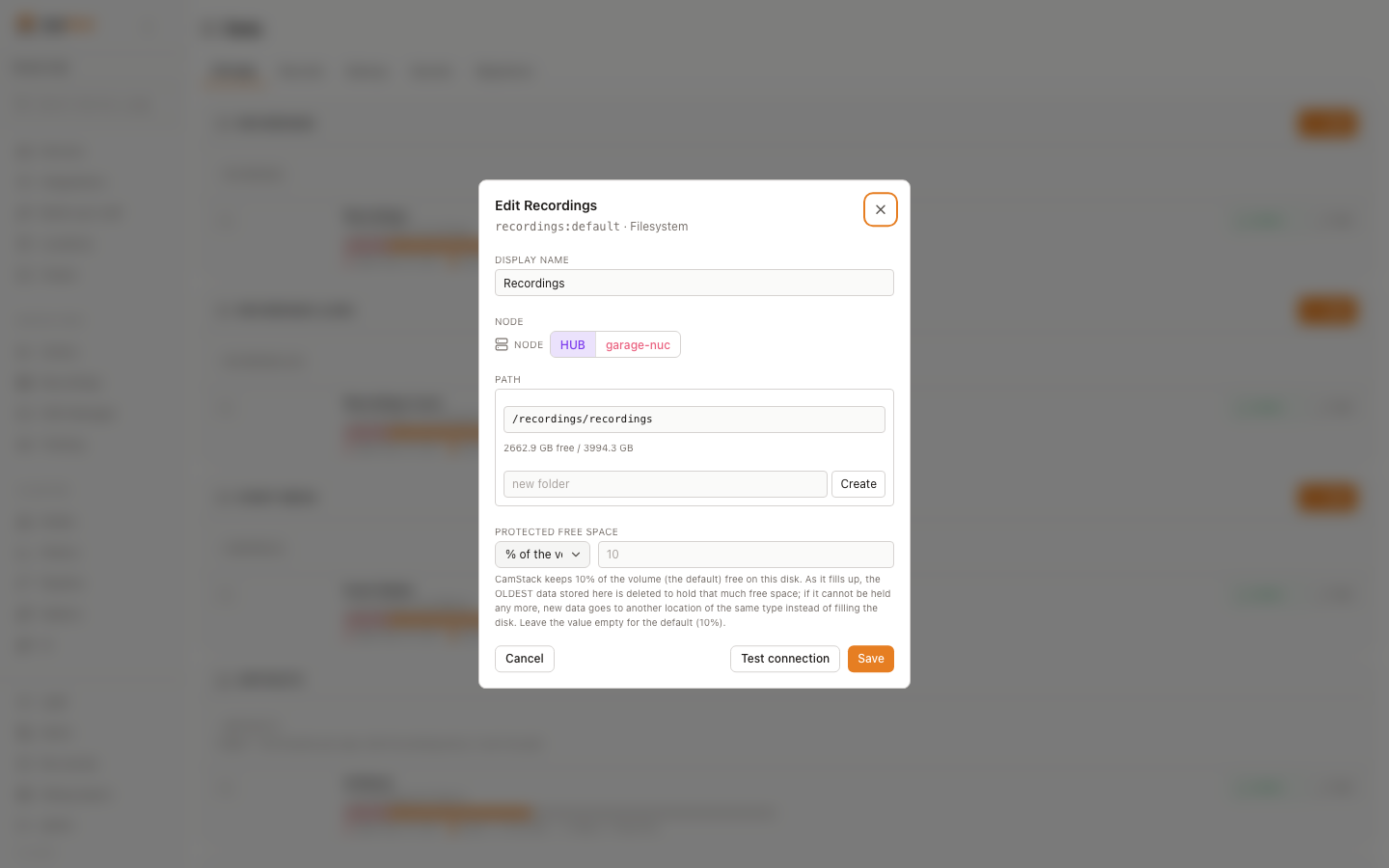
Each location has a protected free space: an amount of the disk Dominevo keeps free. You can set it as a percentage of the volume or as a number of GB. Leave it empty to use the default shown in the field.
As the disk fills up, Dominevo deletes the oldest files stored on that location to keep that space free. If it still cannot keep it free, new files go to another active location of the same kind instead of filling the disk.
This lives on the location and not on the camera, and that is deliberate: it is a property of the disk, shared by every camera writing to it. Per-camera retention decides how much history each camera is entitled to; the free-space guard decides when the volume as a whole says no. One protects your archive, the other protects your machine.
Set it high enough to matter. A volume that also holds your operating system needs meaningfully more headroom than a dedicated recording array.
DOMINEVO_MEDIA_ROOT
The trap that catches people who did everything else right.
Mounting a volume at /recordings does nothing on its own. The container
writes media under whatever DOMINEVO_MEDIA_ROOT points at, and if you have
not set it, that is inside /data — which on a NAS is usually your cache
drive, and which is the one directory you were trying to keep small.
volumes:
  - /mnt/array/dominevo:/recordings
environment:
  - DOMINEVO_MEDIA_ROOT=/recordings   # ← without this the mount is unused
The symptom is unmistakable once you know it: /data grows steadily and
/recordings stays empty.
The three paths, and which to back up
| Path | Holds | Size | Back up? |
|---|---|---|---|
/data | Addons, models, TLS certificates, logs, the database | Modest | Yes — losing it loses the install |
/recordings | Recordings and event media | Everything | Your call |
/backups | Backup archives Dominevo writes | Grows with your retention | Copy it off the machine |
/data is small and irreplaceable. /recordings is large and,
usually, not worth backing up — you have the events either way.
/backups is a volume of the image and the default for the Backups kind
(DOMINEVO_BACKUP_ROOT is already set to it). A backup kept only on the
machine it protects is lost with that machine, so put /backups on a different
disk from /data, and copy it somewhere else as well, or add a remote
Backups location (S3, SFTP, WebDAV or SMB) under Storage.
Where locations land by default
On first boot each kind gets a default location named <kind>:default.
Where its folder goes depends on two settings, not on the kind:
DOMINEVO_MEDIA_ROOTdecides Recordings and Artifacts. When it is set, each gets a folder under it (<media root>/recordings). When it is not set, they go under the node's data directory.DOMINEVO_BACKUP_ROOTdecides Backups:<backup root>/backups.- Recordings (Low), Event media and HomeKit Clips have no root of their own. They follow the Recordings location.
| System | Recordings and event media | Backups | What decides it | Moving it to another disk |
|---|---|---|---|---|
| Docker image / Compose | /recordings, when you set DOMINEVO_MEDIA_ROOT=/recordings and map the volume; otherwise under /data | /backups (the image sets DOMINEVO_BACKUP_ROOT) | Your compose file | Change the host side of the volume mapping |
| Unraid | /recordings, mapped to an array share; the template sets DOMINEVO_MEDIA_ROOT=/recordings | /backups, mapped to a share | The template's paths | Change the share the path points at |
| Proxmox | /recordings in the container, bound from /opt/camstack/recordings on the host | /backups, bound from /opt/camstack/backups | RECORDINGS_HOST_PATH and BACKUPS_HOST_PATH at install | setup-camstack-recordings-volume.sh for recordings; pct set for backups |
| Mac app | Under the app's data/ folder | Under data/ | Nothing: there is no media root | Add a location on the other disk under Storage |
| Windows agent | Under the agent's data directory | Under the data directory | Nothing: there is no media root | Add a location on the other disk under Storage |
The image does not set DOMINEVO_MEDIA_ROOT; the Unraid template, the Proxmox
installer and the Compose example do. If you write your own container command,
you set it. When a container starts and cannot write the media or backup mount,
the entrypoint fixes the ownership of the mount root so that Dominevo can.
Every machine has its own locations and its own disks; see Storage is per machine.
How the defaults are created
- Each kind's default is created at first boot, under the root described above.
- A default you delete is not created again on the next start. Deleting one is a decision, and Dominevo keeps it.
- To move a kind to another disk later, edit its location, or add a new one and retire the old disk.
- You can add more locations, or point an existing one at another folder or disk, from Administration → Data → Storage: Add on a kind's group adds one, Edit on a card changes it.
When a kind has no location
If a kind has no location at all, the admin UI shows an alert, because that kind has nowhere to write. This happens after you delete a default, or on a node where one was never created. Open Administration → Data → Storage and Add a location to that kind's group. Kinds that follow the Recordings location work again as soon as one exists.
Storage is per machine
If you run agents, this is the fact to internalize:
Each node records its own cameras, to its own storage locations, on its own
disk. There is no shared pool. An agent with four cameras needs its own
/recordings volume, its own media root and its own retention.
So plan storage per machine. "How much space does my cluster need" is not a question with an answer; "how much space does this box need for its four cameras" is.
Watching what it actually uses
Each location card has a bar made of four bands that add up to the volume: Kept free (the protected free space), Dominevo (what Dominevo's own files on this disk hold), Other data (everything else on the disk) and Free. A draining location also marks its Drain target, and an active one with a system-managed cap marks that Cap; both are managed by Dominevo, not something you drag.
Unknown is not zero
When Dominevo could not measure something, the card says so instead of painting an empty or full bar:
- Capacity unknown — nothing measured the volume from where Dominevo runs: a remote share, a location on another node, or a mount that did not answer. If Dominevo knows how much it holds there, it says Capacity unknown · Dominevo holds that amount.
- When the share Dominevo's own files take could not be measured, the Dominevo band and its legend entry are left out. That means "not measured", never "zero".
A blank is a missing measurement, not an empty disk.
Look at the bar after a week of real traffic rather than estimating: the difference between cameras is much larger than people expect, and one busy camera pointed at a road can outweigh several quiet ones.
That number is also the honest input to your retention settings. Set retention against what your cameras actually produce, not against what you assumed they would.
Leftover data from removed addons
When an addon stops using some of the data it stored (a kind of record, or a setting it no longer reads), that data stays in the hub's database. Dominevo looks for it so it can tell you instead of leaving it unnoticed:
- It scans when the hub has started its addons, then every 24 hours, and on demand. A scan only reads. It never deletes, and it logs each finding by owner and name, never the value.
- A finding is orphaned (a kind of record whose addon is no longer installed, or is running and no longer declares it), stale (a setting the running addon says it no longer declares), or unknown. Unknown means Dominevo cannot tell, for example an addon that is installed but not running or did not answer. Unknown data is never offered for removal.
- Deleting is a separate step that only an administrator can run, and it re-checks the finding at that moment: anything that is no longer orphaned or stale is refused. Removing an item also clears the passwords the keychain holds for it.
This audit has no page in the admin UI yet. It is reachable through the
hub's administrator API (the storage-admin capability: staleDataReport, scanStaleData,
dropOrphanedKind, unsetStaleSettingsKey). An addon that lives only on an
agent is judged "not installed" by the hub, so treat such a finding as a
candidate to verify, not as proof.
Then
- Recording — what gets written, and the retention that bounds it.
- Planning — the storage decision in the context of the others.
- Adding another machine — when storage becomes a per-node question.
Overview
Continuous or event recording per camera, schedules that change mode by time of day, pre- and post-buffers, and retention that genuinely deletes.
Overview
What Dominevo detects, the step tree that turns a frame into a named track, and the handful of settings that decide both accuracy and cost.