

Bindings
Which addon provides each capability for a camera, and how to switch a wrapper on or off for one camera.
Bindings lists the capabilities a camera has and which addon provides
each one for this camera. Reach it with Devices → camera → Bindings
(?tab=bindings). Cameras only. Most people never need it; it is where you
see why a camera behaves the way it does.
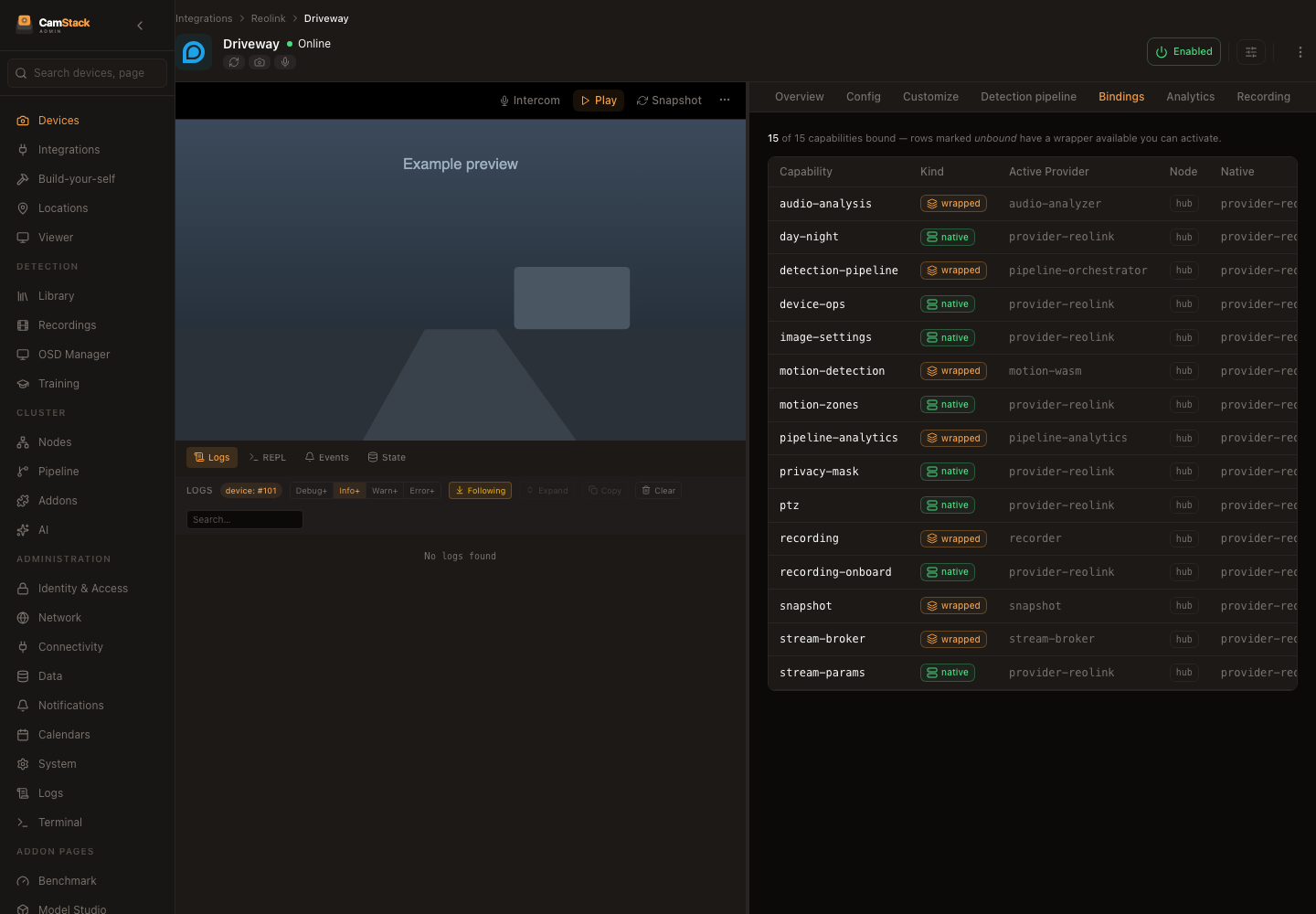
A summary line counts them: 15 of 15 capabilities bound — rows marked unbound have a wrapper available you can activate.
| Column | Meaning |
|---|---|
| Capability | The function: detection-pipeline, recording, snapshot, stream-broker, ptz, image-settings… |
| Kind | native — the camera's own integration provides it. wrapped — an addon provides it on top of the camera (recording, detection, analytics are wrappers). unbound — nothing provides it yet, but a wrapper could. |
| Active Provider | The addon serving it now. |
| Node | The cluster node it runs on. |
| Native | The camera's own provider for that capability, if there is one. |
| Wrapper | The wrappers available. A highlighted one is active; clicking it deactivates it and reverts to native. Clicking an inactive one activates it. |
When to use it
- A function is missing. A capability shown unbound with a wrapper
available can be switched on here. For example, activating the
snapshotwrapper on a camera with no snapshot URL routes snapshots through the stream broker. - A function is behaving oddly and you want to know who is serving it — the Active Provider and Node columns answer that.
Wrapper toggles are the same settings the header's Camera functions
switches write: deactivating the detection-pipeline wrapper is the Object
detection & tracking switch going off, and audio-analysis is Audio
detection & classification. To take a function off, prefer the switch — it
names what you lose and reports the camera as switched off rather than
broken.
Then
- Overview and the header
- Cluster — where nodes and placement are managed.
Customize
The Customize tab — name, room and role, camera motion from attached sensors, a doorbell press, battery, consumables, numeric transforms and linked devices.
Reolink cameras
The sections a Reolink camera adds to its page — scheduled refresh and sleep push for battery cameras, on-camera motion and AI sensitivity, image, audio, network and advanced settings.