

Config
The Config tab of a camera — image and day/night, motion on the camera, snapshots, encoder settings, the stream broker, and the sections each integration adds.
Config holds the settings that belong to the camera and to how Dominevo
reads its streams. Its sub-tabs are built from what the camera offers, so two
cameras show different sub-tabs. Reach it with Devices → camera →
Config, then the sub-tab (?tab=config&sub=image).
Two kinds of setting live here, and the difference matters:
- Camera-side settings — image, day/night, encoder, on-camera motion, privacy mask — are written to the camera. Option lists are read live from the camera; a field its firmware does not expose is hidden.
- Dominevo-side settings — snapshot preferences, the stream broker, the motion analyzer — are stored by Dominevo and apply to how it reads the camera.
Image
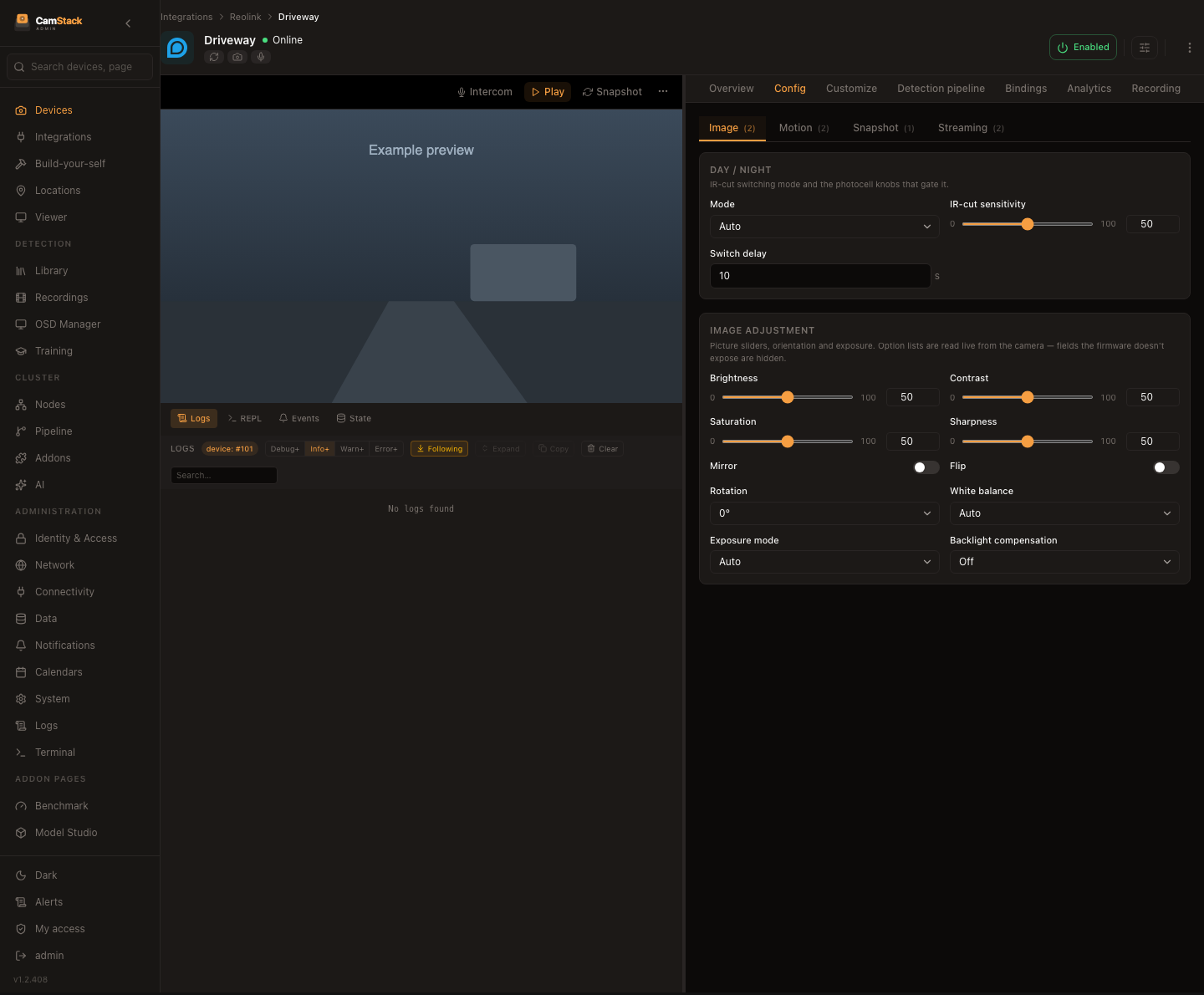
Day / Night
IR-cut switching mode and the photocell knobs that gate it.
| Setting | Meaning | Range |
|---|---|---|
| Mode | Auto, Day, Night or Schedule — only the modes this camera accepts are offered. | |
| IR-cut sensitivity | How readily the camera switches to night. Higher switches to night sooner. | 0–100 (normalized), step as the camera allows |
| Switch delay | Seconds before the IR-cut filter flips. | Camera-reported range, seconds |
Leave the mode on Auto unless the camera flips at the wrong time; adjust IR-cut sensitivity and Switch delay before forcing Day or Night.
Image adjustment
| Setting | Meaning |
|---|---|
| Brightness, Contrast, Saturation, Sharpness | Sliders, normalized to 0–100 whatever the vendor's own scale. |
| Mirror, Flip | Mirror horizontally / flip vertically. |
| Rotation | 0°, 90°, 180° or 270° — the options the camera offers. |
| White balance | Auto or Manual. |
| Warmth | Appears only when white balance is Manual. 0–100. |
| Exposure mode | Auto or Manual. |
| Backlight compensation | Off, BLC (backlight compensation), WDR (wide dynamic range) or HLC (highlight compensation) — as offered. |
Changing Rotation, Mirror or Flip changes what detection sees as well as what you see; redraw zones afterwards.
Privacy mask
Zones you draw on a still image are blacked out by the camera, so the black boxes are in every stream, recording and detection frame, and what is behind them was never captured. How many zones, which shapes (rectangle, polygon) and how many polygon points depend on the camera. Switching the mask off keeps your drawing. The master switch is also in the header → Camera functions. Where the camera supports it, a mask section also offers muting the camera's microphone.
On-screen display
Text burned into the picture by the camera is managed in the OSD Manager.
Motion
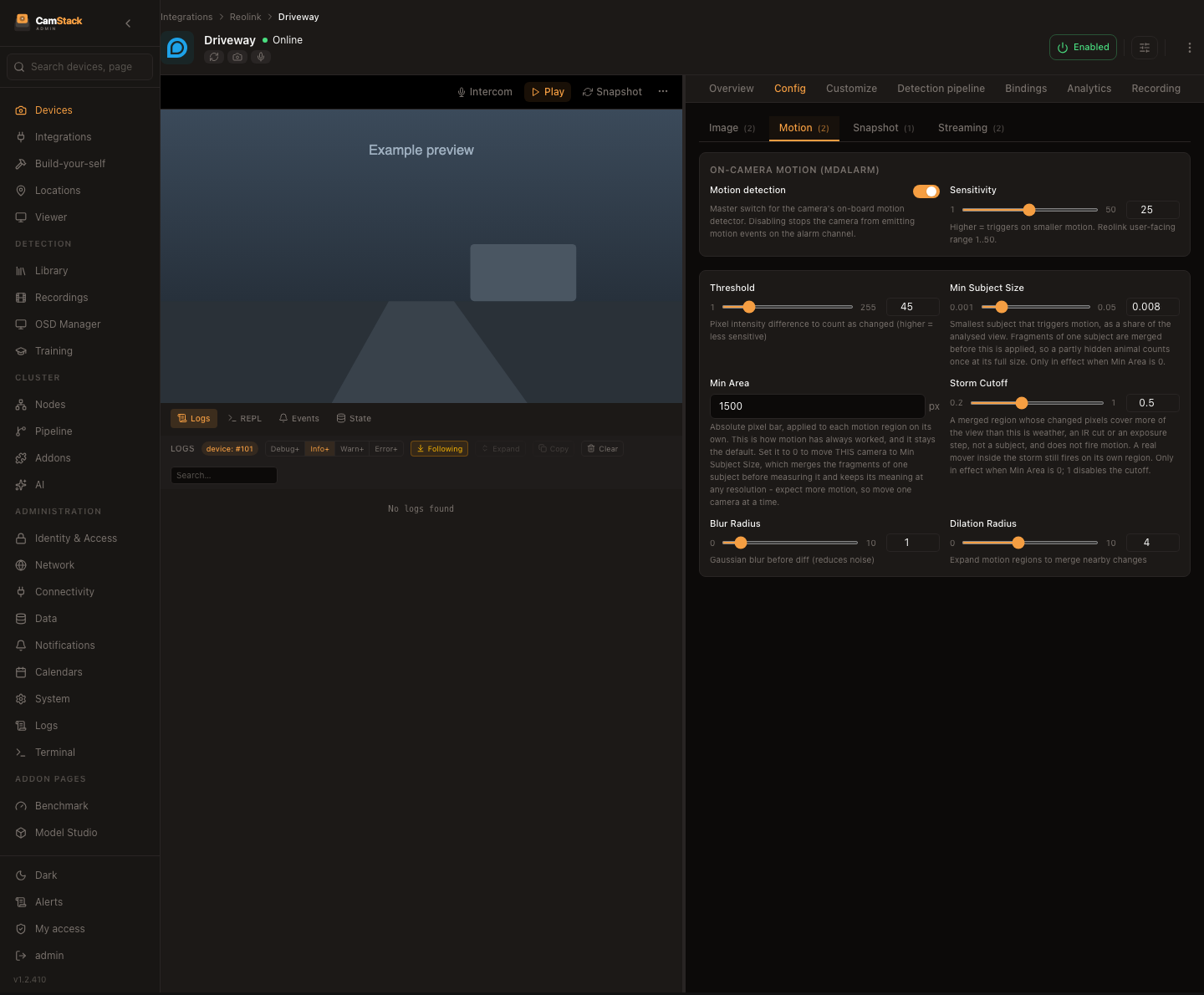
Motion settings come from three places. The settings that choose which signals count as motion and how long motion stays active are in Detection pipeline → Settings → Motion (page).
On-camera motion (integrations that expose it — Reolink, Hikvision, Amcrest/Dahua, and others): a master switch and a Sensitivity slider. Reolink's range is 1–50; higher triggers on smaller motion. A Motion Zones editor lets you restrict where the camera looks, on a grid whose size is the camera's. These are the camera's own zones; Dominevo's Zones are separate and apply to detection.
Analyzer tuning (Dominevo's frame-difference motion detector, six knobs). Shown when the frame-diff analyzer is one of the camera's motion sources. Most cameras never need these changed.
| Setting | Default | Range | What it does |
|---|---|---|---|
| Threshold | 45 | 1–255 | How different a pixel must be to count as changed. Higher is less sensitive. |
| Min Area | 1500 px | 0–50 000 | Absolute size, in pixels, of the smallest motion region. Applied to each region on its own. 0 moves this camera to Min Subject Size below. |
| Min Subject Size | 0.0085 (0.85 % of the view) | 0.001–0.05 | Smallest subject as a share of the analysed view. Fragments of one subject are merged first, so a partly hidden animal counts once at its full size. Only in effect when Min Area is 0. |
| Storm Cutoff | 0.5 | 0.2–1 | A merged region covering more of the view than this is weather, an IR cut or an exposure step, not a subject. A real mover inside it still fires. Only in effect when Min Area is 0; 1 disables the cutoff. |
| Blur Radius | 1 | 0–10 | Blur before comparing frames; reduces noise. |
| Dilation Radius | 4 | 0–10 | Grows motion regions so nearby changes merge. |
The default keeps the absolute Min Area rule. Setting it to 0 switches that camera to the subject-relative rule, which keeps its meaning at any resolution but produces more motion. Change one camera at a time and watch it for a day.
Snapshot
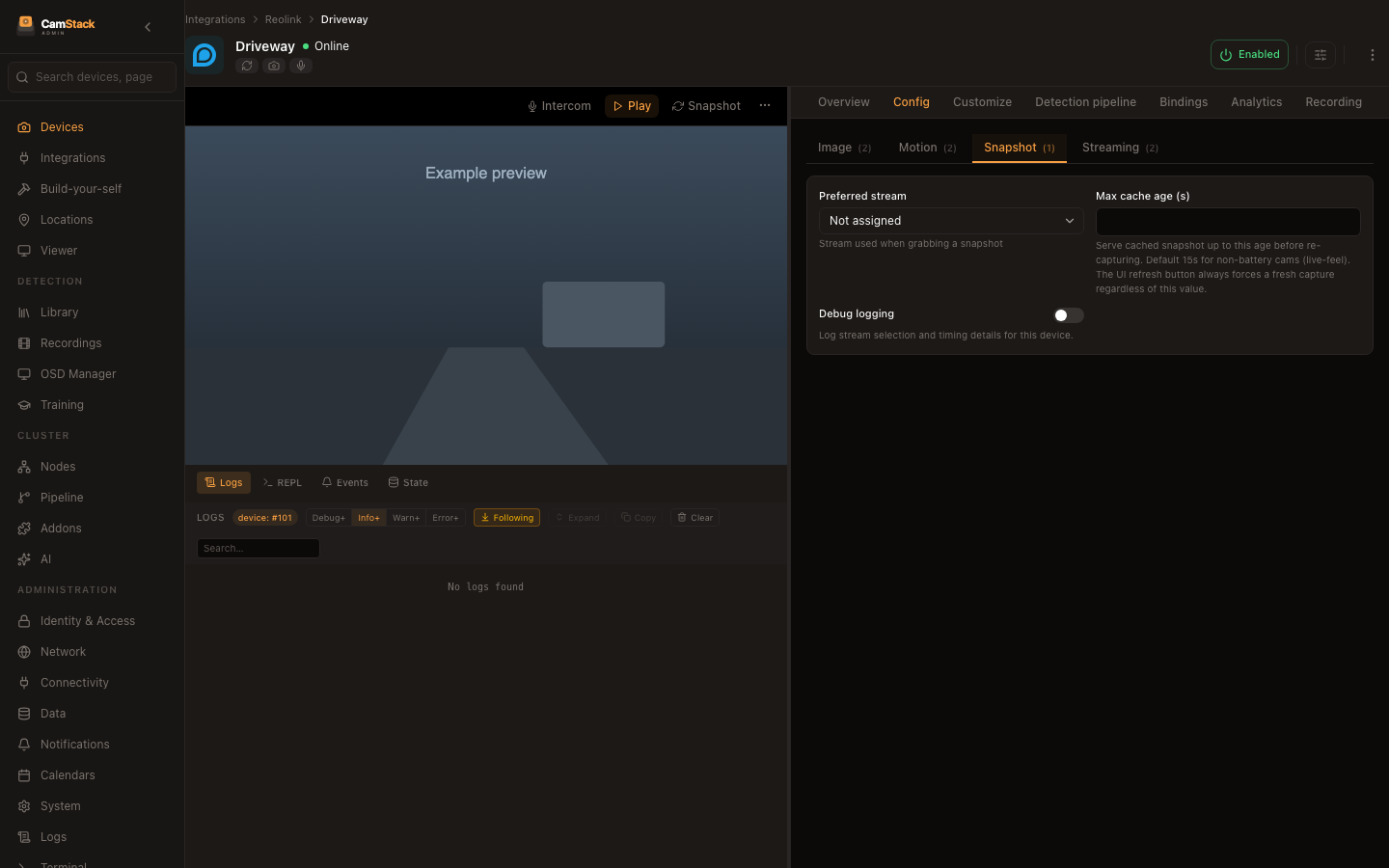
How Dominevo takes a still image of the camera for list thumbnails, the live preview and notifications.
| Setting | Default | Meaning |
|---|---|---|
| Preferred stream | Not assigned | The stream a snapshot is taken from. |
| Max cache age (s) | 15 s (mains camera), 3600 s (battery camera) | A cached snapshot younger than this is served instead of capturing again. 0–86 400. The refresh button in the UI always forces a fresh capture. |
| Debug logging | off | Log which stream was picked and how long it took. |
The long default on battery cameras is deliberate: every fresh capture wakes the camera. Raise it further for a camera you want asleep; lower it only if you need a live-feeling still. Event photos kept with detections are a different setting — see Analytics.
Streaming
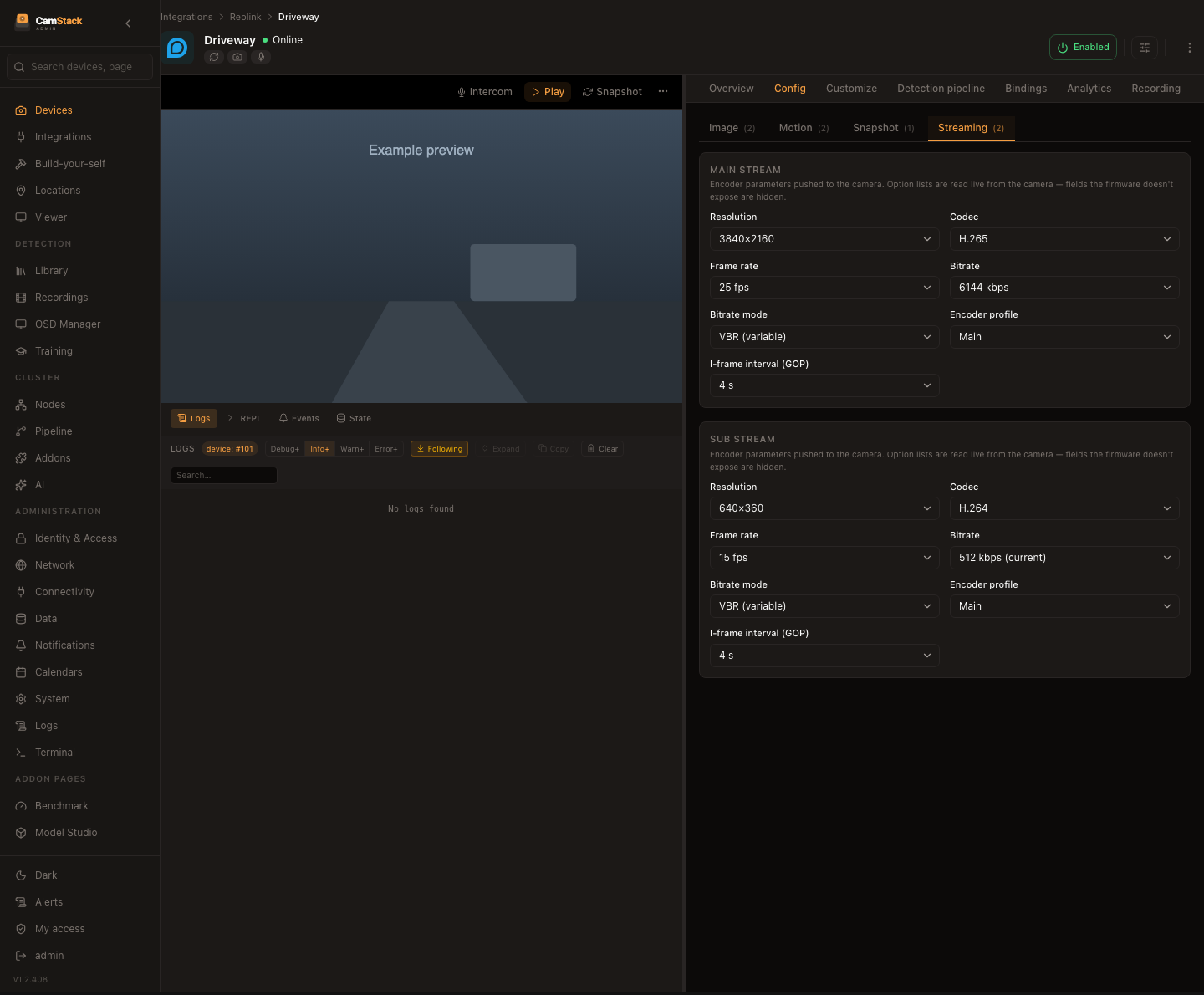
The camera's encoder parameters, one section per stream the camera publishes (Main, Sub, sometimes Ext). Written to the camera.
| Setting | Meaning |
|---|---|
| Resolution | From the resolutions the camera offers for that stream. |
| Codec | H.264 or H.265, as offered. H.265 is smaller but not playable everywhere; Dominevo transcodes where a viewer needs it. |
| Frame rate | The camera's offered rates. |
| Bitrate | Offered rates, in kbps (or a range, where the camera gives one). |
| Bitrate mode | VBR (variable) or CBR (constant). |
| Encoder profile | High, Main or Baseline. |
| I-frame interval (GOP) | Seconds between keyframes. |
A viewer joining a stream starts at the next keyframe, so a long keyframe interval means a slower start; above about 2.5 s the burst Dominevo hands a new RTSP client turns into jitter (see Join-burst bound below). Motion analysis reads the Low stream by default, so a very low bitrate or resolution on the sub stream makes motion and detection worse; see Streams before changing which stream is used for what.
Stream Broker
The stream broker is the part of Dominevo that dials the camera once and shares the result with live view, recording and detection. This sub-tab has:
- General — three selectors, High Quality, Mid Quality and Low Quality, choose which camera stream serves each slot, and Derived stream names lets you add a stream Dominevo re-encodes from another (with its own source, encode parameters, pre-buffer and RTSP restream; both off by default).
- One sub-tab per camera stream, with:
| Setting | Default | Meaning |
|---|---|---|
| Source parser | Native | How the stream is ingested: the built-in client, or an FFmpeg re-mux reader; TCP is the safe default, UDP lowers latency where the network allows it. Offered only for RTSP and RTMP sources. |
| Probed | — | The detected video and audio properties. Probe now briefly dials the stream (it wakes a sleeping battery camera for a few seconds). |
| RTSP Restream | on | Expose this stream through Dominevo's RTSP server; shows the URL, a muted (video-only) URL and, on cameras with wake signals, a sentry URL that shows the last picture while the camera sleeps. |
| Pre-buffer | on for a mains camera's main profile; off for a battery camera | Keep the stream connected and the last few seconds of it in memory, so a recording or a detection that attaches after an event starts before the event. It is the only history setting: recordings and detection ask for what is kept here. It costs a permanent connection and memory. |
| Pre-buffer Duration | 5 s | 0–15 s kept while the pre-buffer is on. A consumer gets at most this much, and never more than the stream has been connected. |
| Join-burst bound | 0 (inherit the cluster default) | 0–6000 ms. How much recent video a client joining the RTSP restream is handed at once. Raise it only for a camera whose keyframe interval is longer than the cluster default. |
| Decode acceleration | Software (copy) | Hardware decode backend for the transcode paths (H.265 to H.264 for browsers, WebRTC feed): Software (copy), Software (none), Auto, VideoToolbox, VA-API, Intel QSV, NVIDIA CUDA. Detection and passthrough are unaffected. Use software for a stream whose hardware decoder fails. |
Pre-buffer is why event recordings and detections start before the trigger. If your clips begin too late, check it before changing anything in the recording bands. On a battery camera it stays off by default because holding the connection open is what drains the battery.
Wake signals (cameras that sleep, such as battery cameras): tick which of the camera's own signals — motion, a person, a doorbell press — may wake its stream. The ones the driver recommends are ticked by default.
| Setting | Default | Meaning |
|---|---|---|
| Stay awake after the last signal | 15 s | 1–300 s. How long the camera keeps streaming once its signals stop. Each new signal extends it, never stacks. One run is capped at five minutes whatever you enter, and a camera whose sensor never stops is left alone for ten minutes after that. |
Diagnostics: Streaming debug logs and Advanced WebRTC debug logging (both off). Turn one on only while diagnosing playback, and off again; they are verbose.
PTZ
Cameras with pan, tilt or zoom get a PTZ tab of their own. Its availability and every control follow what the camera reports.
| Control | Meaning |
|---|---|
| Move / zoom | The on-image controls, with presets: go to a preset, save the current position under a name, delete a preset. |
| Home preset | Where Go home takes the camera. Picked from the camera's presets. Some cameras name their own home (shown as the camera's choice), and some home without any preset; then there is nothing to pick. A camera with no home configured refuses to go home rather than move somewhere arbitrary. |
| Return home when idle | Shown only when the camera has idle-return behaviour. The switch and the delay are independent: a camera can hold a delay with the switch off. |
| After (s) | The idle delay, 0–3600 seconds. |
| Autofocus | On or off, on cameras with a motorized lens. |
Auto-Tracking (on cameras whose firmware can follow a subject; it sits with the PTZ controls): an on/off switch and
| Setting | Default | Range | Meaning |
|---|---|---|---|
| Target type | camera default | the camera's own list (people, vehicle, pet) | What it follows. |
| Stop delay (s) | 30 | 0–300 | How long to keep following a target that has stopped. |
| Disappear delay (s) | 15 | 0–300 | How long to wait before releasing a target that has left the frame. |
Auto-tracking runs in the camera. It moves the picture, so zones drawn for one position no longer line up once the camera has turned; keep that in mind, or return the camera home.
General, Audio, Network, Advanced and the rest
The remaining sub-tabs come from the camera's integration: connection details, audio output, network ports, time and NTP, keyframe interval, auto reboot, debug options. They differ by vendor — see Reolink for the most complete example and Vendor notes for what each integration exposes. Secrets (passwords) are shown masked and revealed only on request.
Then
- Detection pipeline — where motion sources and detection are chosen.
- Streams — which stream each consumer uses.
Overview and the header
The camera's header controls, the nine function switches, the Overview tab, and the panels beside the live preview.
Detection pipeline
Every setting of the Detection pipeline tab — the steps that run on a camera, and the motion, detection, tracking, parked-object, zone, audio and placement settings, with defaults and ranges.