

Customize
The Customize tab — name, room and role, camera motion from attached sensors, a doorbell press, battery, consumables, numeric transforms and linked devices.
Customize is where you combine one device with other devices and sources — a motion sensor that should count as this camera's motion, a switch that means "the doorbell was pressed", the companions that should appear beside it. It is shown to administrators only and exists on every device type. Reach it with Devices → device → Customize.
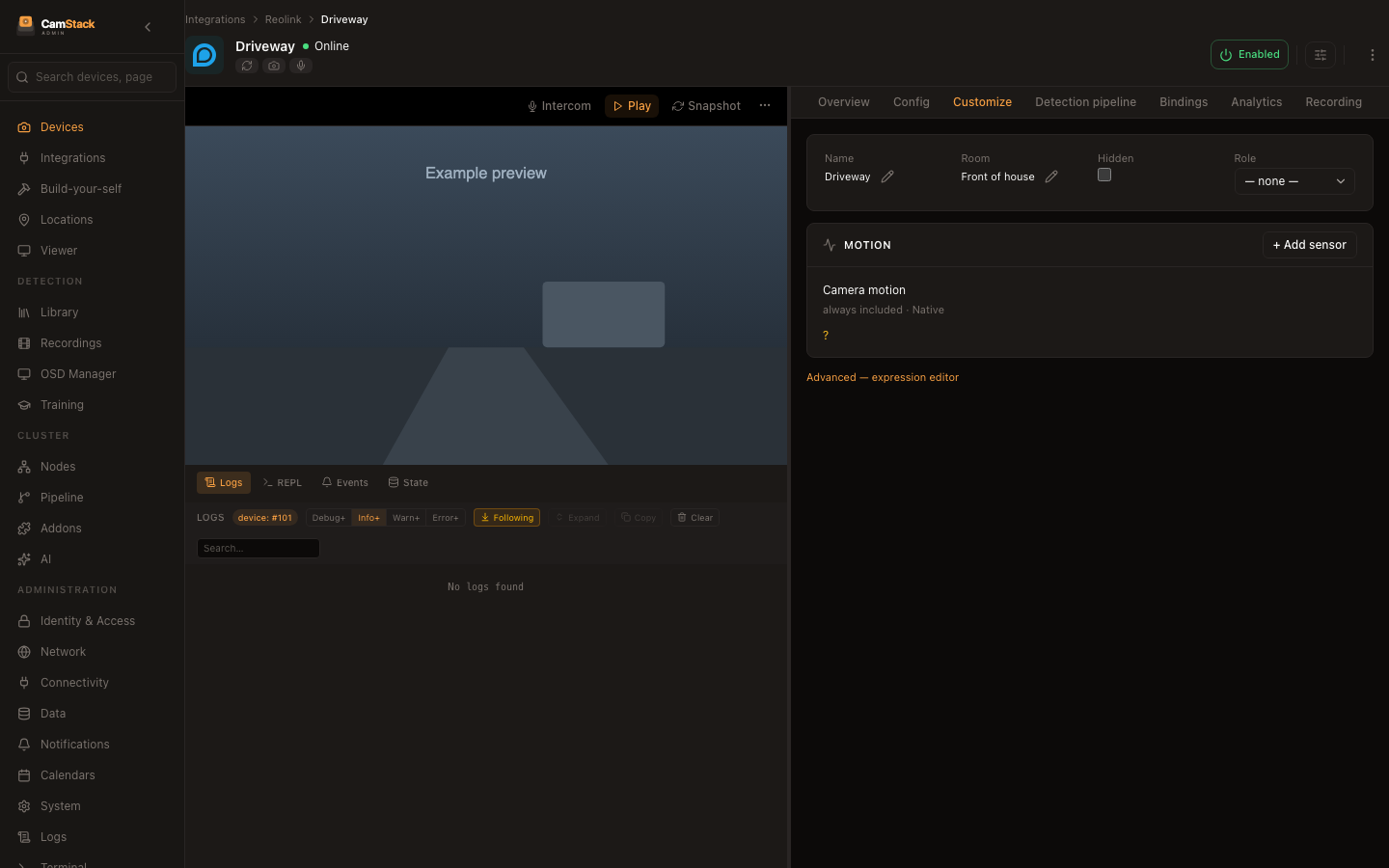
Nothing here changes the camera's own settings. Customizations are stored as one block per device; Remove customization deletes the block and every replaced field goes back to its integration's own value, exactly as before. A device that is itself composed from a composition is edited there instead of here, and the tab says so.
If the same item was changed elsewhere since the page loaded, for example by another administrator or in another browser tab, your save is refused with a message asking you to reload the page and make your change again. Nothing is overwritten silently.
If the part of Dominevo that computes customizations is not running, the tab warns that settings are stored but nothing computes them.
Identity
| Field | Meaning |
|---|---|
| Name | The device's name everywhere. Edit in place. |
| Room | Its location label. The pickers below suggest devices of the same room; they never link them on their own. |
| Hidden | Hide it from device lists. |
| Role | An optional semantic role (the choices vary by device type). |
The cards
Which cards appear depends on the device; a card the device cannot use is absent rather than disabled.
Motion
Attach sensors — a PIR, a door contact, another camera's motion — so their activity counts as this camera's motion. The first row is Camera motion, which is the camera's own and is always present.
Each attached sensor has a mode:
| Mode | Effect |
|---|---|
| In addition | The sensor's motion is the camera's motion too. The default. |
| Confirm | While a confirm sensor is ready, the camera's own motion counts only while that sensor is active. Use it to stop a camera that false-triggers on shadows. |
| Replace | The sensor's motion is the camera's, and while one is ready the camera's own motion no longer counts on its own. |
A sensor row shows its state — ready, or offline, not found, cannot drive motion or could not be read. Up to 8 sensors per camera. + Add sensor opens a picker that suggests devices in the same room.
Attaching a sensor does not make the camera listen to it. Camera sensors must be one of the camera's Motion Sources in Detection pipeline → Motion; otherwise the card says Sensors are not forwarded: its detection does not list its onboard motion. A camera with no active detection forwards nothing either. Some integrations do not enforce Confirm and Replace yet; the card tells you when the camera's own motion passes through regardless.
Doorbell
For a camera that is not natively a doorbell: pick one or more switch or binary-sensor sources that mean pressed. Each is listed with its state and can be removed.
Battery
For a device with no native battery reading, take it from another field (for example a battery sensor sitting beside the camera). A device with a native battery offers Replace with another field instead.
Consumables
For devices that have none natively: add an item by Name, Unit (%, days, hours or cycles) and the field that reports it. A value outside the unit's range (percent is 0–100, a count is 0 or more) is refused with the value shown.
Numeric transforms
Publish a converted or inverted value to every consumer (export, rules, history). Display unit and precision stay on the Overview tab.
| Transform | Meaning |
|---|---|
| Publish as unit | Convert from the native unit to another unit of the same kind. |
| Invert | Negate a yes/no value so active and inactive swap. |
| Script | An expression over v (the native value). Publishing a script clears a plain unit conversion. |
Linked devices
The spotlights, chimes and sensors that belong with this camera. Their controls appear with the camera. For each: Device, Type, Controls with the camera, and On camera timeline — whether a state change on that device is shown as an event on this camera's timeline. Notifications photograph every linked camera whether or not this switch is on. A camera is only ever linked to what you picked; same-room devices are suggested, never linked automatically, and a container (a hub with several outputs) is never a pick — its children are, each named after it.
Choosing a value from another device
Wherever a Customize field takes its value from another device, the same chooser opens. Pick the device, then the value on it that fits; a value that needs a unit conversion is marked convertible with the unit it would use.
- One compact card. Once chosen, the source is one card at every width: the source row with Change, the transform you can edit, the proposal with Apply, and a preview. Editing an existing source works the same on a phone as on a desktop.
- On a phone, picking is one list of devices; tapping a device opens the values that fit inline, and tapping it again folds it.
- Fill from device… on a card that lists several fields offers every field the chosen device can fill at once. Fields you do not want stay empty with Leave empty.
- A device built from several fields lists them one row per field, each with the state of its source: To fill, Checking…, Bound, Source not answering or Source missing.
What changes on the device
A read-only list of every field the customization adds or replaces, with where it comes from and its current value.
Advanced
Advanced — expression editor opens the composition editor for the device's one block, for combinations the cards cannot express. Reach for the cards first.
Then
- Detection pipeline → Motion — what the camera treats as motion.
- Recording — events bands can also be triggered by linked sensors.
Cluster-wide analytics settings
The Pipeline Analytics settings that apply to every camera — semantic search index actions, battery and offline alerts, and retention windows — with defaults and ranges.
Bindings
Which addon provides each capability for a camera, and how to switch a wrapper on or off for one camera.