

Overview
How Dominevo decides to tell you something, where each setting lives in the admin UI and on the phone, and a first rule in five steps.
This page covers the four pieces every notification is made of and where each one is configured, then walks you through a first working rule.
The four pieces
| Piece | What it answers | Page |
|---|---|---|
| Target | Where does it go? A channel: ntfy, Telegram, Pushover, Home Assistant, a webhook… | Targets |
| Rule | What is it about? A detection, a sensor, a count, a sound, a device or system event, the alarm. | Rules and triggers |
| Conditions | Which of those, exactly? Cameras, classes, zones, faces, plates, schedule… | Conditions |
| Message and frequency | What does it look like, and how often? Picture, clip, wording, priority, cooldown, snooze. | The message, Frequency and quiet |
You configure targets once. Rules reference them. A rule with no target and no user to notify cannot be saved.
Two further families of "rule" live beside these and work differently, because they are scheduled rather than triggered by an event: the timelapse and the summary (a mosaic of everything several cameras saw in a window). See Timelapses and summaries.
Where you configure it
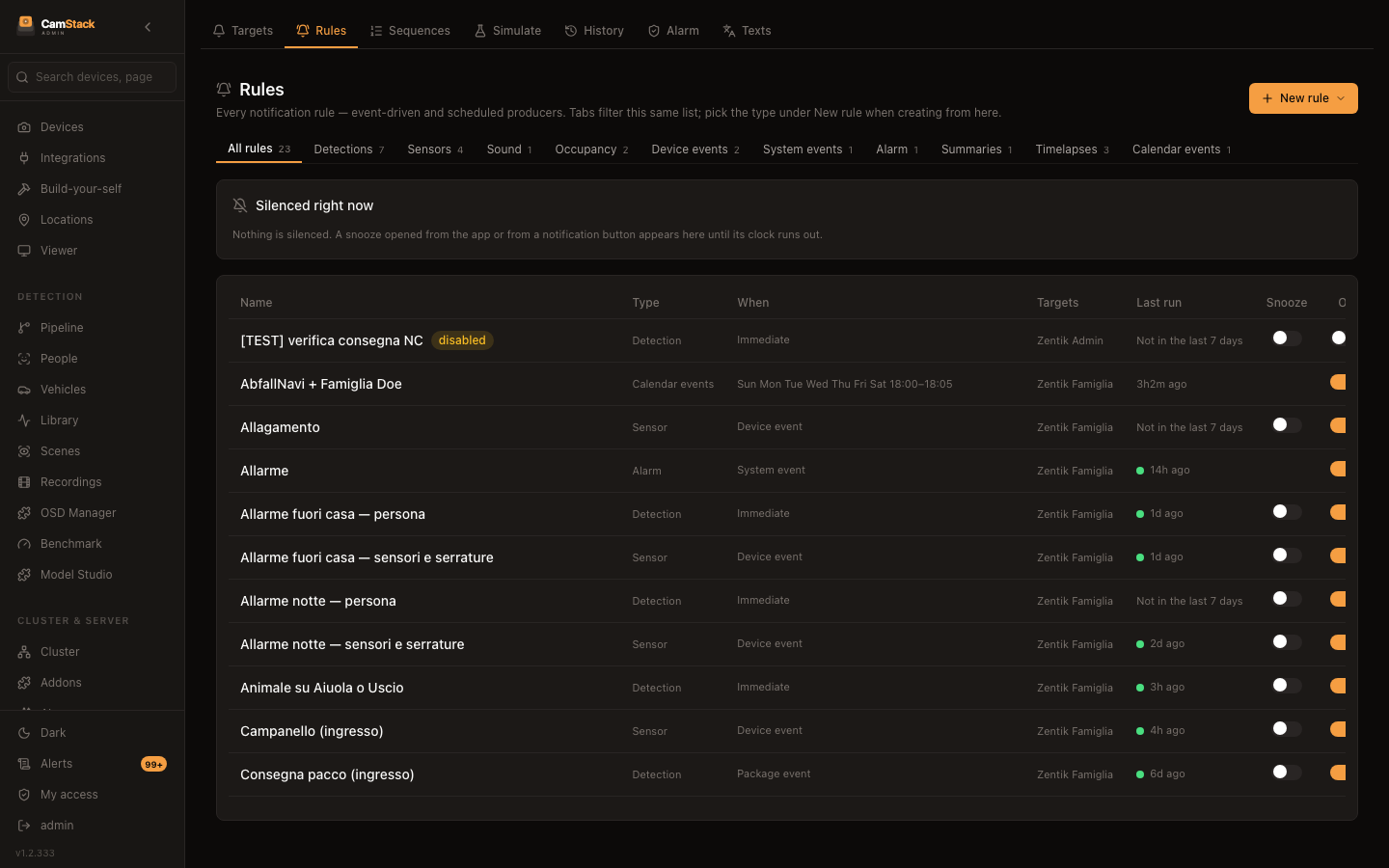
Everything lives in two places: the admin UI under Administration →
Notifications (/system/notifications), and the app's Notifications
tab. They edit the same rules, but each shows some settings the other does
not.
| Admin UI | Phone (app) | |
|---|---|---|
| Tabs | Targets · Rules (type picker: ordinary / summary / timelapse) · Simulate · History · Alarm · Texts | Rules · Targets · Snooze |
| Your own targets | yes | yes |
| Shared (system) targets, and who owns a target | yes | — |
| Detection, sensor, sound and occupancy rules | yes | yes — a non-admin creates personal rules |
| Device-event, system and alarm rules | yes | admin only |
| Timelapses and summaries | yes — under Rules, via the type picker | yes (on an older hub, summaries are read-only) |
| Calendar-events rules | yes (scheduled from a Home Assistant calendar) | — |
| Shared action sequences + Device→Action picker | yes | admin only (Actions) |
| Notify users, actions and notification buttons | yes | admin only |
| AI confirmation, AI description, Group bursts | — | yes |
| Schedule time zone | uses the stored one (the hub's by default) | yes |
| Clip seconds before / after | — | yes |
| Test a rule (dry-run, Test now) | yes | admin only |
| Delivery history of a rule | yes (History tab) | admin only |
| Simulate an arbitrary event | yes | — |
| Rewording the hub's built-in texts | yes (Texts tab) | — |
| Alarm settings (modes, profiles, secure-on-arm) | yes (Alarm tab) | admin only (Notifications → Alarm) |
| Snooze | yes (per rule, and the Silenced right now list) | yes (Snooze tab, and the buttons on every notification) |
Deep links remember where you were: the Rules editor restores tab, section and rule from the URL, so back/forward and a shared link open the same screen.
Personal and admin rules. A rule an admin creates is a global rule. On the phone it appears under Admin rules, read-only, with one switch per target you own — Receive on … — so you can opt your own phone out of it without touching anyone else's. A rule you create in the app is personal: it is yours to edit and delete, and it delivers only to targets you own.
Anything the phone does not author is carried over untouched when a rule is saved from the phone, and the other way round. Editing a rule on either side never wipes a setting only the other side shows.
Your first rule
Add a target
Notifications → Targets → Add target, pick a kind (ntfy is the quickest to try: one topic name, nothing to register), fill it in, and press Test / Send test. Do not go further until the test arrives on your phone. See Targets.
Create a detection rule
Rules → New detection rule (admin UI) or New rule → Detection (app). Give it a name you will recognise on a lock screen — Person in the garden. Leave the trigger on Immediate.
Scope it
Pick the camera (the Devices tab in the admin UI, Cameras in the app), and under Conditions set Object classes to Only these → person. If the camera has a zone for the garden, add it under Zones.
Choose a target and save
Tick the target you just tested and save. The defaults are sensible: the best picture of the subject, a 60-second cooldown per camera, priority 3.
Prove it
Open the rule again and press Test now (Test this rule for real). It
builds the event this rule is about and delivers it, marked [TEST]. Then walk
in front of the camera.
Why a notification is never "lost"
Rules are evaluated when a record is written to the database — a detection, a finished track, a sensor change — not from the live event stream. Every delivery then sits in a persisted queue (the outbox) and is retried with back-off for about twenty minutes before it is marked Failed. A restart or a phone that was unreachable for a minute does not cost you a notification, and the History tab records every attempt.
On a multi-node cluster the rules are evaluated on the node that does post-processing (normally the hub). The other nodes still show and edit rules; they just never fire them.
Then
Targets
Every channel, what it needs, and what it can show.
Rules and triggers
The seven kinds of rule and when each one fires.
Every notification
The complete list: every trigger, sensor change and system event, with its message variables.
Conditions
Every filter, and which kinds of rule can use it.
The alarm
Modes, delays, profiles, secure-on-arm, and who is told.
Timelapses and summaries
Scheduled video and mosaic round-ups.
Calendar-events
Reminders from a Home Assistant calendar.
Recipes
Rules people actually build, step by step.
Why didn't I get it?
The checklist, in the order that finds it fastest.
Weak machines
What to set on a small CPU, alone or as an agent — frame rate, model size, session cap, decode, and when to leave detection to the hub.
Targets
The channels a notification can go to — ntfy, Pushover, Gotify, Telegram, Discord, webhooks, Zentik, WhatsApp, Home Assistant and Echo — what each needs, what each can show, how to test one, and how to opt out of a rule.