

OSD Manager
Put live Dominevo state, named multi-device templates, the latest person or plate, clocks and custom text into a camera's own on-screen display.
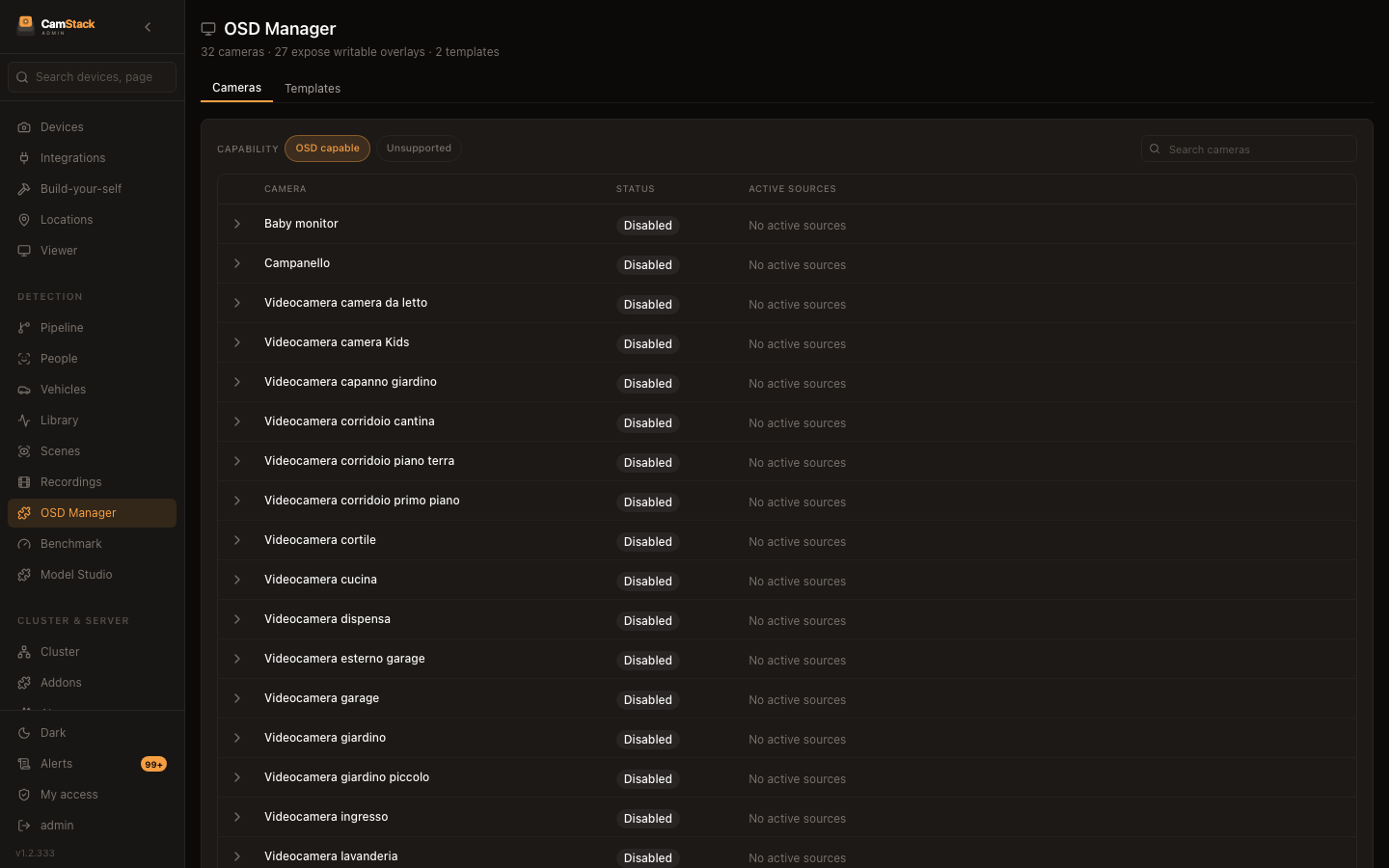
OSD Manager controls text overlays that the camera burns into its own video. Because the camera renders the text, it appears everywhere that stream goes: live view, recordings, exported clips and third-party clients.
Open the dashboard
Go to Detection → OSD Manager in the Admin sidebar (addon page). Two tabs:
- Cameras — every camera, with writable overlay slots and their bindings;
- Templates — named parsers you reuse across cameras (
{alias}tokens).
Unsupported cameras remain visible and explain that they expose no writable OSD capability. OSD support depends on both integration and camera model. Hikvision and Amcrest/Dahua integrations can expose it; a plain RTSP camera cannot.
A deep link can open a specific camera and slot (?tab / ?device / ?slot).
Choose a source
Each writable slot can display:
| Source | Example |
|---|---|
| Static text | Front gate |
| Clock | Local date and time |
| Device state | Temperature, humidity, lock or sensor state — pick the device, the field, optional display unit and decimals, then ${value} / ${unit} in the slot template |
| Named template | A parser with {alias} tokens; each binding names a leaf device (optionally via a container → child pick), field, format (value+unit, value, or unit), display unit and decimals. The alias follows the leaf you chose, not the container |
| Last recognized person | The newest identified face for this camera |
| Last recognized plate | The newest normalized plate text for this camera |
Value maps, schedules and supported Notification Center conditions are applied before the text is sent to the camera. Render now lets you test the result without waiting for the next state change.
Face and plate values come from their galleries. Renaming, assigning, unassigning, deleting or correcting a gallery item refreshes the overlay.
Copy a camera configuration
On the destination camera card, choose another OSD-capable camera as the source and copy its configuration. The destination bindings are replaced and rendered immediately.
Camera integrations use different overlay slot IDs, so Dominevo maps configured writable slots by order rather than by vendor-specific ID. Read-only timestamp slots are not copied.
Copying replaces the destination camera's OSD bindings. It does not merge them with what was there before.
If nothing changes on the image
- Use Render now and check the result shown for that slot.
- Confirm the camera account has configuration permission, not view-only access.
- Check that firmware still permits OSD writes through its API.
- Remember that the text is camera-rendered: an existing player may need a fresh keyframe before the new overlay becomes visible.
Then
- Vendor notes — which integrations can expose on-camera OSD.
- Detection enrichments — face and plate recognition.
- Model Studio · Benchmark