

Single sign-on (OpenID Connect)
Sign in with Authentik, Keycloak, Google, Microsoft or any OpenID Connect provider — setting up a provider, redirect URIs for every address, and linking accounts.
Dominevo can sign users in through any OpenID Connect identity provider (IdP). An IdP account signs in only the Dominevo user who linked it: Dominevo never creates users from the IdP, never matches accounts by email, and never takes a role from the IdP. The Dominevo user record decides the role, the devices and the two-factor requirement.
Step-by-step guides: Authentik, and Keycloak, Google and Microsoft.
1. Add the provider in Dominevo
Administration → Identity & Access → Authentication. The Sign-in connections table lists the identity providers; press Add connection to add one. Each connection is one IdP and one button on the login page, has its own On/Off switch, and its id cannot be changed after it is created.
| Field | What to enter |
|---|---|
| Instance id | A short slug: lowercase letters, digits and - (for example authentik). It is part of the redirect URI, so pick it once — renaming it breaks the registration at the IdP and the accounts already linked. |
| Display name | The text on the login button, e.g. "Sign in with Authentik". |
| Icon | The icon on the login button. Click it to open the icon picker and search; the picker offers generic icons, not company logos. |
| Issuer URL | The IdP's issuer. Dominevo reads <issuer>/.well-known/openid-configuration. |
| Client ID | From the IdP. |
| Client Secret | From the IdP. Stored in the keychain, never shown back. |
| Redirect URI override | Leave empty (see below). |
| Scopes | Space-separated. Default openid profile email. |
| Username claim | preferred_username, email or sub. A display label only — it does not decide who signs in. |
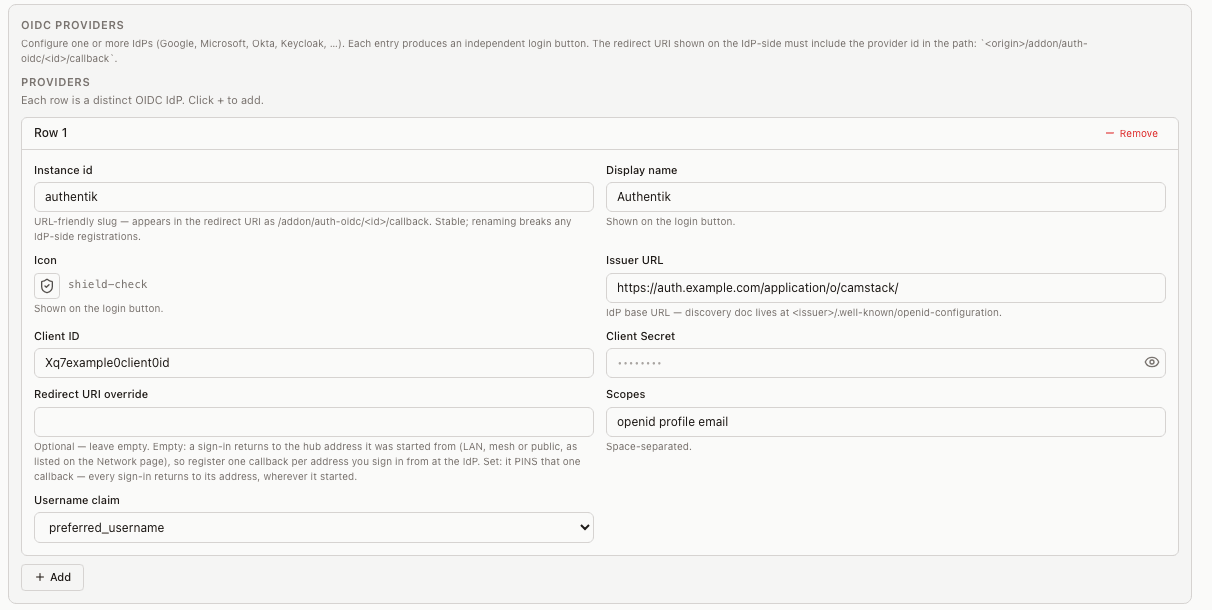
The settings save as you type. You can add several providers; each gets its own button.
2. Redirect URIs: one per address you sign in from
The IdP sends the browser back to:
<address you started from>/addon/auth-oidc/<instance id>/callbackA sign-in returns to the same address it started at, so a sign-in from the LAN stays on the LAN and one through your tunnel stays on the tunnel. Register one redirect URI at the IdP for every address people sign in from, for example:
https://192.168.1.10:4443/addon/auth-oidc/authentik/callback
https://dominevo.example.com/addon/auth-oidc/authentik/callback
Dominevo only returns to addresses it knows it has: those listed on Administration → Network (detected or added by you) and its public address. A request arriving under any other host name falls back to the public address. If you reach Dominevo through a proxy it does not detect, add that address on the Network page first.
If Dominevo is served under a path prefix, the prefix is part of the address
(https://example.com/cams/addon/auth-oidc/authentik/callback).
Redirect URI override. Set it only to force one fixed callback: every sign-in then returns to that address, wherever it started. Useful when your IdP accepts only one redirect URI, at the cost of switching address mid-sign-in.
3. Each user links their account
Nobody can sign in with an IdP account until its Dominevo user has linked it, and only that user can do it, from their own session:
- Sign in to Dominevo normally (password, passkey…).
- Open My access → Linked sign-in accounts and press Link <provider>.
- Confirm it's you: enter your password (or use a passkey). An open session alone cannot link an account.
- A popup opens at the IdP. Sign in there. The popup closes and the account appears in the list.
From then on the login page's Sign in with <provider> button signs in that user. Unlink stops it.
From the phone app: Settings → Account → Sign-in methods → Linked accounts → Link <provider>. After you confirm it's you, the IdP opens in the system browser and returns to the app when you are done. It works from home and from outside, whichever address the app is using.

- One IdP account links to one Dominevo user. A user can link several providers.
- An account that is already linked to someone else is refused: "That sign-in account is already linked to another Dominevo user." The other user must unlink it first.
- Linking must finish in the same browser session that started it. If the popup ends up on another address or another login, Dominevo refuses and asks you to press Link again.
- Every sign-in through the IdP must also finish in the browser that started it, and only once: a copied return link is refused ("started in another browser, or already used") — start the sign-in again.
- Deleting a Dominevo user deletes its links.
Admins see a user's links in Identity & Access → Users → Sign-in links, and can remove them. They cannot create one for someone else.
Signing in
The login page shows a button per enabled provider. Pressing it opens a popup at the IdP; when it finishes, the login page continues on its own. If the browser blocks the popup, the same flow runs in the full page instead.
- Unlinked account: "This <provider> account is not linked to a Dominevo user. Sign in normally and link it from your profile."
- Two-factor: if the user has an authenticator code or a second-factor passkey, the login page asks for it after the IdP. The IdP's own MFA does not count for Dominevo.
- Disabled provider: its button disappears, and a sign-in already in progress is refused.
If a provider row is removed or its instance id changes, its links stay listed as "provider unavailable" and can be removed. They can no longer sign anyone in.
Sessions and signing out
How long a sign-in lasts, how it refreshes, signing out of one device or all of them, trusted networks that may skip the second factor, sign-in limits, and running behind a reverse proxy.
Authentik
Step by step — an Authentik OAuth2/OpenID provider and application for Dominevo, the redirect URIs, the RS256 signing key, and linking your account.