

Passwords and first sign-in
The first-boot admin account, the forced password change, changing and resetting passwords, and what happens after too many attempts.
Password login is built in and always available. Users and their passwords live on the hub; no outside service is involved.
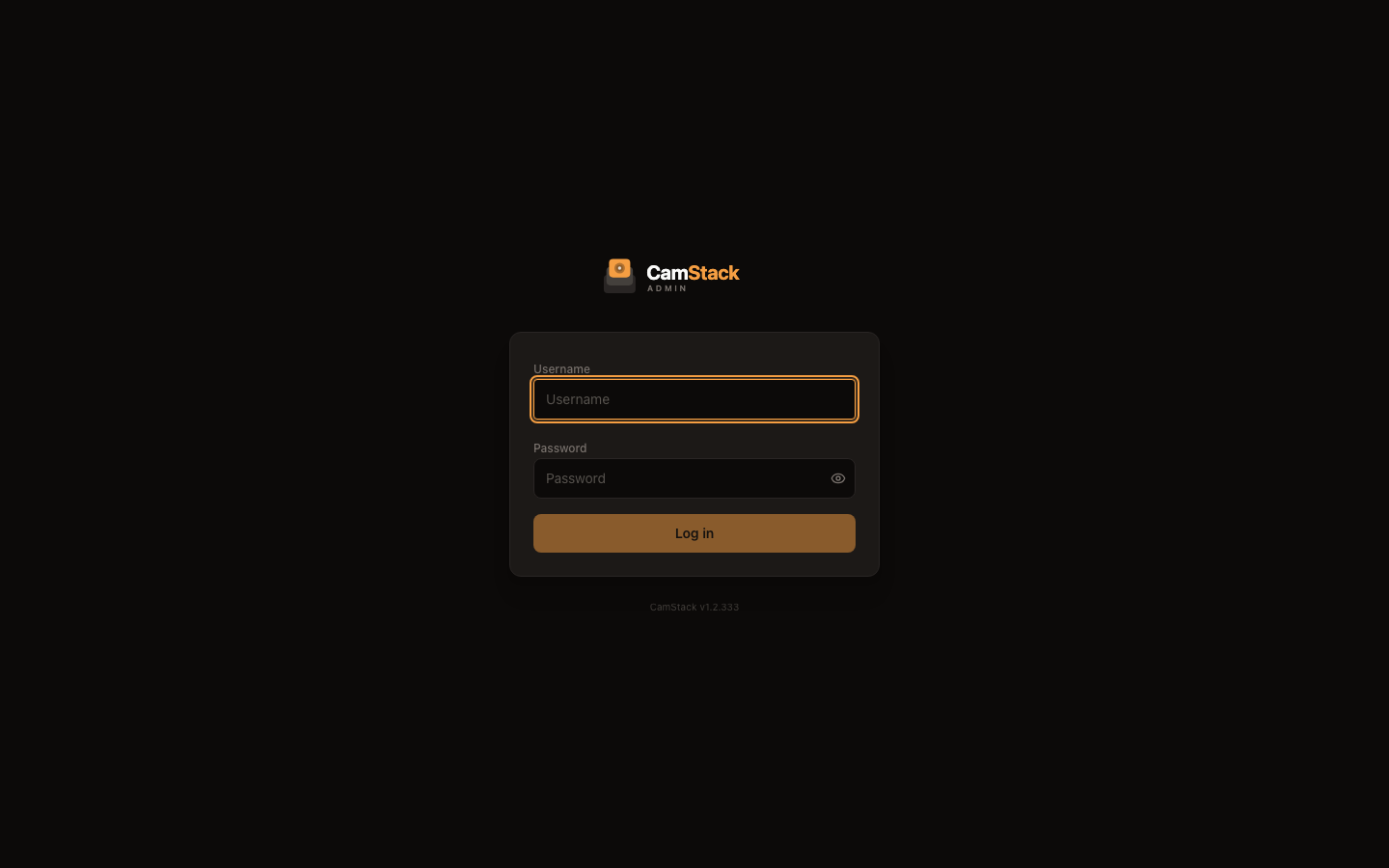
The first sign-in
A new hub has one account:
| Username | admin |
| Password | changeme |
Signing in with changeme sends you to Set a new password, and you cannot
reach the rest of the UI until you have chosen one. The account is created
only on the very first boot; a password you set afterwards is never put back
by a restart or an update.
Changing your password
Every user changes their own password under My access → Change password: current password, new password (at least 8 characters), and confirmation.
An admin can set a new password for someone else from Identity & Access → Users → the user's Reset password action.
Forgotten admin password
Create an empty file named RESET_ADMIN_PASSWORD in the hub's data directory
and restart the hub. The admin password goes back to changeme, the next
sign-in asks for a new one, and the hub deletes the file so the reset happens
once. The steps for each install type are in
First run.
Too many attempts
Sign-in attempts are throttled per client address: anything that checks a secret — a password, a two-factor code, a passkey — allows 10 tries a minute. After that the login page answers "Too many attempts — retry in N s".
Signed out right after an update?
Sessions are signed with a key kept in the hub's encrypted keychain. If the keychain cannot be unlocked — its master key file is missing or wrong — nobody can sign in, admin included, and login fails with an error about the signing key. Put the right key file back (or use your recovery key) and restart the hub; see If the keychain is locked.