

Overview
How people sign in to Dominevo — passwords, two-factor, passkeys, single sign-on — and how scripts, apps and share links get access.
Everything about who can sign in, how, and what they can do once they are in.
Credentials at a glance
| Kind | Prefix / form | Who it is for | Manage in |
|---|---|---|---|
| Login session | Cookie / app session | A person in the admin UI or viewer | Sessions, Tokens & sessions |
| Linked app | OAuth account-link grant | Alexa, Home Assistant “Link with the hub” | Tokens & sessions → Linked apps |
| Scoped token | cst_ | Scripts and dashboards you control | Tokens |
| Admin token | csa_ | Maintenance scripts (full admin) | Tokens |
| Share link | csv_ | View-only camera wall or events (no account) | Share links |
| Broker OAuth | Google refresh token on the hub | Calendar and Gmail | Google services |
How Home Assistant, Google and Alexa each pick one of these paths: Outside services.
Ways to sign in
| Method | What it is | Set up in |
|---|---|---|
| Password | Username and password, stored on the hub. Always available. | Administration → Identity & Access → Users |
| Two-factor code | A 6-digit code from an authenticator app, asked after the password. | Each user, in My access |
| Passkey | Touch ID, Windows Hello or a security key — to sign in directly, or as a second factor. | Each user, in My access |
| Single sign-on | Sign in with an account at your identity provider (Authentik, Keycloak, Google, Microsoft…). | Identity & Access → Authentication, then each user links their account |
There is no email sign-in: a self-hosted hub has no mail delivery, so Dominevo does not offer magic links.
Whatever method signs a user in, the same user record decides what they can do: their role, the devices they can reach, and the second factors they owe.
Where things are
| Page | Who | What |
|---|---|---|
Administration → Identity & Access (/system/identity) | Admins | Tabs Users, Tokens & sessions (every credential kind: sessions, linked apps, tokens, share links, sign-in links, audit), Authentication. |
My access (bottom of the sidebar, /system/my-access) | Every user | Your own permissions, password, two-factor, passkeys and linked sign-in accounts. |
| Administration → Secrets | Admins | The encrypted keychain that holds every stored password and token — see Secrets. |
Turning a sign-in method on or off
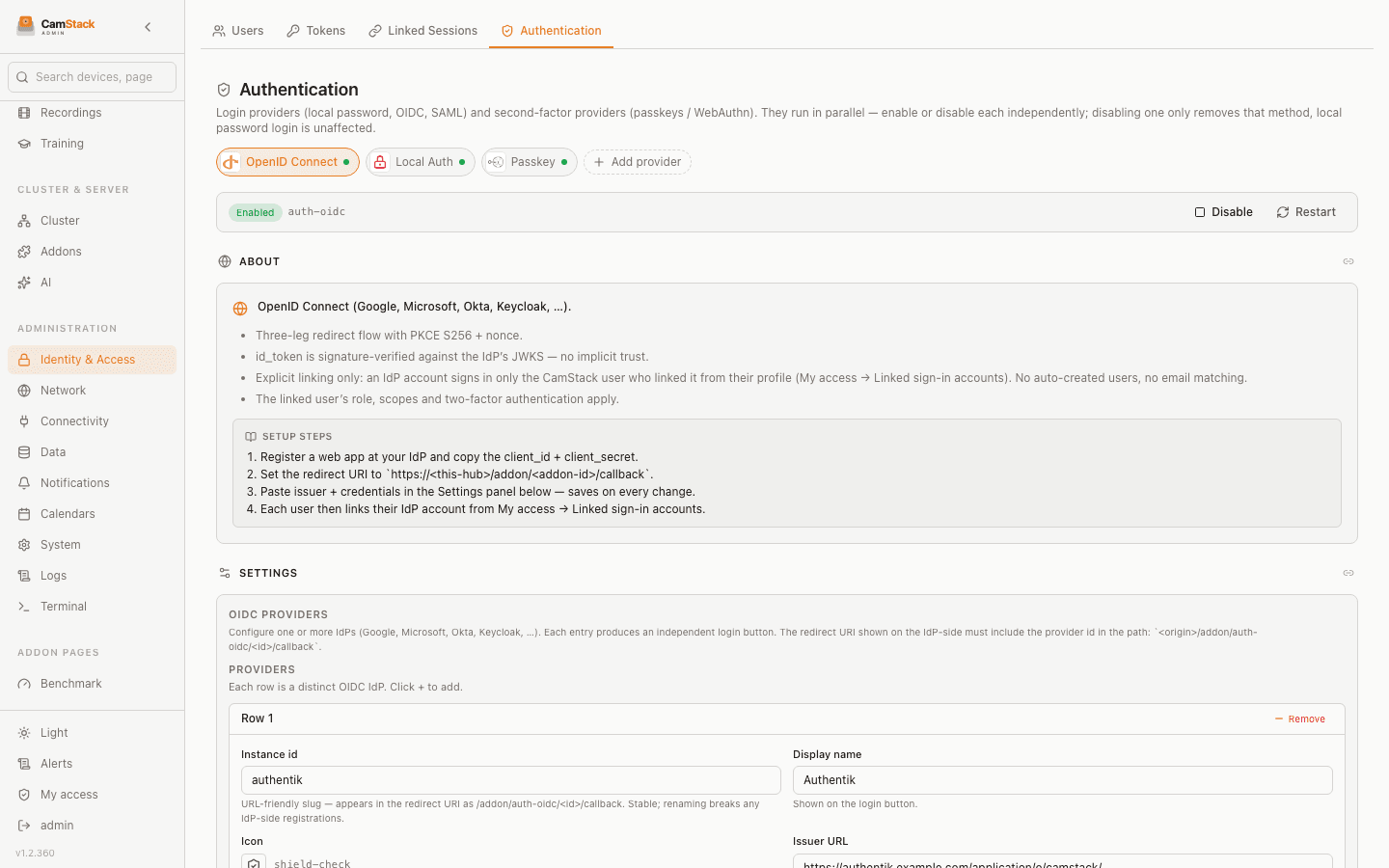
Identity & Access → Authentication lists every sign-in provider: the local password provider, OpenID Connect and Passkey (marked Second factor). Each has one Enable / Disable switch, and that switch is the only one — there is no separate "enabled" setting inside a provider.
- A disabled provider disappears from the login page, and a sign-in that started before you disabled it is refused when it comes back.
- Disabling single sign-on or passkeys never affects password login.
- Below the switch, each provider shows an About panel with setup steps, and its settings.
Staying signed in, and signing out
A sign-in lasts a month of inactivity by default, refreshes itself while you use it, and ends on the hub the moment you sign out — see Sessions and signing out. The same page covers the opt-in trusted networks that may skip the second factor, the sign-in limits, and running Dominevo behind a reverse proxy.
Confirming it's you
Some changes ask for your password (or a passkey) again even though you are signed in: linking a sign-in account, turning off two-factor, removing a passkey, and creating an admin token. Someone who got hold of your open session still cannot use it to weaken your sign-in.
Access for things that are not a person
- Tokens — scoped tokens for scripts and integrations, and admin tokens for maintenance scripts.
- Share links — view-only links to a camera wall or an events feed, for someone without an account.
- Outside services — Home Assistant, Google and Alexa: which credential each one uses.
- CLI login — how the
dominevocommand line authenticates.