

Users and permissions
Creating users, admins versus regular users, the three access roles, and limiting a user to some cameras.
Administration → Identity & Access → Users.
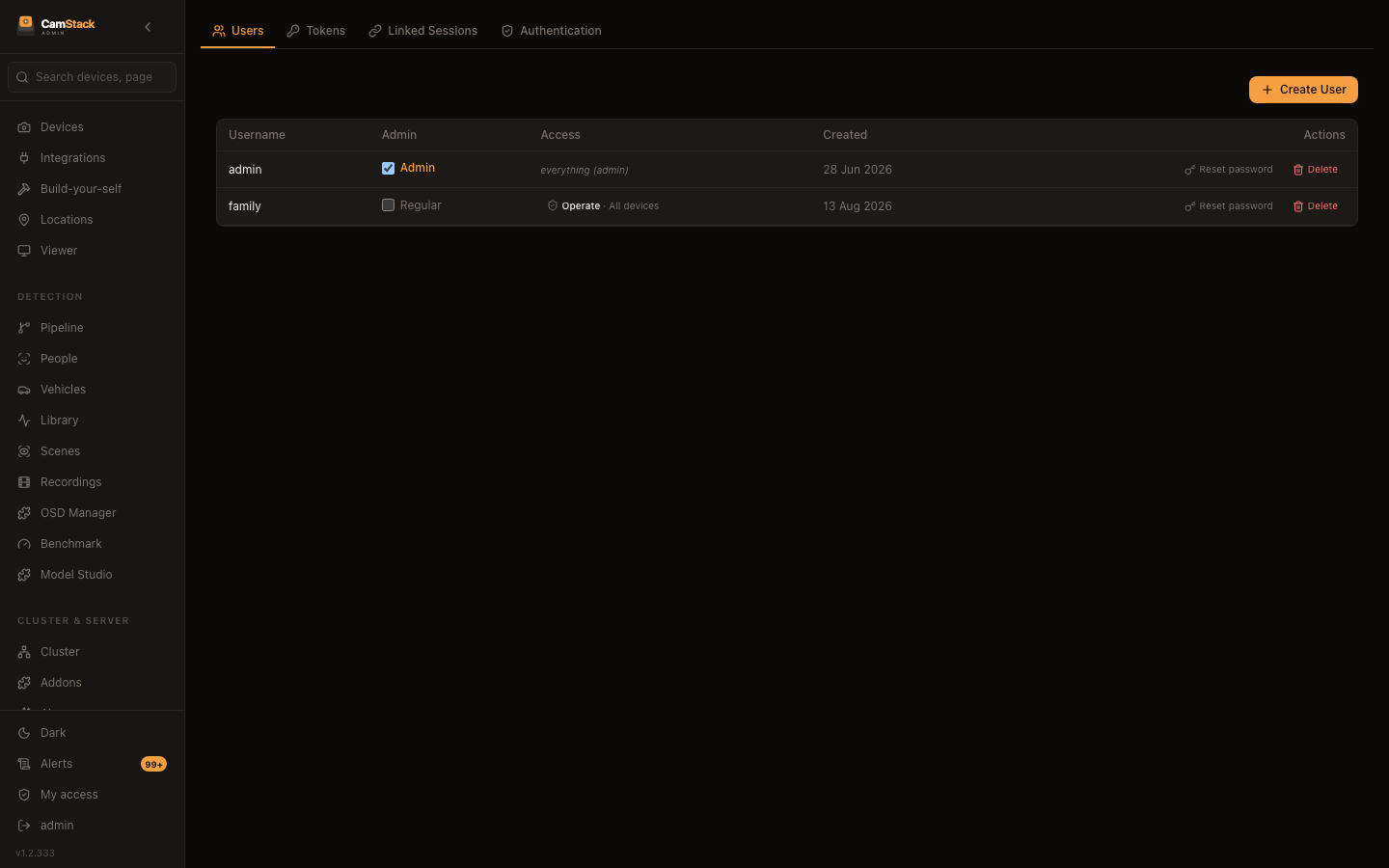
Creating a user
Create User: a Username, a Password, and the Admin checkbox.
- Admin — can do everything, including users, tokens, addons, the cluster and secrets. Device permissions do not apply to an admin.
- Regular — starts with no access at all: they can sign in, but see nothing until you give them access.
Keep the admin account for administration and recovery, and give everyone —
yourself included — a personal user for day-to-day use.
If the user will sign in with single sign-on still create them here; they link their account themselves afterwards.
Giving access
The user's Configure access action asks two questions:
1 · What can they do — one of three roles:
| Role | Can |
|---|---|
| View | Watch live and recorded video, browse events and read device state. Cannot change anything. |
| Operate | Everything View does, plus acting on a device: PTZ, lights, sirens, locks, and snoozing notifications. Cannot delete. |
| Full management | Everything Operate does, plus deleting devices, recordings and events. No user or cluster administration. |
2 · On which devices — All devices, a Chosen list, By room or By type. Include linked devices decides whether a camera's accessories (its siren, light, doorbell button…) come with it.
Result shows what the combination grants before you Save access.
Advanced — edit raw grants opens the underlying grant list, one row per grant, for cases the three roles do not express. A user whose grants were edited there opens in Advanced next time.
Room and type selections follow your devices: a camera added later to a room the user can see becomes visible to them too.
Other user actions
| Action | What it does |
|---|---|
| Reset password | Sets a new password for the user. |
| Remove 2FA | Removes the user's authenticator enrolment, e.g. after a lost phone. |
| Sign-in links | Lists the single sign-on accounts the user linked; you can remove them, not add them. |
| Delete user | Deletes the user and their linked sign-in accounts. |
What a user sees about themselves
My access (bottom of the sidebar) shows every user their own role or Unrestricted access for an admin, the grants they hold (type, target, access), and their password, two-factor, passkey and linked-account settings. It is the first place to look when someone gets "access denied".
Keycloak, Google, Microsoft
Short setup notes for other OpenID Connect providers — what to register, the redirect URIs and the issuer URL to paste into Dominevo.
Tokens
Every credential in one place — scoped tokens for scripts, admin tokens for maintenance, share links, linked apps, sign-in links, the authentication audit — and how to revoke one or several safely.