

Secrets
Where Dominevo keeps passwords, tokens and keys — the encrypted keychain, its master key, the Secrets page, and how to keep the key off your backups.
Sidebar Administration → Data, section Secrets (/system/data?tab=secrets).
The old /system/secrets address still opens it.
Every password, token and key Dominevo stores — camera passwords, account logins of your integrations, the Cloudflare and Tailscale tokens, Home Assistant and Alexa credentials, sign-in client secrets — lives in one place: the hub's keychain. The values are encrypted. The settings themselves only point at them, so a copy of the database or of a Dominevo backup holds no password in the clear.
What you see in a settings form
A secret field is one password box with an eye in it. It never arrives in the browser with its value in it:
| You do | What happens |
|---|---|
| Leave it alone | A stored value shows as •••••••• and is kept when you save. An empty box with no dots means nothing is stored. |
| Type in it | Saving stores what you typed, replacing the old value. |
| Press the eye | An admin sees the stored value in the box. Every reveal is recorded in the keychain audit. Press it again to hide it. |
| Empty it after revealing or typing | Saving removes the stored value. |
An empty box you never touched keeps the stored value: saving a form never deletes a password by accident.
The Secrets page
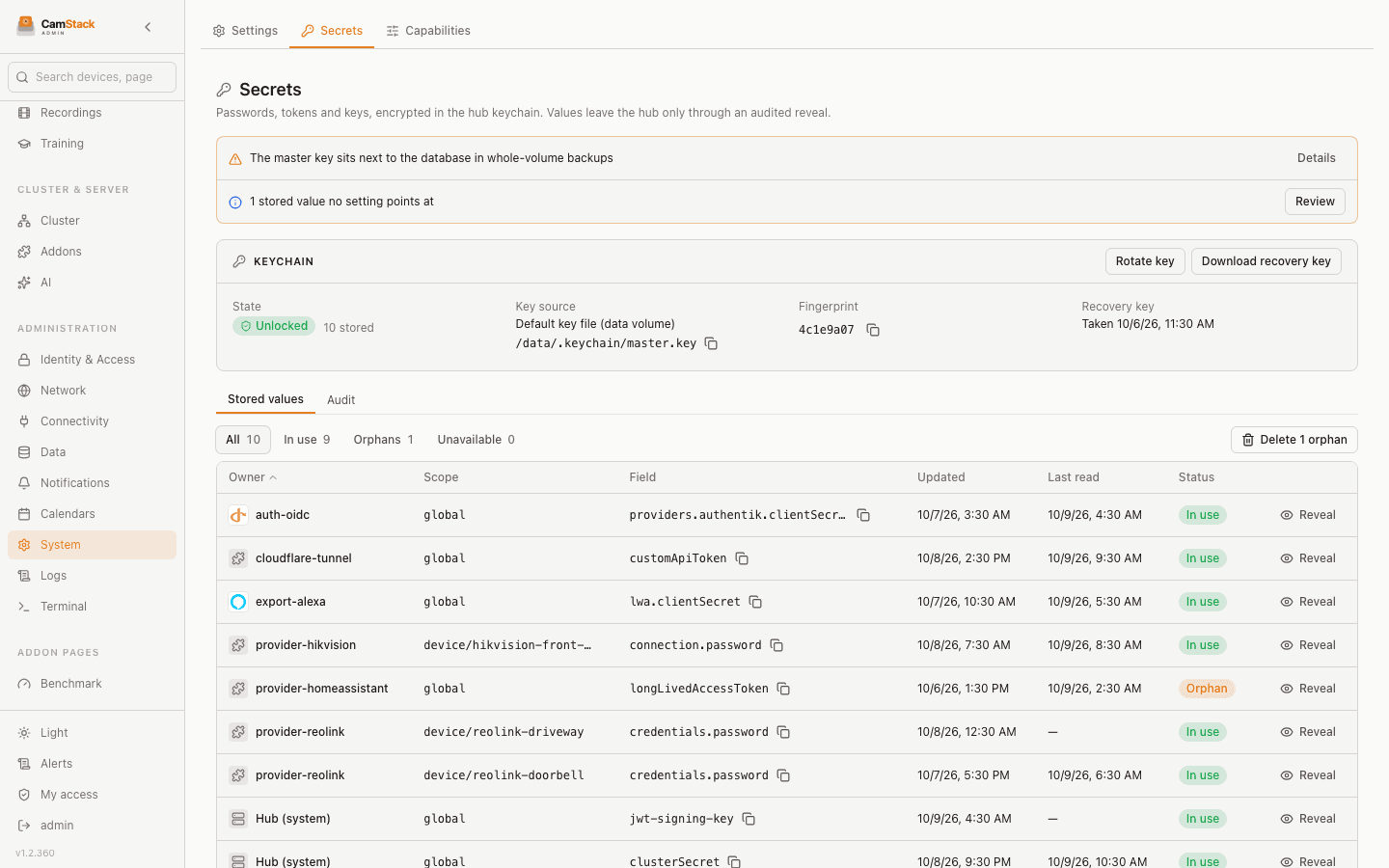
At the top, one notice region lists what needs your attention, most urgent first. Each line has a Details toggle and, where there is one, the action that fixes it:
| Notice | Action |
|---|---|
| Keychain locked | Reset keychain (see If the keychain is locked) |
| Keychain was reset, with the number of fields to re-enter | Dismiss |
| The master key sits next to the database in whole-volume backups | Details explain how to move it (see below) |
| No recovery copy of the master key has been taken | Download |
| The configured master key is not in use yet | Rotate |
| N stored values no setting points at | Review |
The Keychain card shows the state (unlocked or locked) and how many
values are stored, the key source (the default key file on the data volume,
or the external key file at /run/secrets/camstack-master-key), the key's fingerprint, and when a
recovery key was last taken.
- Download recovery key — gives you the master key once, so you can keep a copy in your password manager. Do this once after installing; the notice reminds you until you have. Without the key, the stored values cannot be recovered.
- Rotate key — moves the keychain onto a new master key. No stored value is touched. The previous key keeps working until you press Purge retired wraps.
After a reset, the Keychain was reset notice says when and by what (this page or the reset file), and its details list every setting that still has to be entered again, by addon and field, never a value. The count shrinks as you re-enter them; Dismiss hides the notice.
Below, Stored values lists every secret by the addon that owns it, its scope and the setting it belongs to, never the value. Status says whether a setting still points at it: In use, Orphan (nothing points at it any more) or Unavailable. The filter chips count each kind, and Delete orphans removes the orphans. Audit lists every change, reveal, rotation and recovery-key download.
Revealing a stored value
Reveal on a row opens the value in a dialog with Copy and Hide. It hides itself after a few seconds, and the reveal is recorded in the audit.
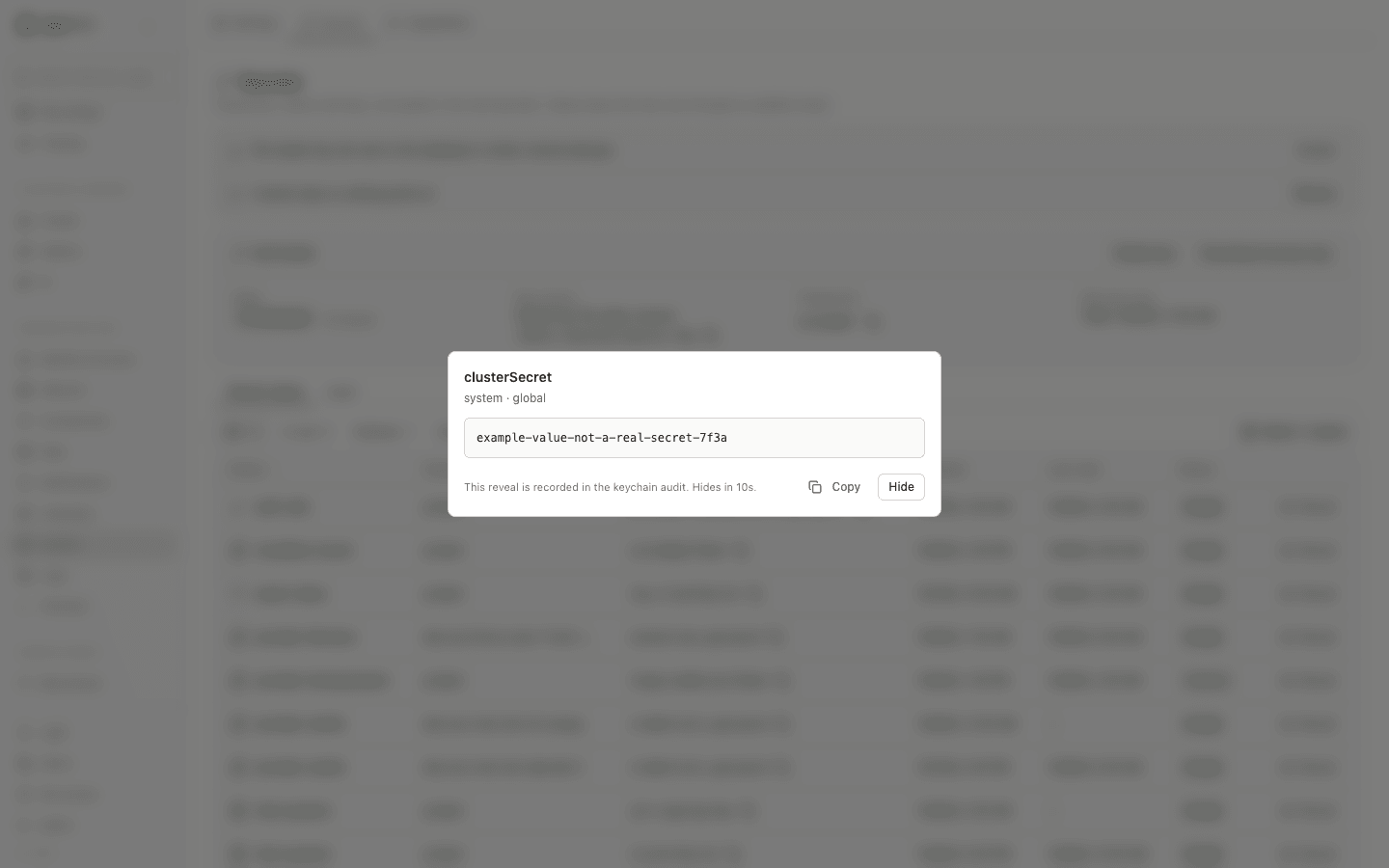
One entry is owned by system rather than an addon (shown as Hub (system)): the key that signs login sessions, created on the first boot. It is always in use.
Keep the master key off your backups
By default the master key is a file in the data folder
(.keychain/master.key). Dominevo's own backups leave it out, so a backup on
its own reveals nothing. But a copy of the whole data folder — a NAS
snapshot, an Unraid appdata backup — holds the key and the database
together. The Secrets page warns you while the key is there.
To move it out:
-
Create a key file somewhere that is not inside the data folder and is not part of the same backup:
openssl rand -base64 32 > /secure/dominevo/keychain.key chmod 600 /secure/dominevo/keychain.key -
Mount it into the container, read-only. In Docker Compose:
volumes:
  - /secure/dominevo/keychain.key:/run/secrets/camstack-master-key:ro
On Unraid, add a Path to the container with the same two paths and access mode Read Only. The container path is always
/run/secrets/camstack-master-key. -
Restart the hub. The default key on the data volume stays in place as the previous key, so the keychain can still open.
-
Open Administration → Secrets and press Rotate master key. Then Purge the retired key and take a new recovery key.
The key's location is fixed: the file at /run/secrets/camstack-master-key.
There is no setting, config key or environment variable for it. On the Mac app, the master key is kept in the macOS
Keychain instead.
If the keychain is locked
Locked means the hub could not open the keychain: the key file is missing, unreadable, or is not the key the values were stored with. The hub still starts, but every addon that needs a stored password runs without it, and its settings show the password as set but unusable.
Two of the hub's own secrets live there too, and a locked keychain stops them on purpose rather than guessing:
- The key that signs login sessions. Nobody can sign in, and existing sessions are not accepted, until the keychain opens. Dominevo never falls back to a new key, which would sign everyone out. No admin access works meanwhile — not an admin token, not a scoped token — so this page and its Reset keychain button cannot be reached either.
Put the right key back (your recovery copy works as a key file) and restart — that is the way back in.
If the key is lost for good
When there is no copy of the key anywhere, you cannot sign in to reset the keychain from this page. Reset it from the host instead:
-
Create an empty file named
RESET_KEYCHAINin the keychain folder of the data folder —/data/.keychain/RESET_KEYCHAINinside the container. On Unraid, for example:touch /mnt/user/appdata/camstack/.keychain/RESET_KEYCHAIN -
Restart the hub.
At start-up the hub sees the file, and only if the keychain is locked:
- sets every stored value aside (kept, still encrypted, in case the old key
ever turns up), and starts a new, empty keychain with a new master key — a
new
master.keyfile if you use the default one. If you mounted an external key at/run/secrets/camstack-master-key, put the new key there first; a reset with that file missing is refused and nothing is touched; - creates a new login-session key, so everyone signs in again — your password still works;
- deletes the
RESET_KEYCHAINfile, and writes a loud message in the log.
If the keychain was not locked, the file is ignored and deleted — it never resets a working keychain. No environment variable does this; only the file.
Then sign in, open Administration → Secrets, and re-enter the settings the notice lists. Take a new recovery key.
What is not in the keychain yet
A few things are still stored as files by the libraries that use them: the HomeKit pairing keys, the Matter fabric, the Tailscale node state and the Alexa import session. The copies of them in your backups are protected when you turn on backup encryption. Notification targets and AI provider profiles keep their credentials in their own settings for now; they are hidden from non-admin users but are not in the keychain.
Nothing is read from environment variables: Dominevo takes no password, token or key from the container's environment.
Network settings
The admin Network page, tab by tab — LAN HTTP and the certificate card, the Addresses table and its roles, the Cloudflare Tunnel and Tailscale cards, and TURN providers.
Backup
What a Dominevo backup contains, where it goes, how to restore it — and how to encrypt it with a key only you hold.