

Sessions and signing out
How long a sign-in lasts, how it refreshes, signing out of one device or all of them, trusted networks that may skip the second factor, sign-in limits, and running behind a reverse proxy.
Every sign-in — password, passkey, single sign-on, the app's handoff — opens a session that the hub keeps a record of. That record is what makes signing out real: when a session ends, everything signed in with it stops working at once, on every device and page.
How long a sign-in lasts
Administration → System → Settings → Authentication:
| Setting | Default | Meaning |
|---|---|---|
| Session lifetime | 30d | How long a sign-in lasts without being used. Every refresh starts it again, so a device you use stays signed in; one left unopened this long signs in again. |
| Access token lifetime | 2h | How long one access token lives before the app swaps it for a new one, silently. Between 5m and 24h. |
The admin pages and an up-to-date Dominevo app refresh their access token on their own — you never see it. A shorter access token limits how long a copied token stays useful.
Dominevo apps installed before this release keep one token for the whole session and renew it the way they always did. Update the app when you can; the next release asks every app to refresh.
Signing out
- Sign out ends this session on the hub, not only in your browser.
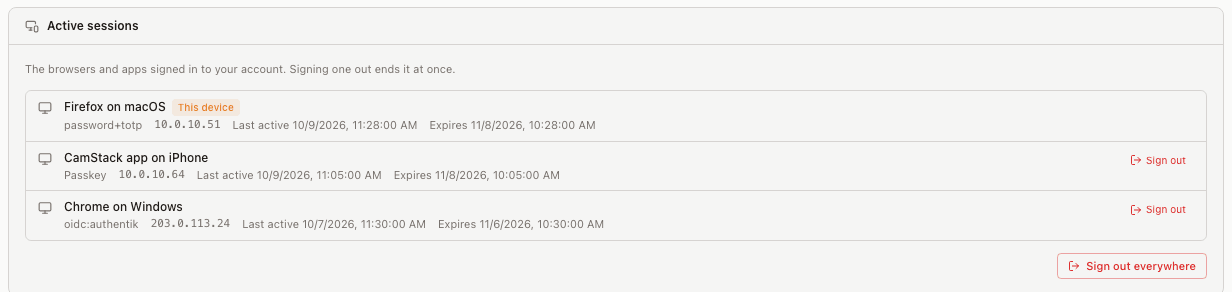
- My access → Active sessions lists every device signed in as you: the browser or app, how it signed in, its address, and when it was last used. Sign out ends one; Sign out everywhere ends all of them, this one included.
- Changing your password keeps you signed in here and signs you out everywhere else.
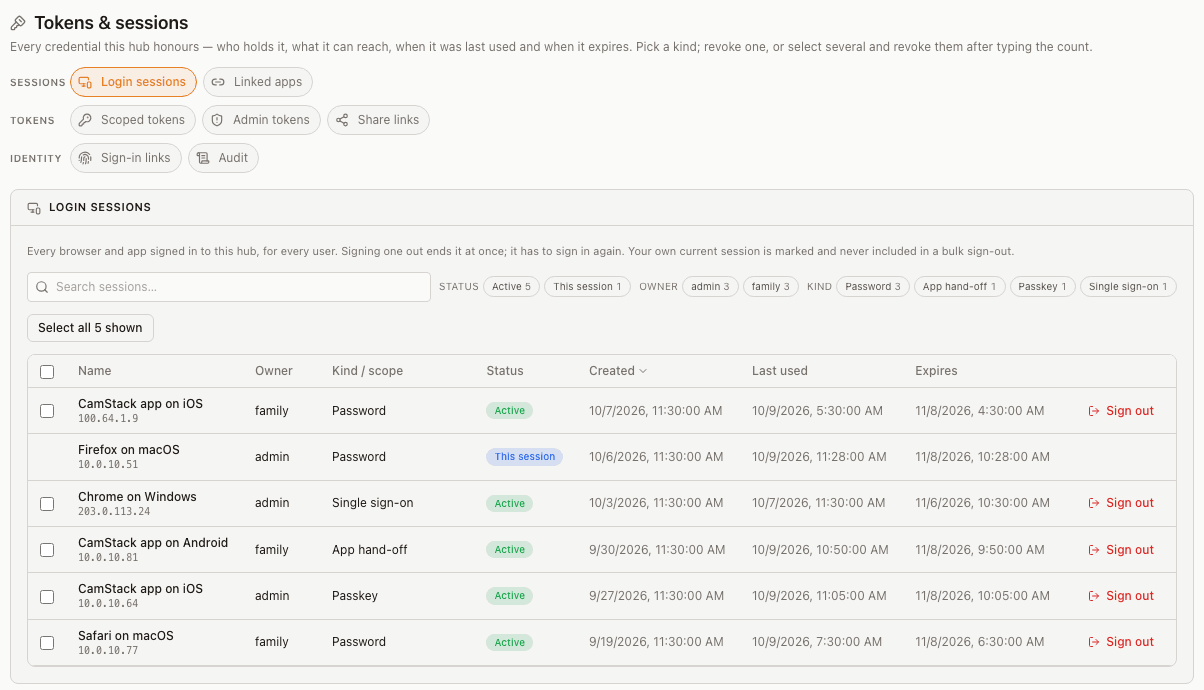
- An admin can see and end a user's sessions from Identity & Access → Users, and every user's sessions in one table from Identity & Access → Tokens & sessions → Login sessions — sign out one, or select several and revoke them together. The session you are using is marked This session and is never part of a bulk sign-out. Resetting a user's password, or deleting the user, ends all of their sessions — and deleting a user also revokes their tokens straight away.
Trusted networks
Off by default. System → Settings → Authentication → Trusted networks lists
networks (for example 192.168.1.0/24) where a sign-in may skip the second
factor: a password is enough when it is made directly from one of them.
Anyone on a listed network who knows or guesses a password gets in with the password alone — a compromised camera or a guest device included. List one trusted network, not the whole LAN.
- A sign-in through your Cloudflare tunnel, your public address or any reverse proxy never skips the second factor, whatever address it claims.
- Every skip is written to the authentication audit (Identity & Access → Tokens & sessions → Audit): who, from which address, and which factor was skipped.
Sign-in limits
To slow down password guessing, the hub limits sign-in attempts:
- per address — about ten attempts a minute from one address;
- per account — after twenty wrong passwords or codes in fifteen minutes, that account refuses sign-ins for the rest of the fifteen minutes, from everywhere. Your own successful sign-ins never count.
A refused attempt says how long to wait.
Behind a reverse proxy
The hub reads the visitor's real address from the forwarding headers
(CF-Connecting-IP, X-Forwarded-For) only when the request reached it from
a proxy it trusts. Your Cloudflare tunnel runs on the hub itself and is always
trusted. A reverse proxy on another machine (nginx, Caddy, Traefik) must
be listed in System → Settings → Authentication → Trusted reverse proxies;
otherwise every visitor looks like that proxy, and they share one set of
sign-in limits.
Two-factor and passkeys
Authenticator-app codes, passkeys for direct sign-in, passkeys as a second factor — and which factors every sign-in method asks for.
Single sign-on (OpenID Connect)
Sign in with Authentik, Keycloak, Google, Microsoft or any OpenID Connect provider — setting up a provider, redirect URIs for every address, and linking accounts.