

Build-your-self
Write scripts and automations, compose custom devices, camera grids and terminal cameras, and keep it all organised with tags and the global search.
Build-your-self in the Admin sidebar (/build) holds scripts, automations
and editors for composing custom devices.
Start here when you need logic beyond notification rules (for example a UniFi WAN check script, or a composed doorbell). Prefer notification rules for "when X happens, notify / alarm".
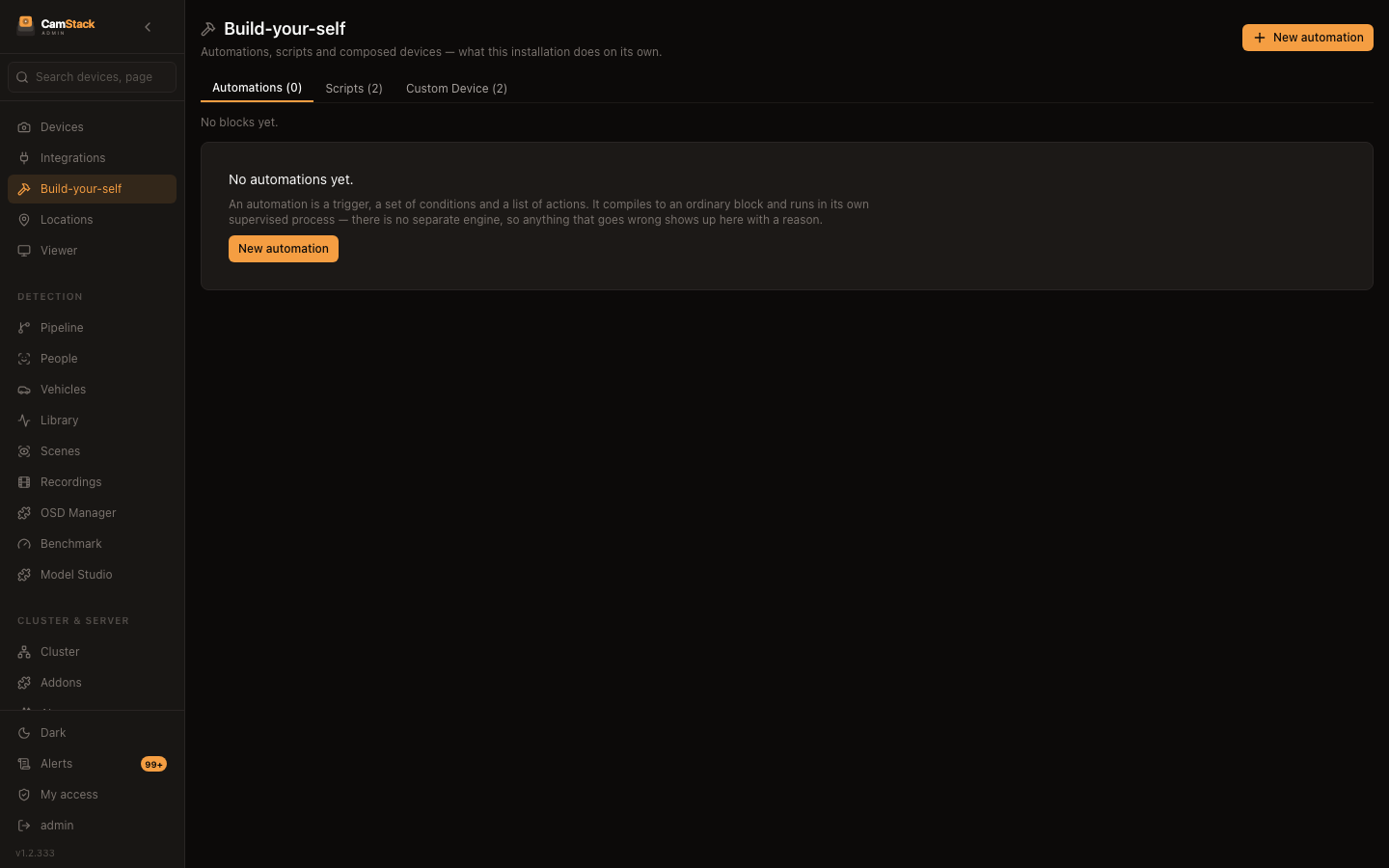
Sections
| Section | What it holds |
|---|---|
| Automations | When something happens, and conditions hold, do something |
| Actions | Named, ordered steps with variables, run on their own or from elsewhere, with a history of their runs. Actions an addon ships are shown read-only. |
| Schedulers | Time-based schedules, which can be limited to "only when" a state holds |
| Code | Scripts |
| Custom Device | Devices composed from other devices, helpers, camera grids and terminal cameras |
| Templates | Automation templates with inputs. Built-in ones open read-only with Duplicate; any template can be exported as a file. |
Each section's tab shows how many elements it holds. Every editor opens in the page; Quick edit, a row action that also appears right after you save a new element, changes just its name and tags.
Camera grids and terminal cameras
A camera grid and a terminal camera are both cameras made of something else, so both are made in Custom Device: create a new custom device and pick Camera grid or Terminal camera in the helper picker.
- Camera grid — a camera whose picture is several cameras laid out in cells. The layout is edited on the grid camera's own page. Its name is the camera's name: rename the camera and the grid is renamed.
- Terminal camera — a camera showing a terminal running on a node. Pick the terminal; one that already has a camera is shown disabled, named after that camera. The Terminal page's Add a camera link opens this template with the terminal already picked.
Camera grids and terminal cameras made before they became custom devices are removed when you update, with no migration. Create them again here.
Tags
Every Build-your-self element (automations, actions, schedulers, scripts,
custom devices, templates), every device and every
notification rule can carry tags: free words
such as irrigation, which gather the valves and the automation that drives
them in one place.
- Adding a tag — type it in the tag field. It offers the tags already in use as you type; a new word becomes a new tag.
- Colour and icon — set from the tag's style dialog. A tag looks the same everywhere it appears.
- Filtering — every list has a tag filter, and the search box matches tag names too.
- Grouping — switch a list between List and By tag. By tag shows one group per tag; an element with two tags appears in both. Your choice is remembered.
- Rename or remove — from the tag filter's menu. A rename or a removal applies to every element that carries the tag; a removal asks for confirmation first. If one of the places that stores tags cannot be reached, the rename or removal is refused before anything changes, so tags never end up half-renamed.
Global search
The search box at the top of the sidebar finds devices, pages, integrations and Build-your-self elements — automations, scripts, schedulers, actions, templates and custom devices — by name or by tag, and opens the element's own editor. Use the arrow keys and Enter to pick a result. While the lists are still being read the search says Searching, never "No results".