

Install and update addons
Install and update Dominevo features from the Addons page, and know when you need a server or image update instead.
This page shows you how to install and update addons from Cluster → Addons, and when an addon update is not enough.
Dominevo is a small kernel plus addons. Camera providers, detection, notifications, OSD Manager, Model Studio and the Admin UI itself are addons. You usually update them without replacing the Docker image.
Open Addons
In the Admin sidebar: Cluster → Addons (/system/addons).
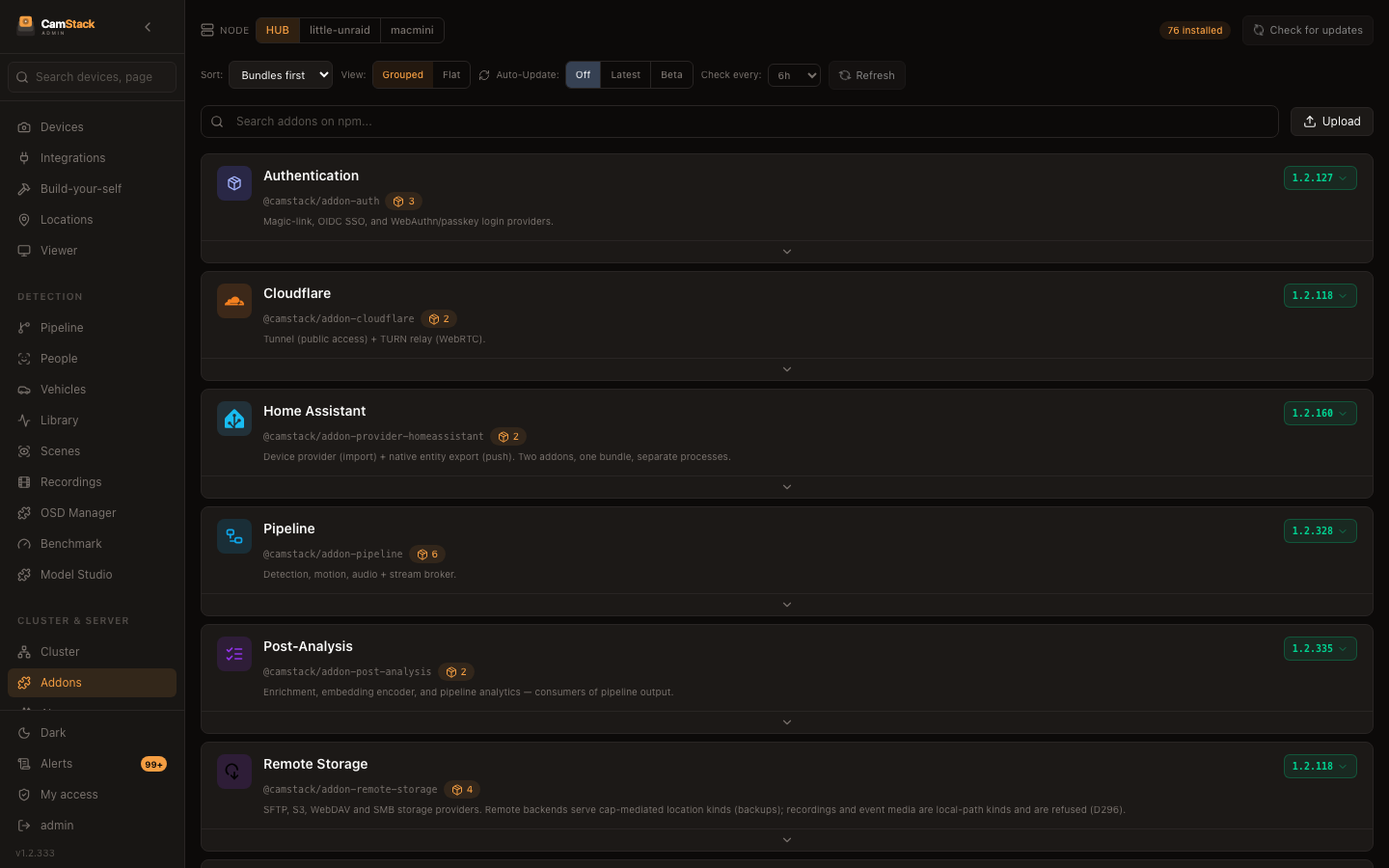
Install from the registry
Open the Available (catalogue) view.
Pick the addon (for example a camera provider) and Install.
Wait until the row shows a healthy status. A failed install leaves a reason on the card — open it before retrying.
Update an installed addon
Select the addon → Update when a newer version is offered. The hub pulls the package into its data directory and respawns the runner. You do not need a container recreate for a normal addon bump.
Image vs addon (do not mix them up)
| What changed | How it reaches the hub |
|---|---|
| An addon (camera provider, detection, notifications, …) | Addons page, or dominevo deploy |
| The Dominevo server itself | A server update |
| Node runtime, drivers, ffmpeg in the image | New Docker / Unraid image |
Editing files on your laptop and rebuilding dist/ has no effect until
that package is deployed to the hub's addon store.
Then
- First run in the Admin
- Integrations
- Updating — image and framework path
Core addons
The addons a working Dominevo needs — what ships with the hub, and the three you choose yourself, a camera integration, a TURN relay and a way in from outside — with where each one is configured.
Add a camera
Adopt a camera from an integration, open its device page, and confirm live video before enabling recording or detection.