

Model Studio
Get detection models onto your nodes and choose which one each accelerator runs — Catalog, Installed, Import and Logs.
Model Studio is where you acquire models, see what is installed on each
node, and activate a model on a specific inference device. Install the
model-studio addon first (Addons); the page
appears under Addon Pages → Model Studio in the Admin sidebar
(/addon/model-studio).
The page has four tabs:
| Tab | Use it to |
|---|---|
| Catalog | Download or import models from the Dominevo, Scrypted or Frigate catalogs onto a node |
| Installed | See the models on a node's disk, activate one per accelerator, open its settings, remove it |
| Import | Register your own model from a file or a URL |
| Logs | Follow what the addon is doing (downloads, imports, conversions) |
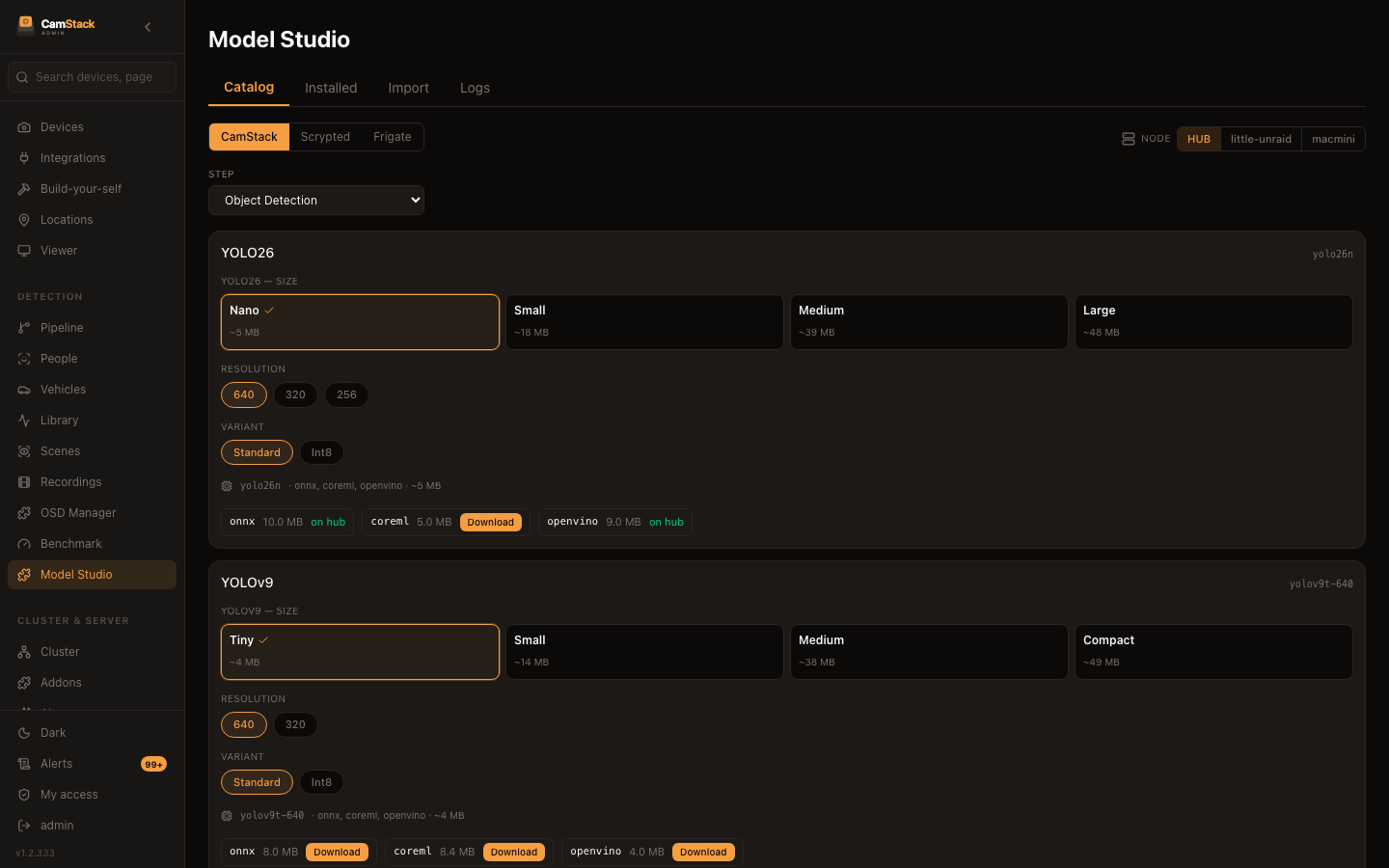
Catalog
Choose a source — Dominevo, Scrypted or Frigate — and the node the files should land on (top-right selector).
- Dominevo — Dominevo's own catalog, one step at a time (pick the step from Step). Model families are grouped by variant (size, resolution, precision); each format shows Download or that it is already on the selected node. Enrichment steps offer a single license-clean model; see Detection models for the full list and licenses.
- Scrypted — the YOLOv9 builds published by Scrypted, with the same variant chips (training, size) and the formats ONNX, OpenVINO, CoreML and TFLite. When no node has a Coral, a TFLite build is only registered.
- Frigate — with a Frigate+ API key, the list of models your Frigate+ account has access to, imported server-side. Pick the Model group (official base models or your own trainings) and the Frigate+ release; every architecture then shows as a card at once (YOLO-NAS, YOLOv9, MobileDet). Pick size and resolution, and the card lists every format that exists for that combination: ONNX (downloaded), OpenVINO and CoreML (converted from the ONNX) and TFLite (the Edge TPU build, which runs on a Coral). MobileDet is TFLite only. A TFLite import is blocked, with the reason, when no node has a Coral; builds Dominevo cannot run (Hailo, Rockchip, CPU TFLite) are not listed. Without a key, the publicly downloadable Frigate default (SSDLite MobileDet for Edge TPU) is offered. The Frigate+ API key is entered right here, under Catalog → Frigate (Save key, Replace key, Test connection); it is stored on the server only.
Scrypted and Frigate models keep their publisher's license terms. See Models and licenses.
Every import card has an optional Display name. Leave it empty to keep the source's own name; you can rename the model later under Installed.
Downloading or importing a model puts it on the node; it does not by itself pin it anywhere. Choose where it runs under Installed.
Installed
The inventory of models whose files are present on the selected node, filterable by provider (Dominevo, Scrypted, Frigate, Custom) and model type (pipeline step). Each card shows the step, the formats on disk and the size.
Device pills. Each card has one pill per inference device on that node (for example NPU, iGPU, Coral, CPU):
- A highlighted pill means the model is active on that accelerator — it is what the pipeline actually resolves for that step there, whether you pinned it or it is the step's default. Click it to open Settings for the step on that accelerator.
- A plain pill means the model is not active there. For Dominevo catalog models, clicking it asks you to confirm Activate, which pins the model as the base model for that step on that accelerator. Every camera whose detection runs on that accelerator then uses it.
- Steps that are cluster-wide (one shared model for the whole cluster, such as face and image embeddings) show a single cluster pill instead: activating it sets that model for every node.
Rename. An imported model (Frigate, Scrypted or Custom) has a pencil next to its name: edit the display name in place and save. Only the name changes — the model id, its pins and its files stay as they are. Saving an empty name restores the name it was imported with. Dominevo catalog models keep their names.
Remove deletes the model's files after a confirmation. For a Dominevo catalog model it deletes the downloaded files from the selected node, and it is not offered while the model is active on that node (or cluster-wide) — activate another model first. For an imported model, Remove takes it out of Dominevo, deletes its files on every node and clears any step that was pinned to it.
Remove cannot be undone.
Import
Register a model of your own (Custom). Scrypted and Frigate models are not imported here — use Catalog.
- Choose the source: Upload file (
.onnx,.tfliteor.pt) or a Model URL / HuggingFace path (https://…orhf://org/repo/model.onnx). - Give it a Model id and, optionally, a Display name (the id is used when it is empty), and pick the step it serves.
- Set the input width / height, the format (ONNX, OpenVINO, CoreML, TFLite or PyTorch) and the decode (postprocessor) — or leave Step default.
- Enter the labelmap: one label per model output index, in order.
Dominevo does not record the license of a model you import; that remains your responsibility. The new model then appears under Installed with the Custom provider.
Logs
A live view of the model-studio addon's own log, with filters. Look here first when a download, import or conversion does not finish.
Then
- Detection models — what Dominevo ships, and the license of each model.
- Hardware acceleration — enabling the accelerators the pills refer to.
- Benchmark — measure a model on an accelerator before you activate it fleet-wide.
OSD Manager
Put live Dominevo state, named multi-device templates, the latest person or plate, clocks and custom text into a camera's own on-screen display.
Benchmark
Measure what one machine can really carry — its accelerators and its whole detection pipeline, on the machine itself — and inspect one image or one sound.