

Backup
What a Dominevo backup contains, where it goes, how to restore it — and how to encrypt it with a key only you hold.
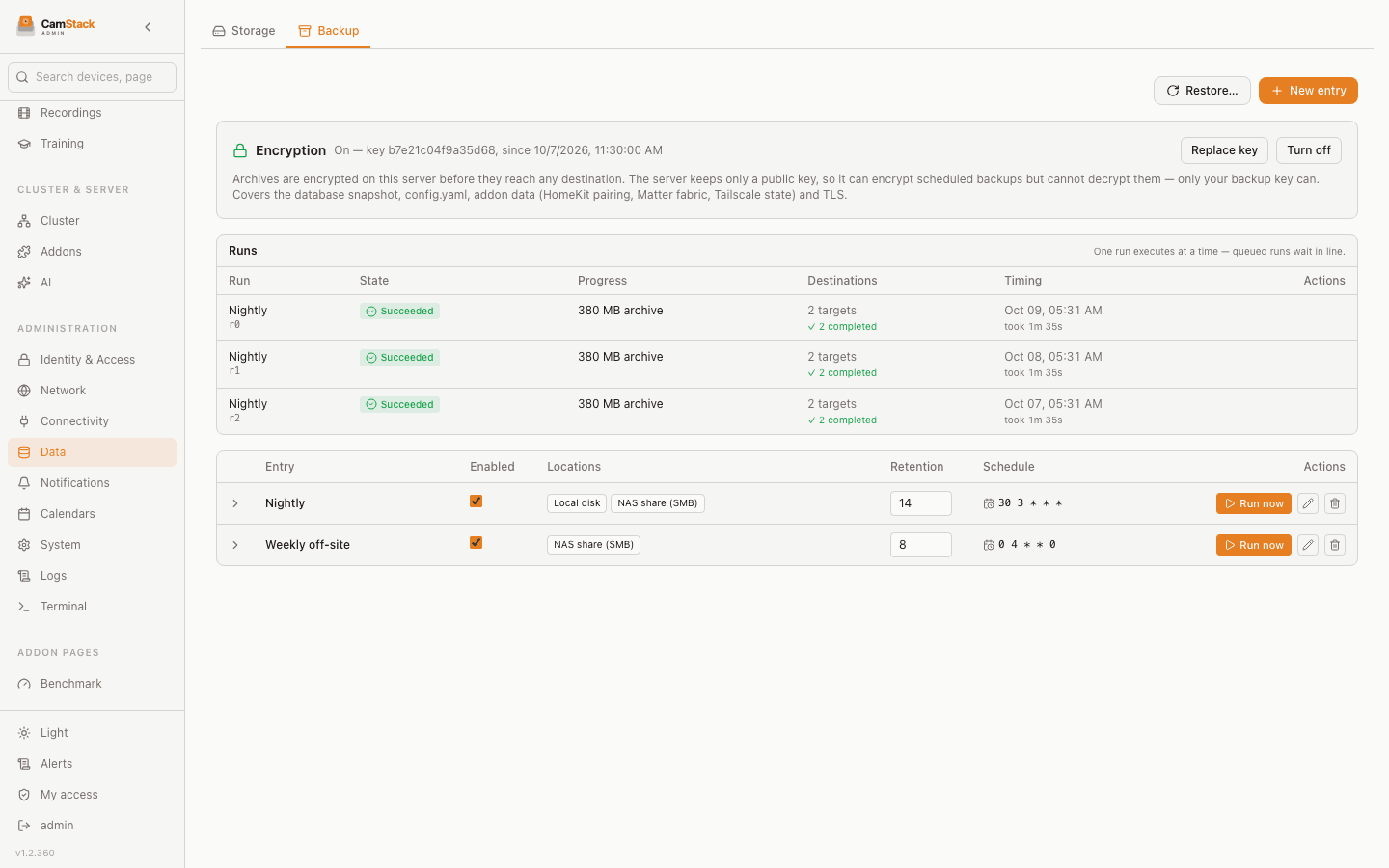
Sidebar Administration → Data → Backup (/system/data?tab=backup).
What a backup contains
Backups belong to the hub: one archive of the hub's state. The Backup page does not back up, or restore, an agent.
| Included | What it is |
|---|---|
| Settings database | A verified snapshot, never a copy of the live file |
addons | Installed addons |
| Addon data | Each addon's private files — including the HomeKit pairing keys, the Matter fabric and the Tailscale node state |
tls | The hub's certificates and their private keys |
auto-update.json | The auto-update settings |
Two more databases can be backed up, each as a verified snapshot: Events & detections (tracks, detections, notification history) and History (statistics) (long-term statistics). You choose what a backup carries with the Configuration & files / Events & detections / History (statistics) picker, in the entry editor and in Back up now. The default is Configuration & files only. The statistical databases are meant for a weekly archive; one that holds only snapshots is marked Snapshots only.
What an archive does not contain
- Recordings, event media, models, logs and caches. Back those up yourself if you need them (see Storage).
- The keychain's master key. The passwords in the keychain stay encrypted in an archive and cannot be read without it (see Secrets). Restoring onto a new machine does not bring the master key with it.
- Your backup key, when encryption is on (see below).
- Agents. An agent keeps its own state on its own machine.
- A database you did not tick. A database the backup was not asked to carry is left out, and restoring leaves it as it is.
The files that are included — pairing keys, certificates — are only as safe as the archive, which is why you may want to encrypt it.
Where it goes
A backup is written to every Backups storage location the entry targets — the default local folder, an SMB share on your NAS, or any other location you created under Storage (see Storage). New entry sets a schedule, the locations and how many archives each keeps; Run now makes one immediately.
Encrypt your backups
Off by default. With encryption on, every archive is encrypted on the hub, before it reaches any location, so the share or disk that holds it sees only ciphertext.
It uses a key pair:
- the hub keeps the public half, so scheduled backups can be encrypted at 3 a.m. with nobody around;
- you keep the secret half — your backup key. Only it can open an archive. The hub cannot decrypt its own backups, and neither can anyone who gets hold of the hub, its database or a copy of its data folder.
The backup key is separate from the keychain's master key: you can restore onto a brand-new hub with nothing from the old one but the archive and your backup key.
Turn it on
- On the Backup page, in Encryption, press Enable encryption, then Generate the key in the confirmation.
- Your backup key is shown — once. It looks like
camstack-backup-secret-v1:…. Copy it or Download as file, and store it in a password manager, or print it, somewhere that is not this server. - Tick I have stored this key somewhere safe and press I have stored it.
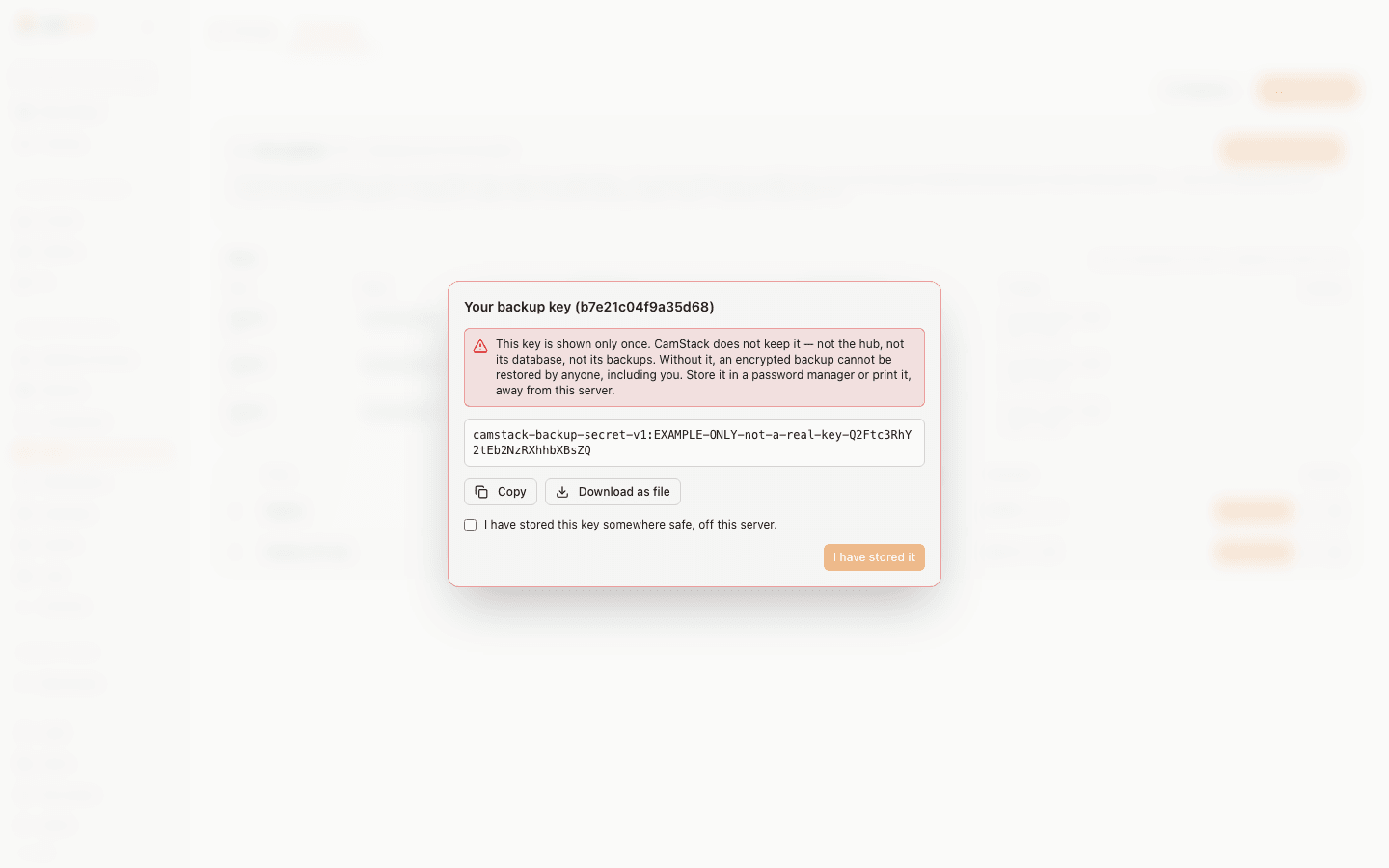
Dominevo does not keep the backup key — not on the hub, not in its database, not in its backups — and cannot show it again. Lose it, and the encrypted backups cannot be restored by anyone, including you.
From then on, archives are encrypted (a lock icon in the archive list). Backups made before stay as they were and still restore without a key.
Replace the key or turn it off
- Replace key generates a new backup key (shown once, as above); new backups use it. Older backups keep needing the key they were made with — the card lists the older keys by id so you know which one an archive needs. Keep the old key as long as you keep those backups.
- Turn off — new backups are written unencrypted again. Existing encrypted backups still need their key.
Restore
Restore the hub
- On Backup, press Restore… (or Restore on an archive). The dialog has three steps.
- Pick source: choose the Backups location the archive is in, and the Archive.
- Pick locations: tick the parts to restore. For a Snapshots only archive this step lists the databases it carries instead, and the dialog says it replaces just those databases and does not touch configuration, addons, addon data or certificates.
- Confirm. If the archive is encrypted, this step asks for the backup key and names the key it needs (its id). Paste the secret key. A wrong or missing key is refused before anything is downloaded. The key is used once, to decrypt the archive on the hub, and is not stored.
- Press Schedule Restore. Nothing is overwritten yet: the page shows Restore scheduled. Restart the server to apply.
- Press Restart Now and confirm. Active connections drop. The hub applies the restore before anything else starts: the selected parts overwrite live data, parts you did not pick stay as they are.
An unencrypted archive restores without a key.
If the archive file has disappeared by the time the hub restarts, the pending restore is dropped and the hub starts normally. If unpacking the archive fails, the hub does not start and the pending restore stays in place; read the hub log for the reason.
Restore onto a new hub
Install Dominevo, add the Backups location that holds the archive (an SMB share or a disk you mounted), and follow the steps above. If the archive is encrypted you need your backup key; nothing else from the old hub. Passwords in the keychain will not decrypt, because the master key is not in the archive: enter them again.
An agent
There is no restore for an agent on this page, because an agent is not in the archive. Pair it again from the hub (see Adding another machine).
Restoring without a running hub
If the hub is gone for good, you can still open an encrypted archive on any machine with Node.js, using the script that ships in the Dominevo repository:
# the key is read from a file (or stdin) — never from the command line
node scripts/ops/backup-decrypt.mjs <archive>.tar.gz.csbk restored.tar.gz --key-file backup-key.txt
tar -xzf restored.tar.gz -C /path/to/new/data
Downloading an archive from the archive list gives you the file as it is
stored — for an encrypted one, the .tar.gz.csbk ciphertext.
When a backup fails
Each Backups location is written separately, and the run reports how many succeeded and how many failed.
- A Backups location cannot be reached, or refuses the write (a share that is offline, a full disk or quota, a wrong password). That location is marked with the reason the provider gave, and it stays on its backup entry until the next attempt there succeeds. The other locations of the run still get their archive. The hub restarting does not erase the reason.
- The settings database cannot be snapshotted. No archive is built, nothing is uploaded and retention deletes nothing, so a failing night never pushes the last good archive out.
- A run you stop (the Stop run control on the runs panel) discards the half-written archive, here and in the Backups location.
The archive is first built in a staging folder on the hub's own disk and removed when the run ends, whatever the outcome. That folder needs room for one whole archive, so keep free space on the hub as well as in the Backups location.
What encryption does not cover
- The archives' names, dates, sizes and the list of parts (database, addon data, certificates…) are visible to whoever can read the location. The files inside are not.
- Encryption protects the copies that leave the hub. On the hub's own disk, the pairing keys and certificates are still ordinary files.