

The alarm
Set up Dominevo's built-in alarm panel: modes, what each mode covers, what happens from arming to disarming, delays, who is told, and arming with a window open.
This page explains how to set up an alarm mode that protects something, what stops a mode from arming, and which notifications you get from arming to disarming.
A mode arms nothing by itself
Dominevo creates one alarm panel device on the hub, with three modes: Home, Away and Night. Arming a mode only changes the panel's state — armed away, say. What makes it do anything is rules gated on that state:
- a rule with the condition Device state → alarm panel →
armed_awayis part of Away mode: it fires only while Away is armed; - the devices it names — cameras, contacts — are what Away covers.
Nothing about coverage is stored separately. Switch a rule off and its devices stop being covered; add a camera to it and the mode covers that camera. A rule with no device restriction covers every device; one with All except these covers all devices except those.
armed_away also matches the entry delay and the triggered alarm for Away,
so a rule gated on Away keeps firing while the alarm is counting down or has
gone off.
The Alarm settings show, per mode, what it covers — Arms nothing, Every device, Covers: Gate, Veranda…, All devices except 2: … — and which named devices it cannot actually arm right now, and why: notifications muted, detection off or offline. Arming a mode that watches nothing still works, but the arm notification says so: Active: none — no rule uses this mode.
Making a detection set it off
A rule gated on a mode's armed state sets the alarm off by itself when it fires while that mode is armed. You do not need an action for it.
The intrusion rule
A detection or sensor rule, such as Person in the garden or Veranda contact
opened, with Device state → alarm panel → armed_away. Add armed_night
too if Night should cover it.
The rule that tells you
Create an Alarm rule (Rules → Alarm) with the alarm events you want and your targets. Alarm notifications reach only the targets of your Alarm rules. See Who is told.
A sensor rule that is part of the alarm fires only when an opening opens (a contact opening, a lock unlocking, a cover starting to open), never when it closes.
Dominevo never switches on a siren by itself. If you have one, add its Sound action to a rule, on the rule's Actions tab. A rule's actions run as soon as the rule matches, which is at the start of the entry delay. See Actions and buttons.
What happens, step by step
You arm a mode
The exit delay starts. You get Arming away — 30s with a Disarm button, so you can still stop it. When the delay ends you get Alarm active: away. With an exit delay of 0 the mode arms at once and only the second notification is sent.
Something is detected: the entry delay
A rule of the armed mode fires, and the entry delay starts. You get one notification, Entry delay — away, 20s to disarm. It says which rule started it, on which device, and carries a Disarm button.
The rule's own notification is not sent: the entry-delay notification speaks for it. Whatever else your alarm rules see during the delay is not sent separately either. It is saved for the alarm notification.
Nobody disarms: the alarm triggers
When the entry delay runs out, you get the ALARM notification. Its text lists every location where something was seen, for example Intrusion: Entrance, Hallway, Living room. Its picture is a mosaic of everything seen during the entry delay, one tile per subject, from every camera.
With an entry delay of 0 the alarm triggers at once. The alarm notification then carries the pictures of the rule that set it off, and replaces that rule's own notification.
While the alarm is triggered
Every new match of an alarm rule is sent as its own notification, titled Intrusion — <location>, for example Intrusion — Hallway. The text says what was seen. If the rule groups its notifications (Immediate, grouped), matches from all cameras go into one notification with a mosaic, and the title lists every location: Intrusion — Hallway, Living room.
After the trigger
What happens next is the mode's After trigger setting:
- Re-arm after (the default, after 30 s): the alarm arms the same mode again, and you get Re-armed — away.
- Disarm after: the alarm disarms itself, and you get Disarmed automatically after the alarm had triggered.
- Do nothing (stay triggered): the alarm stays triggered until you disarm it.
You disarm
The Disarmed notification says what you stopped: Disarmed during the entry delay — the alarm did not trigger, or Disarmed after the alarm had triggered. It carries one Arm button per mode.
Two notification switches per mode
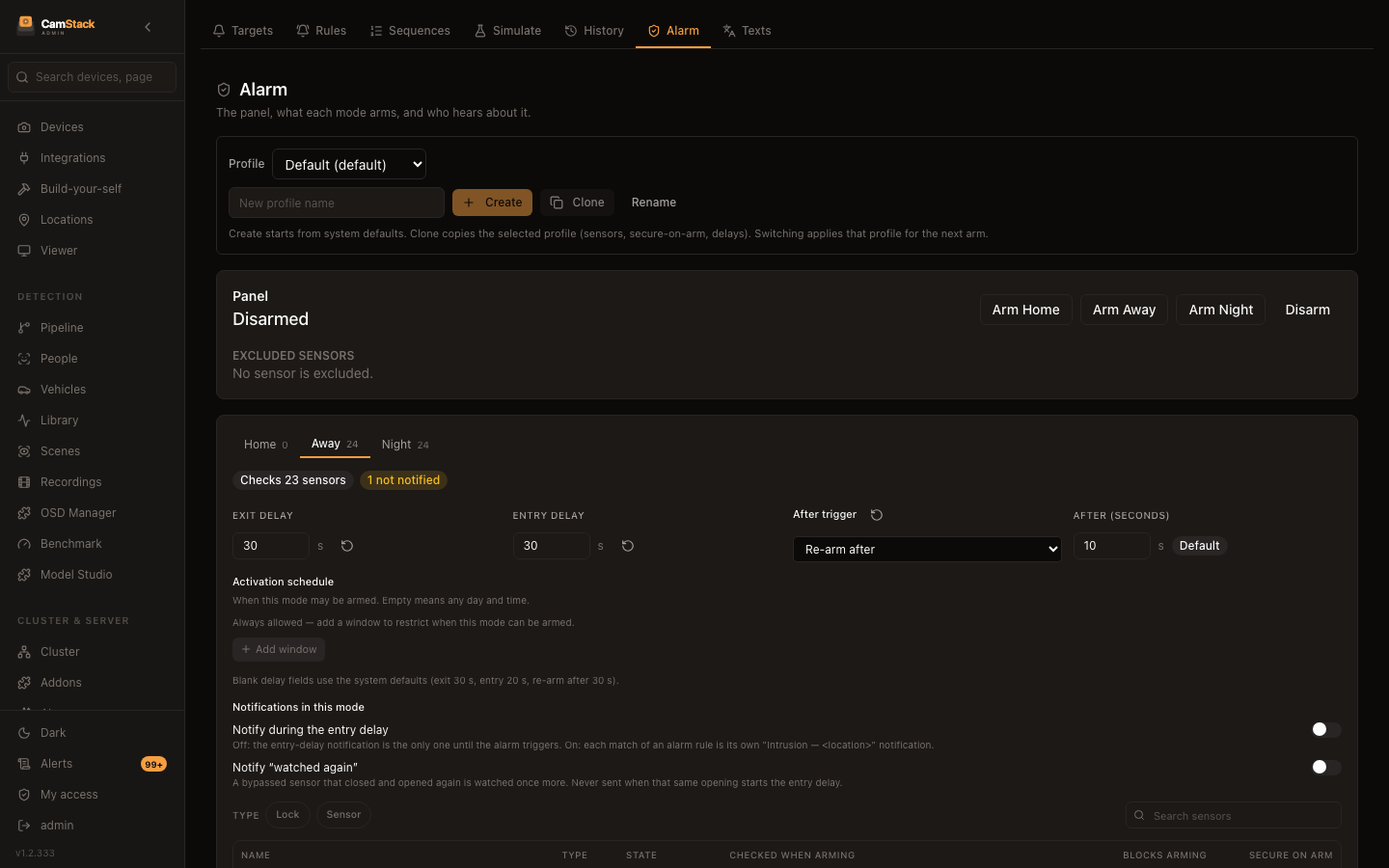
Each mode has two switches, both off by default. You find them on the mode's card in the Alarm tab, under Notifications in this mode.
| Switch | When it is on |
|---|---|
| Notify during the entry delay | Each match of an alarm rule during the entry delay is also sent as its own Intrusion — <location> notification. A grouped rule groups them across cameras, as above. |
| Notify “watched again” | You are told when a sensor that was open when you armed has closed and opened again, and is watched once more. It is never sent when that same opening starts the entry delay. |
Delays
| Setting | Default | 0 means | What it is for |
|---|---|---|---|
| Exit delay | 30 s | arms immediately | Time to leave after arming. Up to 600 s. |
| Entry delay | 20 s | fires immediately | Time to disarm when you come home. Up to 600 s. |
| After trigger | Re-arm after 30 s | runs the action immediately | What the alarm does once it has triggered, and how long it waits first. Up to 3 600 s. |
Each setting can be set per mode (Home, Away, Night). A mode that leaves a field blank uses the value under Default delays. The delays are stored as the moment the state changes, so a hub restarted in the middle of a countdown comes back in the right state.
Activation schedule
Each mode can have an activation schedule: the days and times when it may be armed. Outside those windows, arming that mode is refused. Leave it empty to allow arming at any time.
Named profiles
A profile is a saved snapshot of how a mode is configured — which sensors it covers, which openings are non-blocking, which openings secure on arm, and the delays — so you can switch seasonal setups without rebuilding the mode by hand. Create and apply profiles from the Alarm tab in the admin UI.
Secure on arm
Controllable openings (covers, locks, some contacts that can be driven) can be told to secure when that mode arms: a cover closes, a lock locks, as part of arming. Secure-on-arm is on by default for those devices; turn it off per device on the mode's sensor table when you do not want the house to move hardware on arm. This is separate from Non-blocking openings (which only says "may stay open without refusing the arm").
Arming with something open
An opening is a contact, a cover (blind, gate, garage door) or a lock. When you arm a mode, every opening the mode covers is checked:
- all closed — it arms;
- something covered is open — the arm is refused, and you are told what is open: Not armed — open: Veranda. The notification carries Arm anyway;
- a state cannot be read — it does not block. If nothing at all can be read, the mode arms without checking and you get Alarm check failed (armed anyway).
A cover counts as secure only when closed, a lock only when locked — closing, stopped and jammed are open.
Arm anyway arms with exactly the devices you were shown excluded. It is checked again when you press it: if something else has opened since, you get a new refusal naming everything open now; if the panel changed in between, or five minutes passed, or it was already pressed, nothing is armed and you are told why.
An excluded device is ignored until it has been closed and then opened again — then it is watched like the rest. The app shows Armed — excluded: … meanwhile.
Non-blocking openings
A window you routinely leave ajar at night should not stop Night mode from arming. Each mode has a Non-blocking openings list: a device on it may be open when that mode arms; it is armed around, not refused. The list offers every contact, cover and lock in the household; one that no rule of the mode covers is marked never blocks, since it could not block anyway. Listing a device never adds it to what the mode covers.
Who is told
Alarm notifications are sent only by Alarm rules (Rules → Alarm). Each rule picks the alarm events it sends, its targets, its wording and, if you like, a schedule. A target that one rule already reached is not sent the same event twice.
| Event | When | Button |
|---|---|---|
| Arm refused | A covered opening is open | Arm anyway |
| Check failed | Openings could not be read; armed without checking | Disarm |
| Arming | The exit delay starts (none when it is 0) | Disarm |
| Armed | The mode is armed | Disarm |
| Entry delay started | A rule of the armed mode fired; the seconds left to disarm | Disarm |
| Triggered | The entry delay ran out | Disarm |
| Re-armed | The alarm armed itself again after triggering | Disarm |
| Sensor bypass | An excluded device's trigger was ignored, or it is watched again (only with its switch on) | — |
| Disarmed | From any state | One Arm per mode |
Arming is the useful one: it reaches you while you can still do something about it, and warns you if the mode watches nothing. No snooze can silence an alarm rule, from anywhere.
Where to arm, disarm and configure
| Admin UI | App | |
|---|---|---|
| Arm, disarm, see the live state | Administration → Notifications → Alarm: one Arm per mode, the live state, excluded sensors | The alarm panel's control among a camera's devices; Disarm is always available, even while the state is still loading |
| Arm anyway | On the refusal | Admins in the control; everyone with the notification's button |
| Modes, coverage, non-blocking openings, secure-on-arm, profiles, delays | Alarm tab | Notifications → Alarm, admin only |
| After trigger, activation schedule, the two notification switches | Alarm tab, on each mode's card | Not in the app |
In the app, Save re-reads the settings first and applies only what you changed, so an edit made elsewhere in the meantime is kept.
Then
- Actions and buttons — the alarm buttons, and actions such as a siren.
- Conditions → Device state.
Batteries, consumables and tanks
Get told about offline devices, low batteries, worn filters and robot-vacuum tanks, either instantly or in a scheduled summary.
Timelapses and summaries
The two scheduled notification families — a timelapse video of a window of recorded footage, and a summary mosaic of the best shot of everything several cameras saw — with every setting and default.