

How networking works
The addresses your hub has and what each one is for, how the app picks the fastest route and fails over, the paths live video takes, and how the hub should sit on your network.
This section explains how your phone, your browser and other machines reach Dominevo, at home and away, and how to set up remote access without opening your home network to the internet.
Start here. The rest of the section builds on this page:
Remote access
The routes from outside your home compared, and which to pick.
Cloudflare Tunnel
A public HTTPS address with no port opened: a temporary Quick Tunnel, or your own permanent one.
Tailscale
A private network for your own devices, and Serve or Funnel.
Secure local connection
HTTPS at home from your phone, by trusting the hub's certificate.
Custom domains and TLS
Your own domain, a reverse proxy, and the hub's certificate.
TURN for live video
Making live video play on mobile networks.
Troubleshooting
Symptom, cause, fix.
Every setting mentioned here lives on the admin Network page, Administration → Network. Its tabs are described one by one in Network settings.
Two kinds of traffic
Dominevo carries two very different kinds of traffic, and they reach you in different ways.
| What it is | How it travels | |
|---|---|---|
| The app and the API | Sign-in, the camera list, events, settings, recorded video, pictures. | HTTPS and a WebSocket to the hub's port 4443, or plain HTTP on port 4480 for the native app at home. It goes through any route that reaches the hub: your LAN, a tunnel, Tailscale. |
| Live video | The live picture and two-way audio. | WebRTC: a separate media connection between the viewer and the hub, over UDP. It does not go through a tunnel. |
This split explains the most common surprise: remote access works, the app loads, and live video stays black. The app reached the hub through your tunnel; the video needs its own path. See Live video below.
Your hub's addresses
A hub can usually be reached at several addresses: its LAN address, maybe an IPv6 address, a Cloudflare Tunnel name, a Tailscale name. Different things need different ones. A phone at home wants the fast LAN address; a link in a notification must work from anywhere; another Dominevo machine must download from an address on your network, never through the internet.
The hub detects its addresses on its own, and lists them in the Addresses table on Network → Network Addresses. Each address can serve one or more roles:
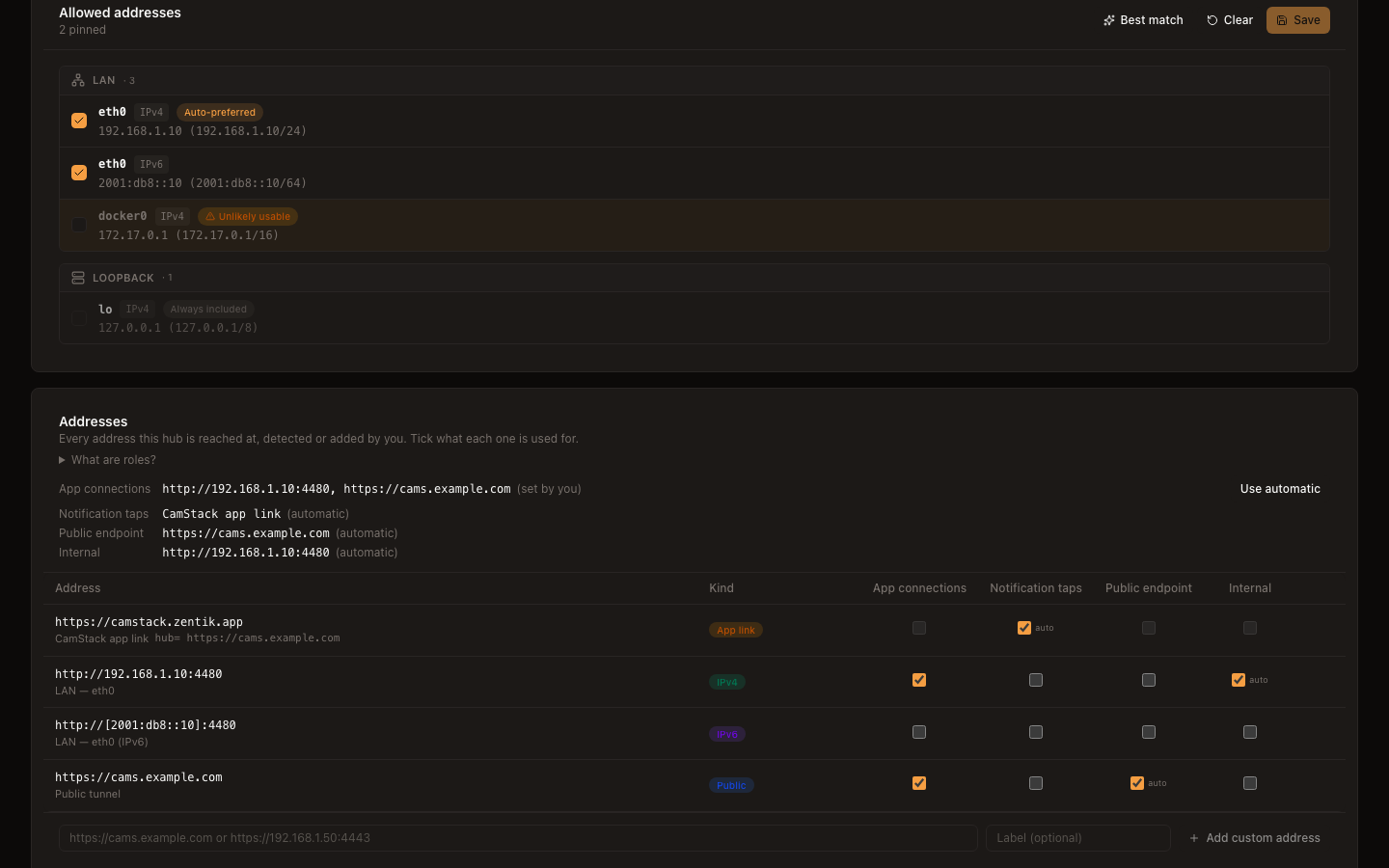
| Role | What it is for | How many | Picked automatically |
|---|---|---|---|
| App connections | The addresses the Dominevo apps try when they connect. The app tries them all and keeps the fastest. | Several | Every LAN IPv4 address, over HTTP and over HTTPS, plus your own public tunnel (never a Quick Tunnel's temporary address). |
| Notification taps | Where tapping a notification opens. | One | The Dominevo app link, which opens the app if it is installed. |
| Public endpoint | Every link that must work away from home: sign-in and email links, single sign-on, passkeys, account linking for Alexa, and the pictures, buttons and admin links inside notifications. | One | Your own Cloudflare Tunnel, then your Tailscale name, then a LAN address. A Quick Tunnel's temporary address is never picked. |
| Internal | Where other machines on your network download from: Dominevo agents fetching addons and models, Home Assistant fetching pictures. | One | A LAN address, then your Tailscale address. Never a tunnel. |
Nothing ticked means automatic. The hub picks again whenever its
addresses change, for example when you start a tunnel. Tick an address in a
column only when the automatic choice is wrong for you. The exact rules for
ticking, custom addresses and the plain-http:// warning are in
Network settings → Roles.
There is no environment variable for the hub's address. Everything is set on the Network page. A container that still sets an old public-URL variable logs a warning at start and ignores it.
When the hub cannot see its own address
The hub only knows the addresses of its own network interfaces, plus the tunnels it runs. Add a custom address when people reach it some other way:
- Docker bridge networking — the hub sees only a container address such as
172.17.0.2. Add the host's address and published port, for examplehttps://192.168.1.10:4443. - A reverse proxy or your own domain — add
https://cams.example.com. See Custom domains and TLS. - A tunnel or VPN Dominevo does not run itself — add the address it gives you.
A custom address serves only the roles you tick on it. Automatic never picks one.
How the app picks a route
You give the app one address when you sign in. From then on:
- After connecting, the app asks the hub for its App connections addresses and remembers them for next time.
- It tries every address at the same time, with a short health check, and gives each one 1.5 seconds. The fastest to answer wins, and the app switches to it.
- If none answers, the app stays on the route it has.
The comparison runs again whenever the connection comes back after a drop — for instance when you leave Wi-Fi or arrive home — and when you return to the app after it was in the background. Arriving home therefore moves you from the tunnel to the direct LAN address without you doing anything.
In the app, Settings → Network shows the route in use, lets you pin one, and has Re-probe routes and Diagnose LAN routes. See Connect the app.
The native app and the browser differ at home
- The native app reaches the LAN over plain HTTP on port
4480, which needs nothing on the phone and is on by default under Network → Local access. The hub also offers each LAN address over HTTPS (4443): a phone that has the hub's CA installed uses it, any other phone skips it and keeps HTTP. See Secure local connection. - A browser on an HTTPS page cannot call a plain
http://address. It tries the hub's HTTPS address on your LAN instead, which only works if the browser trusts the hub's certificate. If it does not, the LAN check fails and the tunnel or Tailscale address wins, even at home. To make browsers use the LAN, trust the hub's CA on that device or use a publicly trusted certificate. See Custom domains and TLS.
When to tick an address yourself
Leave a role automatic whenever you can. Automatic follows your network: start a tunnel and the roles move to it, stop it and they move back. A tick you set stays where you put it.
For example, with the hub at 192.168.1.20 and your own tunnel at
dominevo.example.com, App connections automatic means the LAN addresses
plus the tunnel. At home the app wins on the LAN address; away from home it
wins on the tunnel. Ticking only the tunnel would send the app out to the
internet and back while you sit next to the hub.
Tick an address by hand when the hub cannot detect the right one: it sits behind NAT or a reverse proxy, or you want a VPN address preferred. Add it as a custom address first. Do not tick by hand to work around a missing automatic pick: find out why the address is missing, for example a tunnel that is not running.
Remote access and the public endpoint
Two providers add a public row to the table: a
Cloudflare Tunnel and
Tailscale. The Public endpoint must be an
https:// address that works from outside your home, such as
https://dominevo.example.com. With no tunnel and no Tailscale, the automatic
pick falls back to a LAN address, which nothing outside your home can reach.
A Quick Tunnel's temporary address is never picked automatically.
What depends on the public endpoint
- Alexa and Google account linking. The cloud calls back to this address.
- Sign-in links, single sign-on and passkeys. A passkey is tied to the address it was registered on, so changing the public endpoint means registering passkeys again.
- Notification buttons, pictures, video and admin links. They must work when you are away from home.
- Device enrolment links, which a phone opens after leaving the LAN.
Finding the hub on your network (mDNS)
The hub announces itself on your LAN under the name _camstack._tcp, so
dominevo login, dominevo discover and an agent's local page can find it
without you typing an address. The announcement carries the Internal
address. Finding the hub grants nothing: every client still signs in.
Turn it off with the hub setting Announce this hub on the LAN (mDNS). It
needs multicast on UDP 5353, so it works with host or macvlan networking and
not with Docker bridge networking (see How the hub sits on your
network).
Where a notification tap goes
By default, a tap uses the Dominevo app link,
https://camstack.zentik.app. On a phone with the Dominevo app installed, the
app opens straight on that camera and moment. Anywhere else the web viewer at
that address opens. Either way it then talks to your hub directly.
The link carries your hub's public HTTPS address so the right hub opens: your own Cloudflare Tunnel if you have one, otherwise your Tailscale name. A LAN address is never put in it. With neither, the tap still opens the app, which uses the hub it already knows; a browser that has never seen your hub asks for the address once.
To open your hub directly instead, tick one of its own addresses in the
Notification taps column. Taps then open the web viewer on your hub. A
plain http:// address usually works only at home.
The tap is the only thing this role decides. Pictures, video and buttons in a notification, and links to admin pages, use the Public endpoint, so they work away from home only when the hub has a public HTTPS address.
Live video
Live video uses WebRTC. The viewer and the hub exchange a list of possible paths ("candidates") and use the first one that connects. Three kinds exist:
| Path | When it works | What it needs |
|---|---|---|
| Direct on the LAN | The viewer is on the same network as the hub, or on Tailscale. | Nothing. The hub offers its LAN addresses, and its Tailscale addresses when Tailscale runs on the machine. |
| Direct through the internet (STUN) | Away from home, when both routers let a direct UDP connection through. Often works on home broadband, rarely on mobile networks. | A STUN server, so each side learns its public address. Browsers always use one; the hub gets its STUN servers from your TURN provider. |
| Relayed (TURN) | Always, including mobile networks, carrier-grade NAT and strict firewalls. | A TURN relay. Not set up by default. See TURN for live video. |
The relay is only a fallback. When a direct path connects, it is used and the relay carries nothing.
Each live session opens its own random UDP port on the hub, so there is no port you can forward to make live video work from outside. Use TURN. The port list is in Ports.
Exporters have their own video paths: an Echo device always connects directly to the hub and never through TURN (see Alexa), and HomeKit uses an Apple home hub for viewing away from home (see HomeKit).
How the hub sits on your network
The hub must have an address on your LAN that cameras and viewers can reach.
| Docker network mode | Result |
|---|---|
Host (network_mode: host) | Recommended, and the default in the Compose file. The hub sees its real LAN address; live video, HomeKit and the hub's mDNS announcement work. |
macvlan / ipvlan (Unraid's br0) | The container gets its own LAN address, which the hub sees. Works like host networking. By Docker's design the host machine itself cannot reach a macvlan container, which matters only if you browse from that machine. |
| Bridge (the Docker default) | The hub sees only a container address. Add the host's address as a custom address and tick it for Internal and App connections. Live video works only through a TURN relay, because the random UDP ports cannot be published. HomeKit does not work. The hub is not announced over mDNS (5353/UDP multicast does not leave a bridge network), so give clients and agents its address. |
See Host networking for the install side.
Then
- Remote access — reach the hub from outside.
- TURN for live video — make live video work away from home.
- Network settings — every setting on the Network page.
- Ports — every port and whether to open it.
The viewer
What the Dominevo viewer does — live cameras, the event library, recordings on a timeline, grids, notification rules and the alarm — and what changes when you are away from home.
Remote access
Reaching Dominevo from outside your home — Tailscale, Cloudflare Tunnel, a reverse proxy on your own domain, port forwarding — compared, with what must and must not be reachable from the internet.