

Alexa
Publishing Dominevo cameras and devices to Alexa — the public address it needs, the Dominevo skill, account linking, who sees what, detection sensors, snapshots, object detection, what an Echo Show receives, and managing the link.
The Alexa exporter publishes your cameras and other devices to Alexa, so you can say "Alexa, show the front door" on an Echo Show or Fire TV, talk through a camera, hear doorbell announcements, see a camera's latest picture in the Alexa app, and use detections, sensors and locks in Alexa routines. This page covers what you need before you start, how to link your Amazon account, and what Echo devices receive.
What appears in Alexa
| Device | In Alexa |
|---|---|
| Camera | A camera with live view on an Echo Show, Fire TV or in the Alexa app. |
| Two-way audio | On a camera with an intercom, an Echo Show sends your voice to the camera's speaker during live view. |
| Snapshot | The camera's latest picture on its tile in the Alexa app. See Snapshots. |
| Doorbell | A doorbell camera announces a press on your Echo devices and can open live view on an Echo Show. See Doorbell on an Echo Show. |
| Motion | A camera with its own motion sensor reports motion, usable as a routine trigger. |
| Detection sensors | For each camera, a sensor for each detection class you choose: Front door Person, Vehicle, Animal, Package. None until you choose. See Detection sensors. |
| Object detection | Experimental. Person and package detections as events on the camera, with their history in the Alexa app. See Object detection. |
| Online status | Every camera and sensor reports whether it is reachable. |
| PTZ | Pan and Tilt controls on the device card, voice controls Pan Left, Pan Right, Tilt Up and Tilt Down, and a Preset choice where the camera has named presets. Each move is a short step. |
| Privacy and autotrack | Separate switches named after the camera, such as Front door — Privacy and Front door — Autotrack. |
| Floodlight, spotlight or siren | A separate light or switch for each. Changes made outside Alexa show up in Alexa straight away. |
| Alarm panel | A security panel you can arm and disarm. An alarm going off is reported to Alexa straight away. |
| Lock | A smart lock you can lock and unlock. Unlocking by voice must be enabled in the Alexa app. |
| Contact, motion, presence, temperature and humidity sensors | A sensor of the same kind, usable in routines. |
| Switch or light | A switch, or a dimmable light. |
Battery level is not shown in Alexa: Amazon has no interface a camera can report it through. Smoke, carbon monoxide and leak sensors are not published, for the same reason. Both stay visible in Dominevo.
Amazon documents the camera event history and "person detected" announcements for US-English accounts only. Dominevo sends them anyway, as an experiment you can switch off: see Object detection. The detection sensors work in every language, and Dominevo's own notifications keep the full history.
Before you start
A public HTTPS address
Alexa runs in Amazon's cloud and reaches your hub from the internet. The hub needs a public HTTPS address, from a Cloudflare Tunnel or from Tailscale in Funnel mode. Tailscale Serve is reachable only inside your tailnet, which Amazon is not part of. See Remote access.
Set it up first. The Alexa exporter picks its address from your connected remote access, so it has nothing to offer until a tunnel is up.
No public address is the most common reason linking fails. Amazon cannot reach the hub, and the Alexa app reports a generic linking error. Set up remote access, reopen the Alexa settings, check External address, and link again.
The Dominevo skill
Alexa talks to the hub through a skill. You have two choices:
- Public (built-in Dominevo skill) — the default. No Amazon developer account and nothing to configure: you enable the Dominevo skill in the Alexa app and link your account. The skill is distributed as a beta, so it does not appear when you search the skills catalogue; you enable it from the beta invitation link.
- Custom skill — your own Smart Home skill and AWS Lambda, for when you want full control. See Your own Alexa skill.
Set it up
- Make sure the Alexa Smart Home export addon is installed and running. See Addons.
- Open Administration → Connectivity → Device export and select Alexa Smart Home export.
- Under Connection → External address, check that your tunnel's address is selected. The list is read from your connected remote access each time the page opens; if your tunnel is missing, check that it is connected.
- Set Skill region to the region of your Amazon account: North America, Europe or Far East.
- Expose the cameras you want, from the list or from each camera's Export tab. See Exporters.
- In the Alexa app, enable the Dominevo skill and select Link Account. You are sent to your hub's sign-in page: sign in and approve. That creates a linked app grant — see Outside services and Tokens → Linked apps.
- Back in Dominevo, Account link shows the Dominevo user who linked and Amazon push grant: held. Exposed cameras appear in the Alexa app within a few seconds.
From then on, exposing or unexposing a camera updates Alexa straight away.
Who sees what
Each Amazon account sees what the Dominevo user who linked it may see:
- An administrator's link sees every exposed device.
- Any other user's link sees only the exposed devices that user has access to, and can control only those the user may control. A camera the user may only view appears without PTZ controls and without two-way audio.
- Changing a user's access applies within a minute. Devices the user lost are removed from that Amazon account after a second check, a minute later.
So a family member who links their own Amazon account gets their own cameras, not the whole house.
The settings page
The Alexa exporter's settings are in four sections:
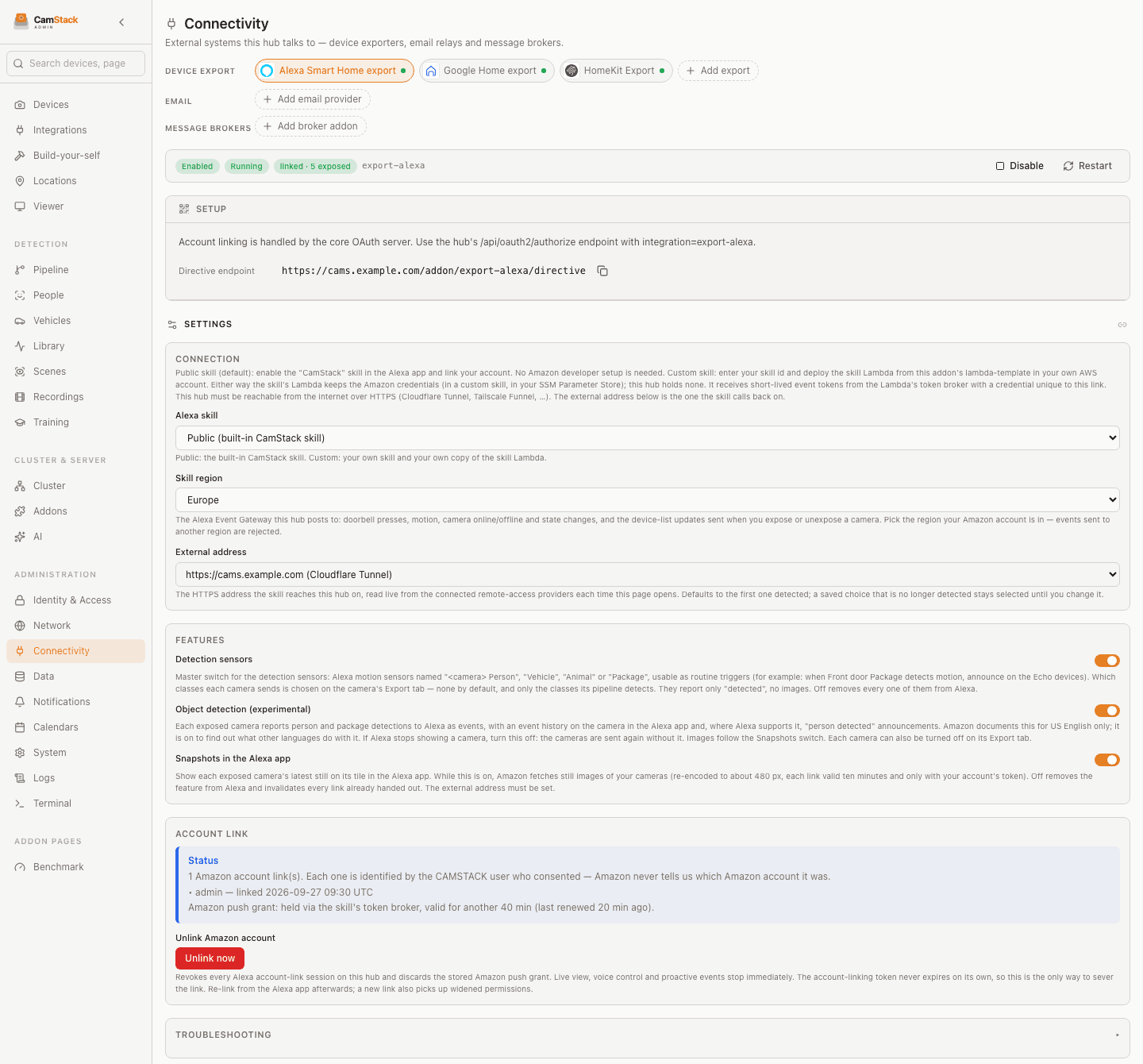
- Connection — Alexa skill, Skill region, your Alexa skill id (custom skill only) and the External address.
- Features — the options below.
- Account link — who is linked, and Unlink now.
- Troubleshooting — closed until you open it: Re-sync now, Remove ids… and Rotate credential. See Managing the link.
With a custom skill, a fifth section, Custom-skill security, holds the ingress token. See Your own Alexa skill.
Every button shows what it did, or why it could not, right under it.
Integration options
In Features:
| Option | Default | What it does |
|---|---|---|
| Detection sensors | On | Allows detection sensors. Which classes each camera sends is chosen on its Export tab. Off removes every detection sensor from Alexa. |
| Snapshots in the Alexa app | On | Shows each camera's latest picture in the Alexa app, and attaches pictures to object detection events. Off removes the feature and invalidates every picture link already handed out. |
| Object detection (experimental) | On | Sends person and package detections to Alexa as camera events, with their history. Off sends every camera again without the feature. |
Detection sensors
On a camera's Export tab, Detection sensors in Alexa lists the classes that camera's detection pipeline finds: Person, Vehicle, Animal, and Package only on a camera with a package zone. Alexa gets one sensor for each class you select there, named after the camera, such as Front door Person. Nothing is selected until you choose.
Removing a class, or removing the package zone from a camera that sends Package, deletes that sensor from Alexa, together with any routine built on it.
A sensor reports detected while Dominevo tracks an object of its class on that camera, and clears once the object has left. Alexa holds a detection for at least 30 seconds. Use the sensors as routine triggers in the Alexa app, for example: When Front door Person detects motion, announce "someone is at the door" on the Echo devices and show the front door camera on the Echo Show.
The sensors carry no pictures. Your own pipeline settings decide what counts: the zones, classes and thresholds you set in Dominevo apply here too.
Snapshots
With Snapshots in the Alexa app on, the Alexa app and Echo devices can show a camera's latest picture on its tile.
Pictures of your cameras go to Amazon. Each time the Alexa app or an Echo shows a camera tile, Amazon fetches a still image from your hub. The image is reduced to about 480 pixels, its link is valid for ten minutes and works only with your account's sign-in. Turn the option off if you do not want images to leave your hub.
Snapshots need the hub's public HTTPS address, like the rest of the exporter.
Object detection
Experimental. Amazon documents object detection and the camera event history for US-English accounts only. In other languages, Alexa may ignore the events, or may stop showing the camera. If a camera disappears from the Alexa app after you enable this, turn Object detection (experimental) off; if it has not come back after a minute, select Troubleshooting → Re-sync now. The camera comes back without the feature.
With Object detection (experimental) on, each exposed camera reports to Alexa when Dominevo detects a person or a package (packages only on a camera with a package zone):
- one event per detected person or package, at most one every 30 seconds for the same one;
- the camera's event history in the Alexa app, read from Dominevo's own detections, ten at a time;
- with Snapshots in the Alexa app on, a picture of the scene and a close-up of the detected person or package, each link valid for ten minutes and only with your account's sign-in.
In the Alexa app you can turn person or package events off for a camera; that choice is kept. Deleting events in the Alexa app hides them from Alexa only: Dominevo keeps its recordings and detections.
Each camera can be turned off on its Export tab.
Per-camera options
On a camera's Export tab, the Alexa Export section has:
| Option | Default | What it does |
|---|---|---|
| Expose to Alexa | Off | Publishes the camera. Status shows whether it is exposed and to how many linked accounts. |
| Source stream (Alexa / Echo) | Auto (closest to 720p) | Which stream profile the Echo receives. High, Mid or Low pins one. |
| Allow transcoding for Alexa | On | Re-encodes when the camera has no stream Alexa can take as it is. Off means a camera that publishes only H.265, or only a small sub-stream, cannot be viewed in Alexa. |
| Detection sensors in Alexa | None | The detection classes this camera sends as sensors. Only the classes its pipeline finds are listed. See Detection sensors. |
| Object detection in Alexa (experimental) | On | Sends this camera's person and package detections to Alexa. See Object detection. |
Locks, sensors, switches and lights have only Expose to Alexa on their Export tab. Alarm panels and doorbell devices that are not cameras are exposed from the device list in Device export.
Doorbell on an Echo Show
A doorbell press announces on your Echo devices and opens the doorbell's live view on an Echo Show. Amazon does this only when the doorbell's announcements are switched on for that device in the Alexa app:
- In the Alexa app, open Devices and select the doorbell.
- Open its settings (the gear icon).
- Turn on Doorbell Press Announcements.
If an Echo stays silent when the doorbell is pressed, check this setting first. Amazon announces at most one press every 30 seconds per doorbell.
Video on an Echo
Echo devices play H.264 between 480p and 1080p. An Echo Show screen is about 1280×800, so Auto aims for 720p.
- A camera with an H.264 stream in that range is sent as it is.
- A camera that publishes H.265 but also has an H.264 stream of at least 480p sends the H.264 stream, with no re-encode. It starts faster, at a lower resolution.
- Otherwise the hub re-encodes to H.264 at 1280×720, 25 frames per second, about 2.5 Mbit/s. This uses the hub's CPU, with hardware decoding where available, for as long as someone is watching.
An Echo does not change quality during a session. If Auto picks a stream that looks poor or stutters on your network, pin a profile on the camera's Export tab.
Publishing an H.264 stream from the camera avoids re-encoding altogether. See Streams.
Limitations
- Video goes directly between the Echo and the hub, not through your tunnel and not through a TURN relay. Echo devices on your home network work. Viewing a camera in the Alexa app on a phone away from home may not start.
- Alexa expects an answer within a few seconds. A camera that is slow to start its stream, such as a sleeping battery camera, can time out on the first try.
- An alarm panel that needs a code can be disarmed with a PIN, but not armed by voice, because Alexa's arm request carries no code.
- An offline camera answers "device not responding" straight away instead of trying to start a stream.
- Two-way audio needs a camera with an intercom, and only one person can talk to a camera at a time: a talk session from the Dominevo viewer and one from an Echo on the same camera compete.
- Changing a camera's stream option takes effect from the next session, not during one.
Managing the link
All of these are in the Alexa exporter's settings, and administrators only.
| I want to | Do this |
|---|---|
| See who is linked and whether events reach Amazon | Read Account link → Status. It names the Dominevo user who approved each link, and whether the Amazon push grant is held. The grant renews on its own; EXPIRED means renewal has been failing. |
| Use a different Amazon account, or start over | Select Account link → Unlink now, then link again from the Alexa app. This stops live view, voice control and events immediately. It is the only way to end a link, which otherwise never expires. |
| Make Alexa match the devices you expose | Select Troubleshooting → Re-sync now. It sends every exposed device to Alexa again, and removes the devices you stopped exposing whose removal did not get through. It reports how many it sent and removed. It needs a linked account and is safe to repeat. |
| Remove a device Alexa still shows but Dominevo no longer knows about | Select Troubleshooting → Remove ids… and type its endpoint ids: a camera is its device id, such as 54; its parts add a suffix, such as 54__privacy. The button reports whether every linked account accepted the removal. Routines that use the device lose it. |
| Replace the hub's credential at the skill (for example, a settings backup may have leaked) | Select Troubleshooting → Rotate credential. The old credential stops working at once; the link stays. |
| Move the hub to a new public address | Select the new address under Connection → External address, then Unlink now and link again. Existing links keep the address they were made with. |
Raw link sessions are also listed under Administration → Identity & Access. Revoking one there leaves Amazon's side of the link in place, so prefer Unlink now.
Using your own skill
Choose Custom skill under Alexa skill to run your own Smart Home skill and AWS Lambda instead of the built-in one. You need an Amazon developer account and an AWS account. The full walkthrough — the Lambda, the skill, account linking, Send Alexa Events, the values Dominevo needs, the ingress token and common errors — is in Your own Alexa skill.
Then
- Outside services — account linking and where the grant appears in Identity.
- Remote access — the public address Alexa needs.
- Network — the hub's addresses and their roles.
- Exporters — choosing what each exporter receives.
HomeKit
Publishing Dominevo cameras and devices to Apple Home — what appears, the network it needs, pairing, the shared bridge, HomeKit Secure Video and viewing away from home.
Your own Alexa skill
Running Dominevo's Alexa export through your own Smart Home skill and AWS Lambda — the Lambda, the skill, account linking, Send Alexa Events, the values Dominevo needs, testing and common errors.