

TURN for live video
Why live video fails on mobile networks without a relay, setting up the Cloudflare TURN addon with a Cloudflare Realtime TURN key, checking that it works, what it costs, and running your own relay with coturn.
This page shows you how to make live video play away from home, on mobile data and behind strict networks, by adding a TURN relay.
Why live video needs a relay
Live video does not travel through your tunnel or Tailscale route. It uses WebRTC, which needs its own UDP connection between the viewer and the hub (see Live video).
At home that connection is direct. Away from home, both ends usually sit behind a router doing address translation (NAT). Often the two can still find a way to each other. Often they cannot:
- Mobile networks almost always put phones behind carrier-grade NAT.
- Symmetric NAT, common on corporate, hotel and some home routers, gives each connection a different public port, so the other side cannot predict where to send.
- Firewalls that block outgoing UDP stop it entirely.
- Docker bridge networking hides the hub's own UDP ports.
A TURN server is a relay on the internet that both ends can reach. When no direct path connects, the video goes viewer → relay → hub instead.
The tell-tale symptom: the app works, the camera tile says it is connecting, and no picture ever appears, while the same camera plays fine on Wi-Fi at home.
This is also why live video is not carried by a Cloudflare Tunnel: the tunnel only forwards HTTP requests to the hub, and live media never goes through it. Only the relay can carry it.
You cannot fix this with a port forward. Each live session opens its own random UDP port on the hub, so there is no fixed port to forward.
How Dominevo uses TURN
- TURN providers are addons. Each one supplies a list of STUN and TURN servers. You can enable several; every live session receives the combined list.
- The relay is a fallback. Viewers try direct paths first and use the relay only when nothing else connects, so at home it carries nothing.
- Without any provider, live video works only where a direct path exists.
The suggested default is Cloudflare TURN on the free tier. It needs no
machine of your own and no domain, and its package is the same
@dominevo/addon-cloudflare that carries the Cloudflare
Tunnel. More free-tier providers are planned;
they will appear on the same tab.
Two providers are available today:
| Provider | Package | What it is |
|---|---|---|
| Cloudflare TURN Relay | @dominevo/addon-cloudflare | Cloudflare's hosted relay. Nothing to run yourself. Recommended. |
| Static / coturn TURN | @dominevo/addon-static-turn | A relay you run yourself, such as coturn. |
Both appear on Administration → Network → TURN Servers. Select Add provider there to install one.
Set up Cloudflare TURN
1. Create a TURN key in Cloudflare
You need a free Cloudflare account. No domain is required.
- In the Cloudflare dashboard, open Realtime → TURN.
- Create a TURN key (Cloudflare also calls it a TURN app) and give it a name,
for example
camstack. - Cloudflare shows two values: the Turn Token ID and the API Token. Copy both. The API token is shown only once.
The Turn Token ID is not your Cloudflare Account ID. Both are long hex strings. Pasting the Account ID is the most common mistake, and the test then reports that Cloudflare cannot find the key.
The dashboard layout changes from time to time. Cloudflare's own guide is Generate TURN credentials.
2. Configure it in Dominevo
- Open Administration → Network → TURN Servers.
- If Cloudflare TURN Relay is not listed, select Add provider and install it.
- Select the provider to open it, and fill in:
- TURN Key ID — the Turn Token ID.
- API Token — the API token.
- Under Test credentials, select Test. On success it reports how many server addresses Cloudflare returned and that credentials came back.
- Make sure the provider is Enabled.
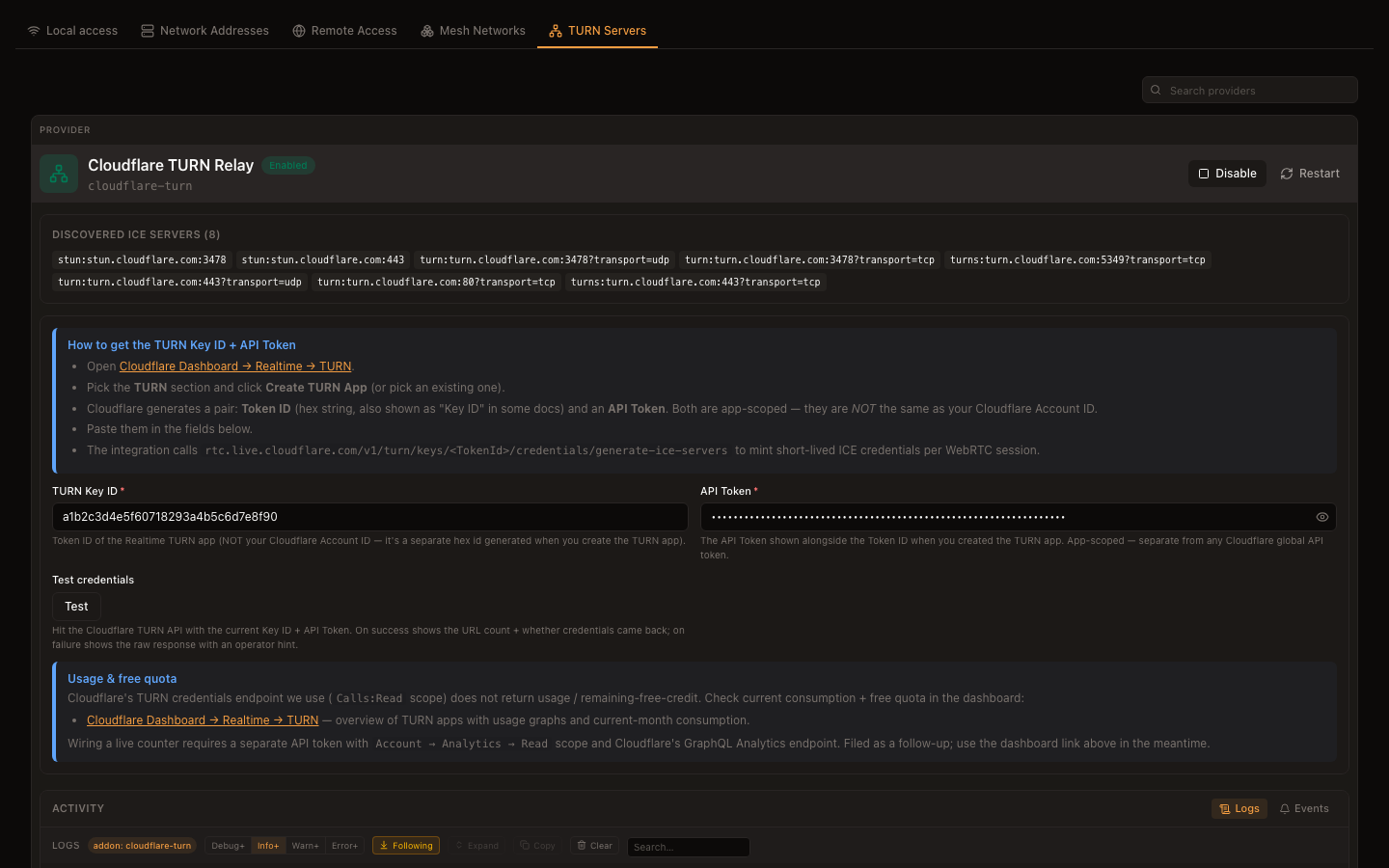
Dominevo never hands your API token to viewers. For each session it asks Cloudflare for short-lived relay credentials, valid for 24 hours, and gives those out instead.
| Test result | Meaning |
|---|---|
A count of URLs, credentials true | Working. |
| 404, "cannot find specified key" | The TURN Key ID is wrong, usually the Account ID instead of the Turn Token ID. |
| 401 or 403 | The API Token is wrong or was revoked. Create a new key. |
3. Check that it works
On the TURN Servers tab. The provider lists its servers under
Discovered ICE servers, and Combined ICE server list at the bottom
shows what every live session receives: stun: entries, then turn: and
turns: entries with a user name. Passwords are never shown. Refresh
reloads the list.
From a phone. Turn off Wi-Fi, open the app on mobile data, and open a camera. The picture should appear within a few seconds.
With Network diagnostics. In the admin UI, open Network and select the Diagnostics tab. It runs in the browser you open it in, so open it on the phone, on mobile data, to test the path a remote viewer takes.
- Test each endpoint probes every STUN and TURN server on its own. A TURN row reading allocated and connected proves the relay is reachable, the credentials work and the relay forwards traffic. The row also shows the relay protocol (udp, tcp or tls) and the round-trip time.
- Check NAT tells you whether your network gives one public mapping for every destination. Symmetric NAT means only a TURN relay can reach this device, so live video away from home depends on TURN.
- Hub session test opens a real live session to a camera you pick, twice: first with every connection type, then relay only. Each run reports what addresses the hub offered, how far the connection got (ICE, then DTLS, then the first frame), what the hub sent against what the browser received, and a verdict naming the layer that failed. A hub that offers only LAN or Tailscale addresses is flagged, because a relayed viewer cannot reach it.
The test uses a low-resolution stream of the camera so a large keyframe does not decide the result, and keeps two short sessions open for about 30 seconds.
Cost and the free tier
Cloudflare bills TURN by the data it relays, and gives a free monthly allowance. Read from Cloudflare's TURN FAQ on 2026-10-16: there is a free tier of 1,000 GB before any charges start, then $0.05 per GB; Cloudflare's STUN service is free and unlimited. The allowance is shared with other Cloudflare Realtime products on the same account, see Cloudflare's pricing. Check both pages for current figures.
Only relayed sessions count, and only the traffic Cloudflare sends out to the viewer. At home nothing is relayed.
Rule of thumb: a live stream at 2 Mbit/s is about 15 MB a minute, so 1 GB relays roughly 67 minutes of one camera. The free 1,000 GB is then about 66,000 minutes, over 1,100 hours of one remote camera, every month. A 4 Mbit/s stream halves that. The key's usage is shown in the Cloudflare dashboard under Realtime → TURN; Dominevo cannot show it (the credentials it holds cannot read usage).
Run your own relay (coturn)
Choose this only if you would rather not use Cloudflare. You need a machine with a public IP address that both your phones and the hub can reach, typically a small cloud server. A relay inside your home network only helps if you forward its ports, which defeats much of the point.
On the relay, install coturn with long-term credentials, and:
- open or forward UDP
3478, and the relay port range you configure, for example49152–49200; - set
external-ipto the machine's public address if it sits behind NAT; - set a user name and password.
Then in Dominevo, on Network → TURN Servers, install and open Static / coturn TURN:
| Setting | What to enter |
|---|---|
| TURN / STUN URLs | Required. One per line or comma-separated, for example turn:203.0.113.20:3478?transport=udp and turn:203.0.113.20:3478?transport=tcp. Add a stun: URL if you want one. |
| Username | The coturn user. |
| Credential / password | Its password. |
A static relay hands its password to every viewer. Any signed-in user can read it from their browser and use your relay for other traffic. Use a dedicated user for Dominevo, and change the password if someone loses access. Cloudflare TURN avoids this with short-lived credentials.
Check it the same way as Cloudflare TURN, above.
Then
- How networking works — the three paths live video can take.
- Remote access — the route for the app itself.
- Network troubleshooting — black video and other symptoms.
- Network settings → TURN Servers — the tab itself.
Custom domains and TLS
Using your own domain with Dominevo — through a Cloudflare Tunnel or your own reverse proxy — and the hub's certificate — the built-in local CA, trusting it on your devices, uploading your own certificate, and what changes for app links, notification taps and Alexa.
Network troubleshooting
Symptom, cause and fix for network problems — black live video away from home, video on Wi-Fi but not on 4G, the app cannot connect from outside, notification taps opening the browser, Alexa linking failing, HomeKit not finding the hub.