

Connect the app
Getting the Dominevo viewer — in the browser from your own hub, or as the iOS and Android app — signing in to your hub, pairing a phone with a QR code, switching between hubs, and how the app finds the fastest route to it.
This page shows you how to open the viewer on your phone or in a browser, sign in to your own hub, and how the app chooses which address to use.
Your hub, and nothing else
The viewer has no Dominevo account and no Dominevo cloud behind it. You give it the address of your own hub, and from then on it talks to that hub directly: your login, your cameras, your events and your video never pass through anyone else's server.
The one outside service the native app contacts is its update service, which delivers new versions of the app itself.
Get the viewer
In a browser — nothing to install
Your hub serves the web viewer itself, on the same address and port as the admin UI:
https://<your-hub>:4443/viewer/camstack/https://<your-hub>:4443/viewer redirects there too. The browser tab is
titled Dominevo Viewer. If this browser is
already signed in to the admin UI, the viewer picks up that session and opens
straight away; if not, you are sent to the hub's login page and brought back.
On a phone, add it to the home screen to use it like an app.
On a phone or tablet
Getting the native app
- iPhone and iPad: distributed through Apple TestFlight. Join the TestFlight beta
- Android: beta APK, installed directly. Your phone asks once to allow installing apps from the browser. Download the Android beta (APK)
The native app is the same viewer as the web one. Once installed, it receives new versions over the air; you rarely need to reinstall it.
Sign in
The first screen asks for a Server URL: the address you use to reach your
hub, for example https://<your-hub>:4443. Then sign in in one of two ways.
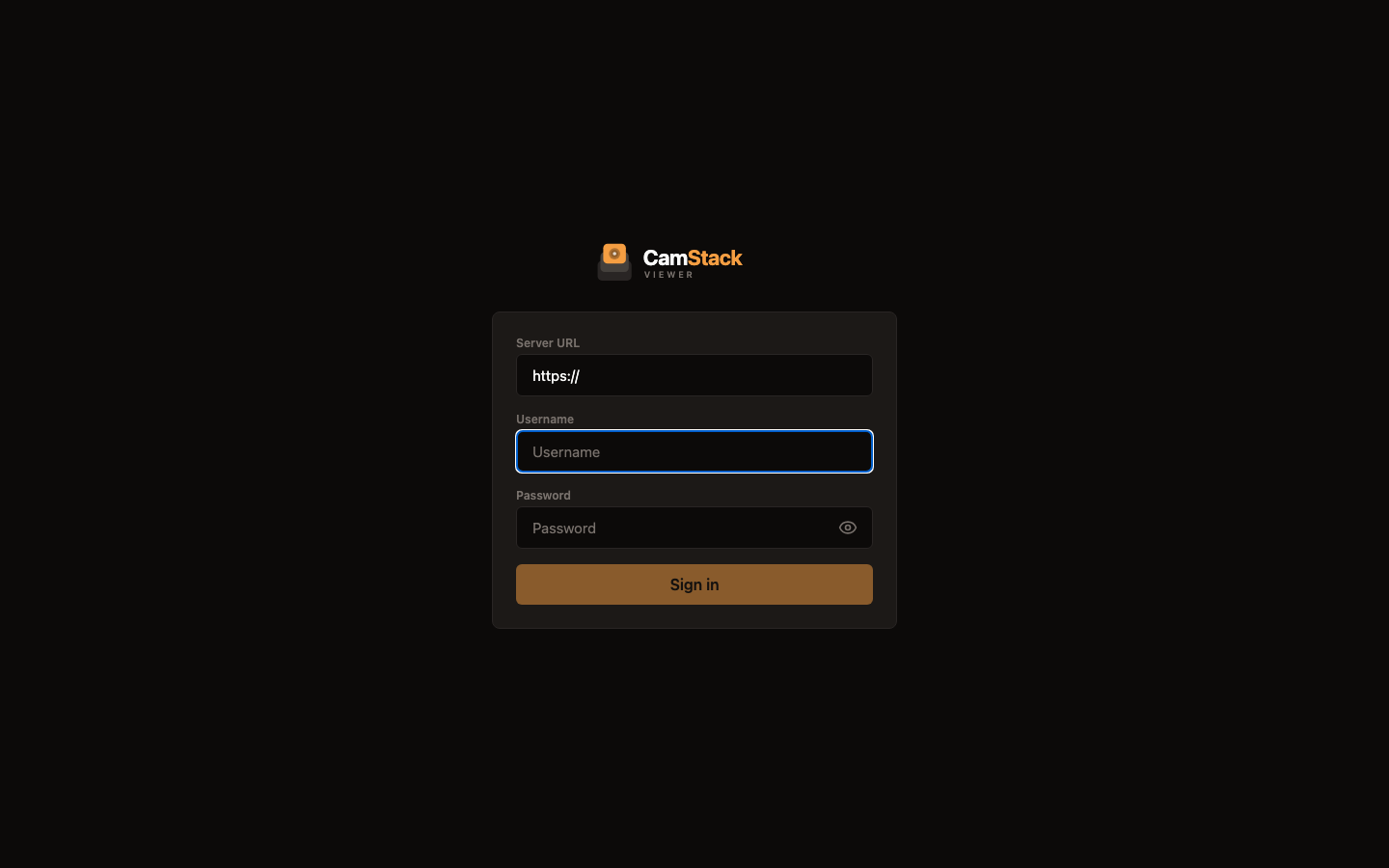
Username and password
Type the username and password of your Dominevo account. If the account has two-factor authentication, the app asks next for the 6-digit code from your authenticator app.
In a browser, pressing Enter in any field signs you in. On a phone, the keyboard's return key moves to the next field, and signs you in from the last one.
If the hub does not answer
When the app gets no answer from the address you typed, it says so: Can't reach <address> — check the address and that the hub is running. It gives up after 15 seconds.
In a browser, the address also needs a certificate the browser trusts. The message then suggests an address with a valid HTTPS certificate, such as your tunnel or Tailscale address. See Remote access.
Sign in with Dominevo
Sign in with Dominevo opens your hub's own login page in a browser sheet. Sign in there with whatever your hub offers — a passkey, single sign-on through your OIDC provider, an email link, or a password — and the sheet closes and the app is signed in.
Your password is never typed into the app. The hub hands the app a one-time code that expires after a minute, and the app exchanges it with the hub for its own session.
Prefer Sign in with Dominevo on a phone. It is the only way to use a passkey or single sign-on from the app, and it works with every sign-in method the hub has, including ones added later.
Accounts and what each person may see are managed by an administrator — see Giving other people access.
How the app reaches your hub
A hub usually has several addresses: one on your home network, perhaps a tunnel or a Tailscale address for when you are out. You only type one of them.
Once signed in, the app asks the hub for every address it can be reached on — local network, VPN such as Tailscale, public tunnel — remembers them, and tries them side by side. The fastest one that answers wins. It runs the comparison again every time the connection is re-established — after you switch networks, for instance — so arriving home moves you from the tunnel to the direct local connection without you doing anything.
Settings → Network shows what is happening:
| Route in use | The address the app is connected through right now, and whether it is a direct local route or a public tunnel. |
| Preferred route | Automatic by default. Pick a specific address to pin the app to it. |
| Diagnose LAN routes | Tests whether each local address answers, and reports how many did. |
| Re-probe routes | Runs the comparison again now. |
On iPhone, allow Local Network access when the app asks. Without it the app cannot reach your hub's local address and stays on the tunnel even when you are at home.
The app can only choose among routes that exist. For reaching your hub from outside the house at all, see Remote access. The details of the comparison, and why a browser behaves differently at home, are in How the app picks a route.
An administrator decides which addresses the hub offers, on the admin
Network page. At home, the app connects by default over plain HTTP on port 4480,
because a phone app cannot accept the hub's private certificate. See
Network.
Opening a notification
Tapping a notification opens the Dominevo app on that camera and moment,
when the app is installed. Without the app, it opens the web viewer at
camstack.zentik.app. The link carries your hub's public address, so the
right hub opens.
How the link finds your hub, and how an administrator can make taps open the hub directly instead, is in Where a notification tap goes.
Pair a phone with a QR code
In the admin UI, open My access (in the profile section at the bottom of the sidebar). The Connect a phone card shows a QR code and the same link as text, ready to copy.
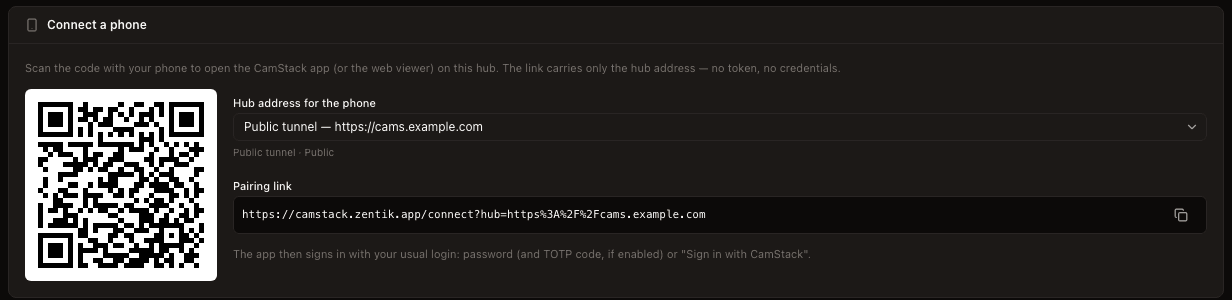
- Under Hub address for the phone, pick the address the phone should use.
The card starts on your hub's Public endpoint (see
Roles) and lists every address your hub can be
reached on, best first: a public tunnel, then Tailscale, then your local
network. It warns you when an
address is plain
http://, or when your hub thinks a phone is unlikely to reach it. - Scan the QR code with the phone's camera, or send the link in a message.
- Sign in on the phone with your usual login: username and password (and the 6-digit code, if you use two-factor authentication), or Sign in with Dominevo.
With the app installed, the link opens the app with your hub already filled in. Without the app, it opens the viewer in the browser.
The link has this shape:
https://camstack.zentik.app/connect?hub=https://<your-hub>:4443It carries only your hub's address: no password and no sign-in. Someone who photographs your screen learns the address, and still has to sign in.
camstack.zentik.app serves the viewer itself. It runs in your browser and
talks to your hub directly. No video, credentials or events go through it.
More than one hub
The app can stay signed in to several hubs, and you switch between them without signing out.
- Settings → Servers lists the hubs saved on this device: which one is active, when you last used each, and which ones are signed out. Tap one to switch to it. A hub you are signed out of opens its sign-in screen first.
- Add server opens the sign-in screen for another hub. The hub you are on stays signed in.
- To remove a hub, use its remove button. Its sign-in is deleted from this device; the other hubs keep theirs.
Each hub keeps its own sign-in. Signing out of one does not sign you out of the others. After a sign-out, the sign-in screen lists the hubs you are still signed in to, so you can pick one.
A connect link never switches hub on its own. If it names a hub you are already signed in to, the app asks whether to switch. If it names a new hub, the app opens the sign-in screen for it, and your current hub stays signed in.
Then
- The viewer — what each tab does.
- Pair your phone with a device certificate — stay signed in without a password.
- Remote access — reaching the hub from outside.
- Network — the addresses your hub offers the app.
- Apps — accounts, permissions and sharing.
Overview
Two interfaces — the admin UI you configure with, and the viewer you actually use day to day — plus who is allowed to see what.
Pair your phone with a device certificate
Keep the Dominevo iPhone app signed in without a password, using a certificate your hub issues to that one phone. How to pair from the app, what the hub asks you to confirm, where an administrator sees and revokes the phone, and what to do when pairing fails.