

Training data
Building an annotated corpus from your own cameras — correcting what the detector drew, marking false alarms, hard negatives, collections, and how that becomes training labels.
A detector improves fastest on the frames where it was wrong on your cameras: the jacket it called a person, the courier it never boxed. The Frames tab on the Training page is the corpus — every annotated copy you own — and the place you correct it before a training job uses it live.
There is no frozen “dataset version”. A job picks collections and a work-state rule at start time; see Training.
Where in the Admin
| Task | Where |
|---|---|
| Browse and annotate the corpus | Detection → Training → Frames (/addon/training?tab=frames) |
| Send a frame from a recording | Devices → camera → Recording → timeline → Send frame to training |
| Mark a track for the corpus | Event feed ★ (staging), then open it from Frames |
| AI profiles for the AI assist | AI settings (profiles that can read images) |
Training data is admin-only. The viewer Library can open a lighter annotate path for the same corpus; the full assist and export live in the admin Training page.
How the corpus is structured
| Idea | Meaning |
|---|---|
| Frame copy | Selecting a track frame or sending a recording still copies the JPEG into the corpus. The copy survives after the recording is deleted. |
| Collection | A named set of frames (“false-alarm jackets”, “missed at night”). A frame can sit in several collections. |
| Annotation | One row per box on a frame. Two kinds: subject (teach “this is a …”) and model error (teach “do not detect here”). |
| Complete | Operator flag: every real subject on the frame is handled (boxed as a subject, or deliberately left empty as a hard negative). Not inferred from box count. |
| Work state | Derived for filters and jobs: unannotated (no saved boxes), annotated (boxes, not complete), complete. |
Where frames come from
- Tracks you marked for training. Mark a track with ★ in the event feed; it appears in the corpus under staging-related filters. Selecting a frame copies it so the frame survives even after the recording is deleted.
- Recordings. On a camera's recording timeline, stop on the moment and press Send frame to training. Dominevo takes the frame at full resolution and adds it to a collection you pick or create. This is how you capture what the detector missed: there is no event and no track for those moments.
Correcting a frame
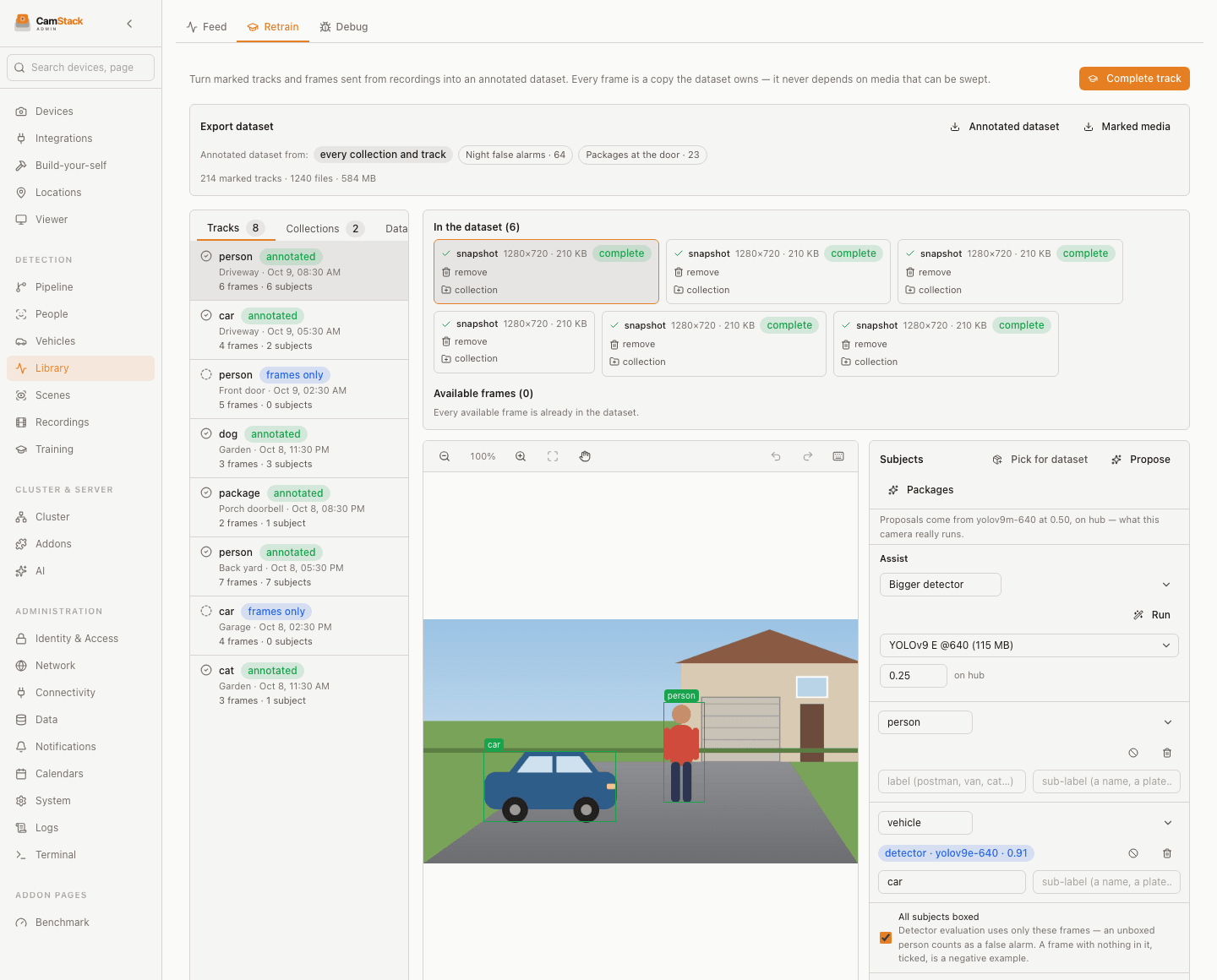
A frame opens with the boxes the pipeline actually drew on it, as drafts (dashed). Every machine-made box is a draft until you decide:
- Accept it (
A), correct it (move, resize, change the class — that also accepts it), or delete it. - Draw any subject the detector missed by dragging on the frame.
- Tick All subjects boxed / Complete (
C) when every real subject is handled — or when the frame is intentionally empty (see hard negatives below).
Drafts are never saved. Save (Ctrl/⌘ + S) stores only what you accepted
or marked as a model error.
False alarms — there is no “not a person” label
Dominevo does not have a class called background, or an annotation that means “NOT person”. A false positive is taught by omission.
Example: a jacket is detected as a person.
- Keep the pipeline box as a draft (or draw over the same region).
- Mark it as a model error (
E). The box stays in the corpus with the model and score that produced the phantom (so you can audit it later). - Add real subject boxes for anything that should be detected.
- Mark the frame Complete when every real subject is handled.
In training, a model-error region is never written as a positive YOLO label. The trainer learns that patch as background because no subject box covers it. Deleting the phantom box has the same training effect, but loses the audit row that says the omission was intentional.
Wrong class (car labelled person) is different: keep a subject box and set the correct class — that is a relabel, not a model error.
Hard negatives (empty scenes)
A frame with no subject boxes, marked Complete, is a hard negative: “there is nothing here to detect.” The trainer writes an empty label file for it. Use this for empty driveways, static scenes that still false-alarm, or frames where you only left model-error marks and no real subjects.
Incomplete frames (not Complete) that still carry at least one annotation can enter training for those boxes, but YOLO has no ignore region — an unboxed person on an incomplete frame can be learned as background. Prefer Complete frames for evaluation and for honest hard negatives.
Classes on a subject box
| Tier | Examples |
|---|---|
| Macro class (closed) | person, vehicle, animal, package, face, plate |
| Label (optional) | car, dog, postman — vocabulary under the macro |
| Sub-label (optional) | a named identity |
Package, face and plate are stored for enrichment work; the root person / vehicle / animal trainer ignores those macros when building YOLO labels.
Box editing works with a mouse or a finger: drag a handle to resize, drag a box to move it, pinch or use the wheel to zoom on small subjects, and use the hand tool (or hold Space) to pan.
| Key | Action |
|---|---|
| ← / → | Previous / next frame |
| 1 – 6 | Class: person, vehicle, animal, package, face, plate |
| A / Shift + A | Accept the selected draft / all drafts |
| E | Toggle model error |
| C | Mark complete (all subjects boxed, or empty hard negative) |
| Delete | Delete the selected box |
| Tab / Esc | Next box / deselect |
| Ctrl/⌘ + Z, Shift + Z | Undo, redo |
| + / − / 0 | Zoom in, out, fit |
Machine assist
The Assist panel proposes more drafts. Pick the engine for each run:
- Bigger detector — a larger model from the catalog of the node that runs this camera's detection, run on that node. It finds subjects your production model misses, at a lower confidence floor.
- AI vision — a vision-capable AI profile lists the objects of the classes you choose and reviews the boxes already on the frame: a box it doubts gets an amber warning with its reason ("this is a plant").
- Both — the bigger detector first, then the AI reviews its boxes too.
Everything the assist returns is a draft or a warning; nothing is accepted for you.
An AI profile that runs outside your home (a cloud service) is labelled cloud. Each run with it asks for confirmation before the frame is sent, and names where it goes. Local profiles (a model on your own machine or network) never send the frame out.
Collections
A collection is a named set of frames — "missed at night", "false-alarm jackets". Frames from recordings always belong to at least one collection; a frame copied from a track can be added to collections from the Frames UI. A frame can be in several collections.
Removing a recording frame from its last collection, or deleting that collection, removes the frame and its boxes. Frames copied from tracks stay in the corpus until you deselect them.
Export and what a job uses
Export on the Frames tab downloads an annotated archive (JPEG copies +
annotations.json) for the current filters — useful for inspection offline.
A training job does not freeze a version. At plan/start it resolves a live selection: which collections, and which work-state rule (by default only complete frames). That set is what becomes the YOLO layout in the cloud trainer: subject boxes → label lines; model errors → no line; complete empty frames → empty label files (hard negatives).
Models and licenses
The models Dominevo offers for each detection step, and the license each one ships under.
Training
Fine-tune the person/vehicle/animal detector on your annotated corpus in a GPU cloud you choose, compare it with the model your cameras run, and put it on cameras only when you decide to.